GA4 Duplicate Transactions on Shopify: How to Find and Fix Them

When GA4 shows more purchases than your Shopify orders: how to find the double-counted orders in an exploration, a table for narrowing down the cause, how GA4's deduplication actually works, and how to fix it by sending purchases from one route.
GA4 shows more purchases than your Shopify orders, and revenue is higher than in Shopify too. When that happens, suspect duplicate transactions: the same order recorded in GA4 two or more times.
We build a Shopify app that recovers purchases missing from GA4, and along the way we’ve seen plenty of stores with the opposite problem: too many purchases. Double counting makes your conversion rate and ad results look better than they are, and budgets and bids get set from those numbers. Because the numbers look good, nobody questions them, and they tend to stay that way.
This article covers how to check whether GA4 is double counting purchases, how to narrow down the cause, how GA4’s deduplication works, and how to fix it. It assumes a Shopify store, but the checks and the deduplication rules apply to any ecommerce site. Specs follow Google’s and Shopify’s documentation as of October 2026. If you have too few purchases instead, start with GA4 Not Tracking All Shopify Purchases?
A few terms used in this article:
- Measurement ID: the ID starting with G- that identifies which GA4 property receives the data
- Stream: the entry point in GA4 that receives data. An online store usually has one web stream
- Client ID: the identifier GA4 assigns to each browser. GA4 uses it to tell whether two events come from the same user
How to tell if GA4 is double counting purchases
Tell whether GA4 is double counting by how many times each transaction ID (the ID that identifies an order) is recorded, not by comparing totals. With totals alone, missing purchases and duplicates can cancel each other out and look like a match.
First, look for these symptoms:
| Symptom | Likelihood of double counting | Other possible reasons |
|---|---|---|
| GA4 purchases exceed Shopify orders | High | You’ve excluded canceled orders from the Shopify side of the comparison |
| GA4 purchase revenue is close to double Shopify sales | High | Tax and shipping differences alone won’t double it |
| Purchases jumped suddenly on a particular day | High. Check whether an app or tag was added that day | Ads or a sale |
| Conversion rate looks unusually high compared with other metrics | Medium | You’re sending purchases with no visit, such as subscription renewals |
Shopify and GA4 treat tax, shipping, refunds and time zones differently, so a gap of a few percent happens without any double counting. Those differences are covered in Other reasons Shopify and GA4 revenue don’t match. Suspect double counting when the gap is large and one-sided, or when it started on a specific day.
How to find duplicate transactions in a GA4 exploration
You can find double-counted orders by showing Transactions per transaction ID in a GA4 exploration. Any ID with 2 or more is an order recorded more than once. In GA4 explorations, the dimension is called Transaction ID.
- In GA4’s left menu, open Explore and choose Blank. Leave the technique as Free form.
- Click + next to Dimensions, check Transaction ID in the Select dimensions dialog, and click Confirm at the top right. Do the same under Metrics for Transactions and Purchase revenue.
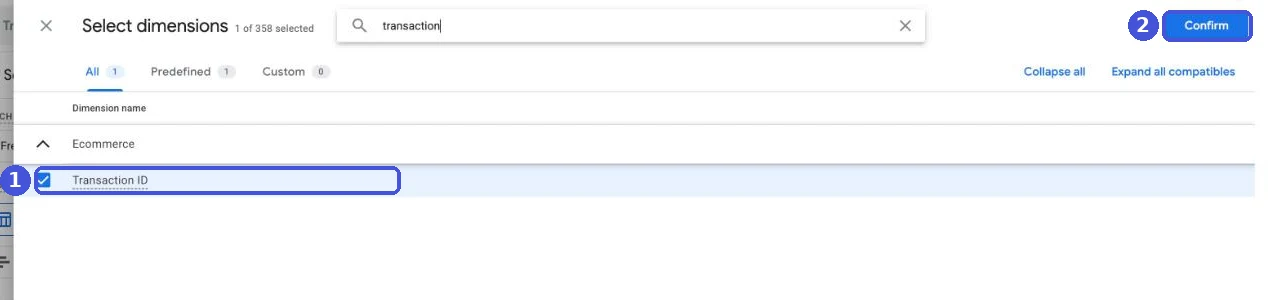
- Drag Transaction ID from the left panel into Rows, and Transactions and Purchase revenue into Values. Set the date range to the period you suspect. GA4 needs time to process data, so leave out the last day or two. You can’t choose dates older than your event data retention period.
- The table shows only 10 rows at first, so raise Show rows to the maximum.
- Click the Transactions column header to sort from highest to lowest. Any ID with 2 or more was recorded at least twice.
- Check whether that ID’s Purchase revenue is double the order amount in Shopify.
A “(not set)” row means purchases arrived with no transaction ID at all. That’s a separate problem worth fixing, covered under deduplication below.
No IDs with 2 or more doesn’t mean no double counting
Not finding any ID with 2 or more transactions doesn’t rule out double counting. If the same order is sent from different routes in different ID formats, each one shows up as a separate order.
Sort the table from step 5 by the Transaction ID column and look for different formats mixed together.
| Example ID | What it is |
|---|---|
| #1001, 1001 | Order number, as shown in Shopify’s order list |
| 5678901234567 (around 13 digits) | Order ID, as shown in the URL of the order page in the admin |
| Long alphanumeric strings, or numbers with a different length from the order ID | A checkout ID or another ID that isn’t the order |
If you see both order numbers and order IDs, it’s very likely the same orders are being sent from two routes in different formats. To confirm, export your Shopify orders as CSV and match the “Name” (order number) and “Id” (order ID) columns against GA4’s IDs one by one. The matching steps are the same as in How to check for missing purchases in your store.
Tag each route with a parameter
To tell later which route a purchase came from, add your own event parameter per route. For example, add tag_source=gtm to purchases sent from GTM and register it as a custom dimension. Then you can put it next to Transaction ID in an exploration and see which routes overlap. Custom dimensions only apply to data from the day you register them, so add it as soon as you start investigating. This works for purchases you send from GTM or a custom pixel; you can’t add your own parameters to purchases sent by the Google & YouTube app.
Count the hits with a test order
Once the exploration gives you a lead, place a test order and watch how many purchase hits are sent. In Chrome’s developer tools:
- When you reach the payment step, press F12 to open developer tools and select the Network tab.
- Check Preserve log. Otherwise the list is cleared when the thank you page loads.
- Type
collectin the filter box. - Complete the order.
- Click each request and look for
en=purchasein the Payload. It may be in the payload rather than the URL, and one request can bundle several events. Note how many requests containen=purchaseand thetid=(measurement ID) of each.
Shopify’s custom pixels and app pixels send from a separate frame (the sandbox), so filter only on collect and look through the whole list. If you use server-side GTM, requests go to your own domain, so filter by that domain. Purchases sent directly from a server don’t appear in the browser’s Network tab.
Also watch GA4’s Realtime report to see how much the purchase event count goes up for one order. If you want to see each hit’s parameters in GA4 itself, Google Tag Assistant and DebugView help.
What causes duplicate purchases in GA4
Almost every case of duplicate purchases in GA4 comes down to the same order being sent from two or more routes. On Shopify, open Settings > Customer events in the admin and check whether two or more apps or pixels send to GA4. That usually reveals the cause. Work through the table from the top.
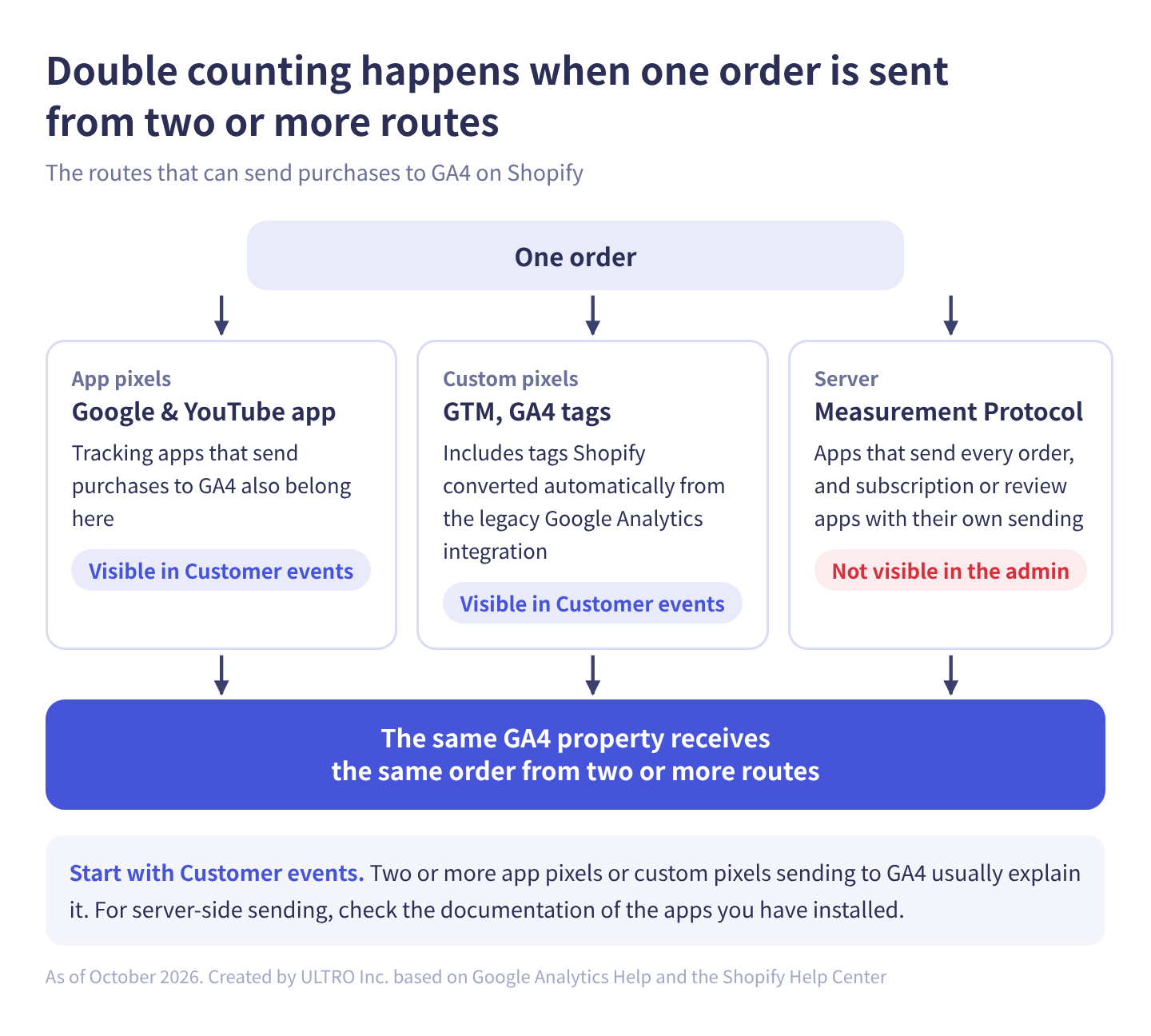
The same causes as a table:
| Cause | What happens | How to spot it | How to fix it |
|---|---|---|---|
| Google & YouTube app plus GTM or a custom pixel | Purchases from the app and from GTM or the custom pixel are both recorded | Customer events has a pixel that loads GA4 or GTM. A test order sends two en=purchase hits | Send from only one |
| A custom pixel Shopify converted automatically | The legacy Google Analytics integration’s tag was converted to a custom pixel and runs alongside the app | A GA4 custom pixel you don’t remember adding appears in Customer events | Delete it if you don’t need it |
| An additional tracking app | A tracking app that sends GA4 purchases is installed while GA4 also runs through the Google & YouTube app | Two or more app pixels in Customer events send to GA4 | Turn off GA4 sending in one of the apps |
| Different transaction ID formats | Routes send different values (order number, order ID, checkout ID), so one order becomes two purchases | An exploration shows a mix of ID formats | Use one route. If you must use two, send the same ID value |
| A tag that fires on every thank you page load | A purchase is sent each time the thank you or order status page reloads | The same ID is recorded at different times | Trigger the purchase on checkout_completed |
| The same measurement ID loaded twice | One route sends the same purchase twice | A test order sends two requests with the same tid= | Load the tag in one place only |
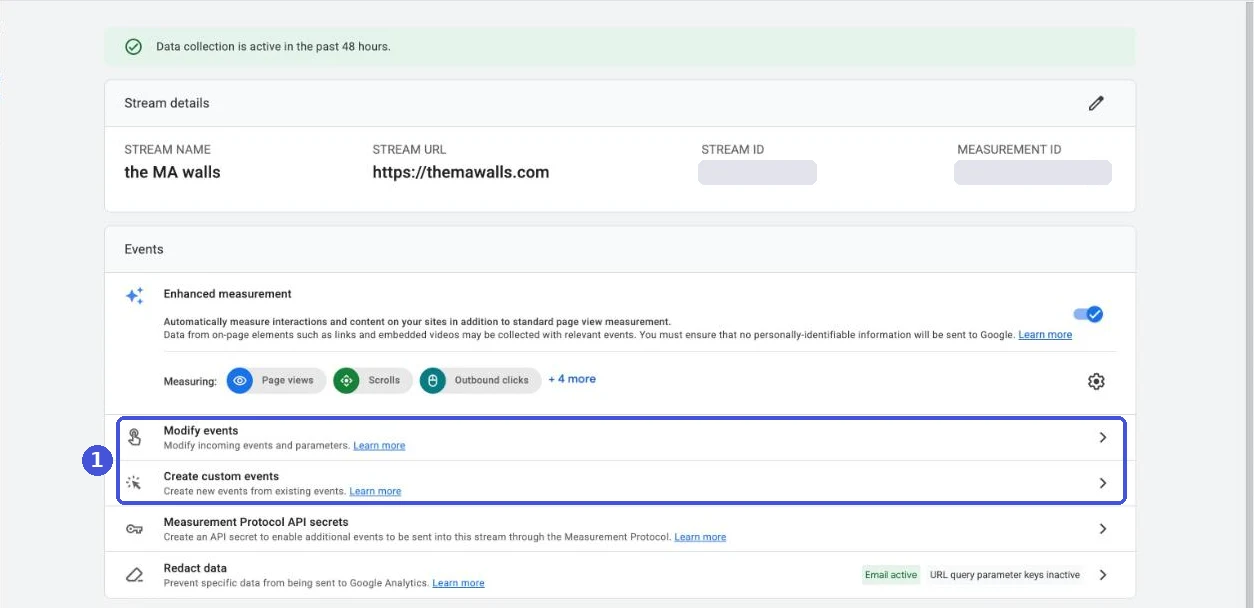
| A purchase event created in GA4 admin | Create event or Modify event rules create purchase from a thank you page page_view or similar | Open Create custom events and Modify events in Web stream details | Delete the rule |
| Server-side sending (Measurement Protocol) or other apps | An app sends every order from a server while the browser tag also sends | If server-sent events carry their own parameter, split by it | Only send orders GA4 doesn’t have from the server |
To check events created in GA4 admin, go to Admin > Data collection and modification > Data streams and select your stream to open Web stream details.
Where the Google & YouTube app and GTM or custom pixels overlap
The most common case on Shopify is GA4 through the Google & YouTube app, plus purchases sent to the same GA4 property from GTM or a custom pixel.
As of October 2026, there are two ways to put a tag on Shopify’s Thank you page: an app pixel, such as the Google & YouTube app’s, or a custom pixel added under Settings > Customer events. Checkout Additional scripts became read-only on August 28, 2025. Script-based customizations on the Thank you and Order status pages were removed when Shopify began auto-upgrading Plus stores in January 2026, and the upgrade deadline for non-Plus stores was August 26, 2026. GTM installed in your theme doesn’t run on checkout pages either.
So browser-side purchase tracking now comes down to two kinds of routes: app pixels and custom pixels.
According to Google’s help, for stores that used Shopify’s legacy Google Analytics integration and didn’t migrate in time, Shopify automatically converted the tag to a custom pixel in early 2025. Even if you don’t remember adding one, check Customer events for a custom pixel with a GA4 tag.
Google’s help says to remove duplicate tags after moving your Google tag to the Google & YouTube app. It also says you can’t set up Google Tag Manager through the app, and that running Google tags inside Shopify’s custom pixels isn’t a supported implementation, so Google support can’t help fix resulting issues.
How to set up GA4 through the app, and how to choose between the app, GTM and custom pixels, is in Shopify Google Analytics setup. How custom pixels work is covered in Shopify custom pixels.
Thank you page reloads and the order status page
If a tag sends a purchase every time the thank you page opens, a purchase is recorded each time the buyer reloads the page or opens the order status page from their confirmation email.
Per Shopify’s documentation, checkout_completed fires once per checkout, usually on the thank you page. If there’s an upsell, it fires on the first upsell page instead and doesn’t fire again on the thank you page. If you send purchases on checkout_completed, reloads basically won’t double count.
The setups that double count tend to be custom pixels that send a purchase on page_viewed after checking whether the URL is the thank you page. Open the custom pixel’s code and check that purchases are triggered by checkout_completed.
Two GA4 measurement IDs
If you find two GA4 measurement IDs, first work out whether they belong to different properties or to different streams in the same property.
- Different properties: each property gets each purchase once, so neither is double counted. Decide which one is the source of truth, though, or different people will quote different numbers
- The same measurement ID loaded in two places: if both the app and a custom pixel send to the same measurement ID, purchases are double counted
- Two web streams in one property: we couldn’t confirm in Google’s help whether purchases sent to both are deduplicated. Keeping one web stream for your store is the safe choice
Duplicates from the Measurement Protocol or other apps
The Measurement Protocol sends events to GA4 from a server, without going through the browser. If an app or system sends purchases to GA4 from a server, it can duplicate what the browser tag sends. Sending every order from the server assumes you’ve turned off the browser purchase tag. If you keep your current tag and send every order, every order the tag already captured is counted twice.
Some subscription and review apps also send their own events to GA4. Server-side sending doesn’t appear in Customer events, so check the documentation of the apps you’ve installed for any feature that sends purchases to GA4. How server-side sending works is covered in the GA4 Measurement Protocol guide.
Does GA4 deduplicate by transaction ID?
Here’s what happens when the same order’s purchase reaches GA4 twice.
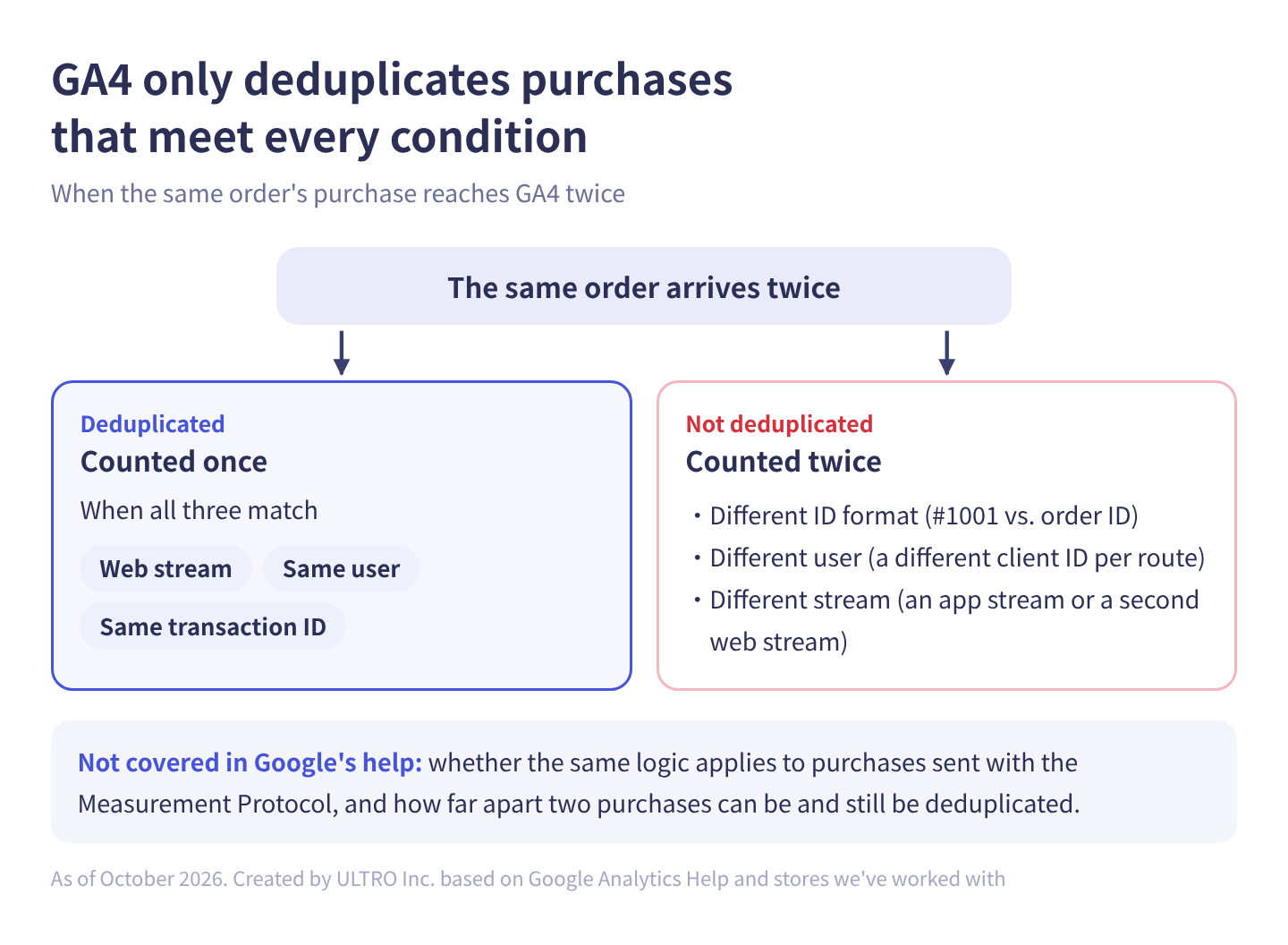
GA4 deduplicates purchases with the same transaction ID from the same user in web streams. In other words, if either the user or the transaction ID differs, they aren’t treated as duplicates. Here’s a summary of what GA4’s help article “Minimize duplicate key events with transaction IDs” says:
| Condition | What happens |
|---|---|
| Same user, same transaction ID, in a web stream | Deduplicated |
| App streams | Not deduplicated |
Empty transaction ID ("") | All empty ones are deduplicated together, so purchases drop sharply |
| The same transaction ID reused for different orders | Purchases are undercounted |
| How far apart purchases can be and still be deduplicated | Not stated |
| Purchases sent with the Measurement Protocol | Not stated whether the same logic applies |
Double-counted purchases are the ones this deduplication missed. In the client stores we’ve seen, they usually fall into one of these:
- Different ID formats: one route sends the order number, the other the order ID. To GA4, they’re different orders
- Different users: routes send different client IDs. Purchases sent from a server with a made-up client ID are treated as a different user
- Different streams: purchases go to an app stream or a second web stream
Sending an empty transaction ID does the opposite of double counting: purchases drop sharply. If your purchase count suddenly falls, check whether the ID has gone empty.
How to fix duplicate purchases in GA4
To fix duplicate purchases, send purchases from one route and use one transaction ID format. Deduplication only works when every condition lines up, so make sure each purchase is sent once in the first place.
A basic tracking check is that each action is recorded exactly once, and duplicate tags are one of the first things to rule out before increasing ad budgets. While double counting is in place, the ad results themselves can’t be trusted, so in our view it should be fixed before you touch bids or budgets.
Send purchases from one route
If the Google & YouTube app covers what you need, send purchases only through the app. As a rule of thumb:
| Current setup | Keep | Turn off |
|---|---|---|
| The Google & YouTube app covers your needs | The app | GA4 purchase tags in custom pixels and GTM |
| You really need GTM for detailed setup (custom parameters, etc.) | GTM in a custom pixel (only if you accept that Google doesn’t support Google tags in custom pixels) | The app’s GA4 connection |
| A tracking app handles server-side tracking | The tracking app | GA4 purchase tags in the app and custom pixels |
We couldn’t find a setting in Google’s help that turns off only the GA4 purchase event in the Google & YouTube app. In our experience, it’s all or nothing: GA4 runs through the app or it doesn’t. If you want to send purchases from GTM, disconnect GA4 in the app and send page views and cart events from GTM as well.
Changing routes can change how GA4 identifies users and which events you collect. Note the date you switched and don’t compare before and after directly.
Use one transaction ID format
If you can’t get down to one route right away, sending the same transaction ID value from every route at least prevents duplicates caused by different formats. On Shopify, standardize on either the order number or the order ID.
In practice, match whatever format a route you can’t change sends, such as the Google & YouTube app. Check the IDs of purchases from the app in an exploration and match that format. In custom pixel code, checkout.order.id on checkout_completed is the order ID. The documentation doesn’t say what the value looks like (digits only, or starting with gid://), so check it with a test order and make sure it matches what the app sends before putting it in transaction_id.
Even with matching IDs, purchases aren’t deduplicated if the client IDs differ by route. Treat matching IDs as a stopgap until you get down to one route.
Stop GTM from sending the same purchase twice
If you send purchases from GTM, a check that blocks the same transaction ID from being sent twice prevents double counting from reloads and the like. The usual approach:
- After sending a purchase, save its transaction ID in the browser (a cookie or local storage)
- Before the purchase tag fires, check whether the ID is already saved
- If it is, don’t send the purchase tag (in GTM, block it with an exception trigger)
Inside a Shopify custom pixel, save it with the methods Shopify provides, such as browser.localStorage. This only prevents resends from the same browser. It can’t stop purchases from a different route, so getting down to one route comes first.
Checking the fix, and what it means for Google Ads
After the fix, use a test order to check that each purchase is sent once, then check an exploration a few days later for new IDs with 2 or more transactions.
- Test order: check that developer tools show only one request with
en=purchase, and that the purchase count in GA4 Realtime goes up by one - Exploration a few days later: for the period after the fix, check that no ID has 2 or more transactions and that IDs come in one format
- Comparison with Shopify: if no ID has 2 or more transactions, IDs are in one format, and GA4 purchases are below Shopify orders rather than above them (21% below in one of our clients’ stores), the double counting is fixed and what’s left is missing purchases. If GA4 is far below, check that you didn’t turn off too many routes and that transaction IDs aren’t empty
GA4 has no way to delete recorded events to reduce counts. A data deletion request only removes parameter values, and the events still count in reports. For past periods, recalculate excluding the duplicated IDs.
If you import GA4 purchases into Google Ads, the duplicates went into Google Ads conversions too, and Smart Bidding has been learning from them. In Google Ads, if both the purchase conversion action created by the Google & YouTube app and the purchase imported from GA4 are Primary, the same purchase is counted twice. Check your conversion actions and make sure only one purchase action is Primary. More on this in Double counting and Google Ads in our Measurement Protocol guide.
Meta works differently. Meta expects the same purchase to be sent from both the browser pixel and the Conversions API, and deduplicates them by event ID. Don’t mix up the two approaches.
How to add only missing purchases without double counting
Once double counting is fixed and GA4 shows fewer purchases than Shopify, that gap is your missing purchases. Even with the Google & YouTube app, purchases a tag can’t track remain. In one client store connected through the Google & YouTube app, 21% of orders were missing from GA4 when we matched them from August to mid-September 2026. Match your own orders against GA4 to see where you stand. If you add missing purchases later, the condition is that you match by transaction ID and only send orders GA4 doesn’t have. Sending every order recreates exactly the double counting this article is about.
If you build it yourself, query the GA4 Data API (the API for pulling report data) to check whether each order’s transaction ID is already in GA4 before sending it. Some browser purchases arrive late, so wait a while after the order before checking. And keep checking after sending for transaction IDs with 2 purchases, or you won’t notice when a gap in your matching creates duplicates.
We turned that matching and checking into a Shopify app, GapFill. It’s our own product, so read with that in mind. It recovers missing GA4 purchase events server-side and works alongside your existing tags: it matches by transaction ID, sends only orders GA4 doesn’t have, and 3 to 10 days after sending checks that nothing was counted twice (pausing sending automatically if duplicates are too frequent). The missing purchases report is free. How it works, pricing and how it compares with other approaches are in GA4 Not Tracking All Shopify Purchases?
Our Shopify appGapFill: Recover missing GA4 purchase events server-sideWorks alongside your existing tags. Free missing purchases report.See GapFill →Sources
- [GA4] Minimize duplicate key events with transaction IDs (Google Analytics Help)
- Migrate your Google tag to the Google & YouTube app on Shopify (Google Analytics Help)
- Limitations of using a custom pixel for conversion measurement on Shopify (Google Analytics Help)
- Setting up Google Analytics 4 (Shopify Help Center)
- checkout_completed (Shopify.dev)
- Non-Plus - Upgrading and replacing your Thank you and Order status pages (Shopify Help Center)
- Order status script tags (Shopify.dev)
- Exporting orders (Shopify Help Center)
- Web Pixels API: browser (Shopify.dev)
- Data-deletion requests (Google Analytics Help)
- Measure single-page applications with Google Tag Manager (Google for Developers)
- Send Measurement Protocol events to Google Analytics (Google for Developers)
FAQ
Why does GA4 show more purchases or revenue than Shopify?
Usually because the same order's purchase is being sent more than once. On Shopify, a common setup is GA4 through the Google & YouTube app plus purchases from GTM, a custom pixel or another tracking app. Other causes include routes sending different transaction ID formats (order number vs. order ID), a tag that sends a purchase every time the thank you page loads, and a GA4 admin rule that creates purchase events.
How do I find duplicate transactions in GA4?
Create a Free form exploration in GA4 with Transaction ID as the dimension and Transactions and Purchase revenue as the metrics. Sort Transactions in descending order: any ID with 2 or more was recorded more than once. Also check for a mix of order numbers like #1001 and long numeric order IDs, because if the formats differ, the same order shows up as separate IDs with one transaction each.
Doesn't GA4 deduplicate purchases with the same transaction ID?
GA4's help says it deduplicates purchases with the same transaction ID in web streams, and that the ID shouldn't be shared across users. It doesn't apply to app streams. If routes send different users (client IDs) or different ID formats, the purchases may not be treated as duplicates. Google's help doesn't say whether this applies to purchases sent with the Measurement Protocol.
Can I use the Google & YouTube app and GTM together?
Yes, as long as only one of them sends purchases. Google's help says to remove duplicate tags after moving your tag to the Google & YouTube app, and that running Google tags inside Shopify's custom pixels isn't a supported implementation. If GA4 runs through the app, don't send purchases to the same measurement ID from GTM or a custom pixel.
What should I check first when Shopify purchases are double counted?
In the Shopify admin, go to Settings > Customer events and see whether two or more app pixels or custom pixels send data to GA4. GA4 through the Google & YouTube app plus purchases from a custom pixel or another tracking app is the most common cause. Watch for custom pixels you don't remember adding, too.
Why are my page_view events duplicated?
Possible causes include GA4 tags with the same measurement ID loading in two places, or leaving page changes based on browser history events on (under Manage automatic event detection in your Google tag settings) while also sending page_view manually from GTM. Google's documentation says to turn off history-based page views if you send page_view manually. To check, open your browser's developer tools and count how many requests with en=page_view a single page load sends. This article focuses on duplicate purchases.
Does fixing double counting fix my historical data?
Purchase counts don't change. A GA4 data deletion request removes parameter values, but the events still count in reports, so there's no way to turn a double-counted purchase back into one. Note the date you fixed it and don't compare purchases or revenue before and after directly. For past periods, the only option is to recalculate excluding the duplicated transaction IDs.
- When GA4 shows more purchases than Shopify, the same order is being sent from two or more routes and GA4's deduplication isn't catching it.
- To check, count purchases per transaction ID in an exploration and look for IDs with 2 or more, and for a mix of order numbers and order IDs.
- On Shopify, the usual cause is the Google & YouTube app running alongside GTM (in a custom pixel) or another tracking app.
- GA4 deduplicates purchases from the same user with the same transaction ID in web streams, but not when the user or ID format differs. Google doesn't say whether this applies to the Measurement Protocol.
- Fix it by sending purchases from one route and using one transaction ID format. When adding missing purchases, check that GA4 doesn't already have the order before sending.
Written byRyushi Nagata
CEO, ULTRO Inc. (Tokyo)Shopify Partner. Ryushi handles Shopify store builds, maintenance, advertising and CRM end to end, and has managed more than ¥4 billion in ad spend over his career. He holds Google Ads certifications (Search, Display, Video, Shopping, Apps, Performance Max, Measurement) and the Google Analytics certification.
How many purchases is GA4 missing in your store?
GapFill matches your Shopify orders against GA4 purchases, shows what GA4 missed, and recovers those purchase events server-side. It works alongside your existing tags, and the missing purchases report is free.