Server-Side Tagging (sGTM): How It Works, Costs, Shopify Limits

How server-side GTM works, what Cloud Run and Stape cost, when it helps with Safari's ITP, what to watch on Shopify, how it compares with Google tag gateway and other middle-ground options, and how to decide whether you need it.
Server-side GTM comes up whenever someone wants more accurate tracking. With our clients’ Shopify stores, though, the question behind it is usually “If we go server-side, will the purchases missing from GA4 show up?” What server-side GTM improves is cookie lifetime and control over the data you send. In a typical setup, it doesn’t add purchases that never passed through the browser.
We’ll walk through how server-side GTM works, what it costs in USD, what it can and can’t do, what to watch on Shopify, how it compares with Google tag gateway and other middle-ground options, and how to decide whether you need it. It’s for store owners and marketers who handle ads and tracking, and the agencies and developers they work with. Specs and pricing are as of October 2026.
What is server-side tagging?
Server-side tagging runs a Google Tag Manager server container on infrastructure you control. The container receives tracking data from the browser and forwards it to GA4, Google Ads, Meta and other destinations. Google’s docs call it server-side tagging; you’ll also see server-side GTM and sGTM.
A web container (client-side GTM) runs tags in the buyer’s browser, and the browser sends data straight to each vendor. With server-side GTM, the browser sends data to your server first, and the server handles the forwarding.
| Web container (client-side) | Server-side GTM (server container) | |
|---|---|---|
| Where tags run | The buyer’s browser | A server you provide |
| Data path | Browser to each vendor | Browser to your server to each vendor |
| Cookies | Mostly set by JavaScript | Can be set in the HTTP response (when served from your domain) |
| Data processing | Whatever the browser can do | Add or remove fields on the server |
| Cost | Free | Server costs plus ongoing maintenance |
| What you need | A GTM account | A GTM server container, a server (Cloud Run or similar), ideally a subdomain of your site |
Pros and cons of server-side GTM
The pros are control over your data and longer-lived cookies. The cons are cost, maintenance, and the purchases it still can’t capture.
| Pros | Cons |
|---|---|
| Data is handled on a server you manage (Google lists this as a security benefit) | Server costs (around $90 a month and up for a production Cloud Run setup) |
| Strip personal data or add fields before sending | Someone has to maintain three things: browser tags, the server container and the server |
| Set cookies in the HTTP response when served from your domain | The cookie benefit depends on whether you can serve it from the same infrastructure as your site |
| Fewer third-party scripts loaded in the browser | Purchases that never pass through the browser aren’t captured in a typical setup |
Google also cites page performance from running fewer tags on the site. The Google tag itself stays in the browser as the entry point, though, so in our view page speed only changes noticeably if you move several third-party tags, such as Meta’s, to the server. Google says downtime on the server side doesn’t affect your website’s performance.
How server-side GTM works
A client in the server container receives the data the browser tag sent and turns it into an event, and tags convert that event into each vendor’s format and send it. The first signal is still generated in the browser. Here’s the flow.
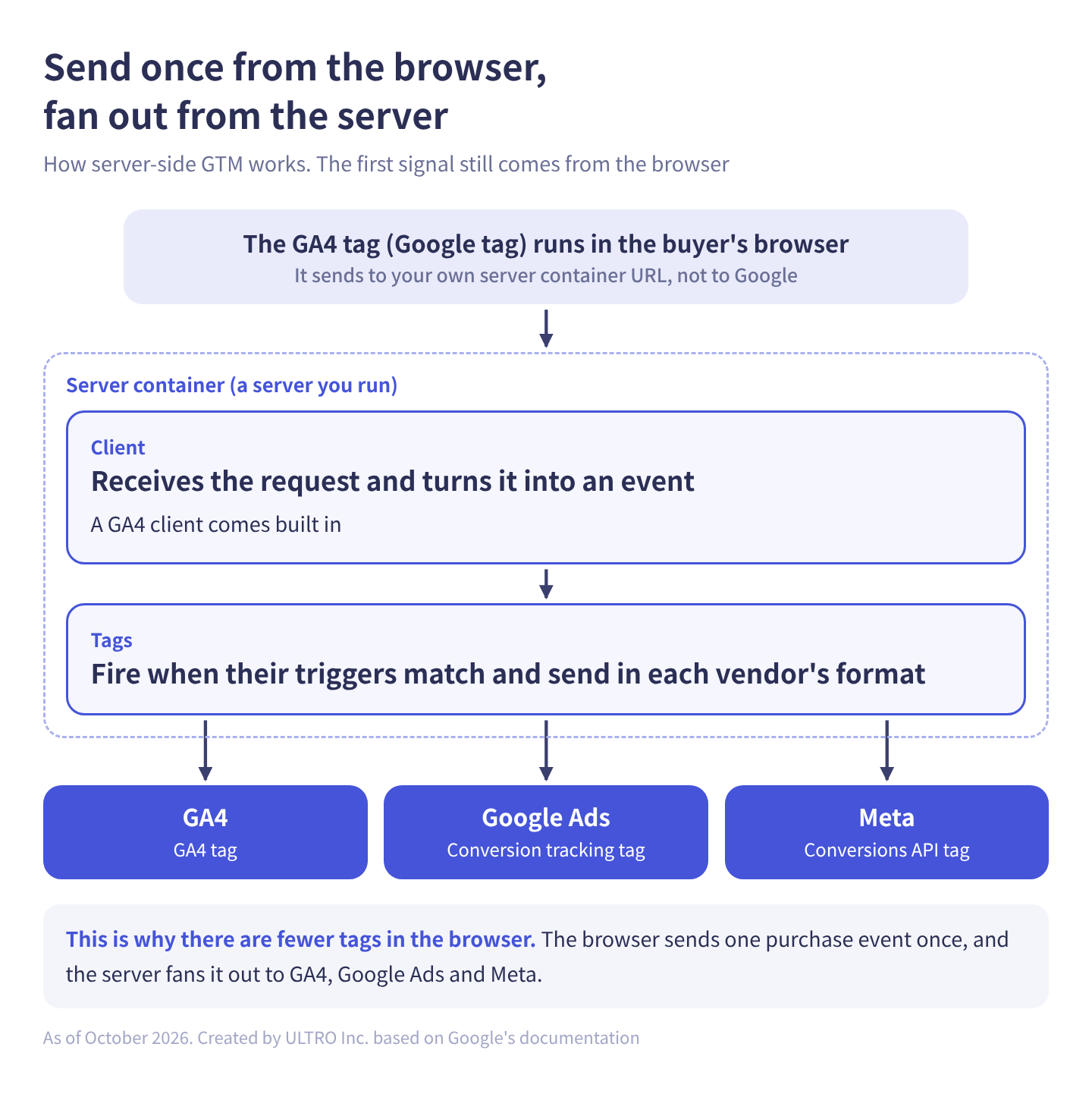
- The GA4 tag (Google tag) runs in the buyer’s browser. It’s configured to send to your server container’s URL instead of Google.
- A client in the server container receives the request. Clients turn incoming requests into events, and a GA4 client comes built in.
- When a trigger’s conditions match, a tag in the server container fires. You can add a GA4 tag, a Google Ads conversion tracking tag, a Meta Conversions API tag and others.
- Each tag converts the event into its vendor’s format and sends it.
The browser sends one purchase event once, and the server fans it out to GA4, Google Ads and Meta. That’s why fewer tags run in the browser.
First-party cookies and Safari’s ITP
When server-side GTM runs on a subdomain of your site, it can set first-party cookies in its HTTP responses. Google strongly recommends running the server on a subdomain (such as metrics.example.com) or the same origin (such as www.example.com/metrics). On the default domain Cloud Run assigns (run.app), you don’t get the benefit of server-set cookies.
This is why server-side GTM is pitched as an ITP fix. Safari’s Intelligent Tracking Prevention deletes cookies created in JavaScript after 7 days without user interaction. When a visitor arrives from a domain classified as a tracker with link decoration, such as a click ID in the URL, ITP caps cookies created in JavaScript on the landing page at 24 hours. Cookies set in an HTTP response aren’t subject to these rules.
But according to WebKit, even server-set cookies are capped at 7 days in the situations in the last two rows below.
| How the cookie is set | Expiry in Safari |
|---|---|
| Created in JavaScript | Deleted after 7 days without user interaction |
| Created in JavaScript on a landing page reached from a classified domain with link decoration | 24 hours |
| Set in an HTTP response by a server on the same infrastructure as the site | No ITP cap |
| Set by a subdomain CNAMEd to a third party’s server | 7 days |
| Set by a server on a third party’s IP address | 7 days |
Pointing a subdomain’s DNS at Cloud Run with a CNAME record may land you in those last two rows. That’s likely why Google most recommends the same-origin approach, where your CDN or load balancer forwards a path on your site’s domain (such as www.example.com/metrics) to the server. WebKit’s public pages don’t spell out exactly how it decides an IP address belongs to a third party.
What server-side GTM can and can’t do
Server-side GTM improves how events that happened in the browser are delivered and what they contain. It can’t create a purchase event the browser never sent.
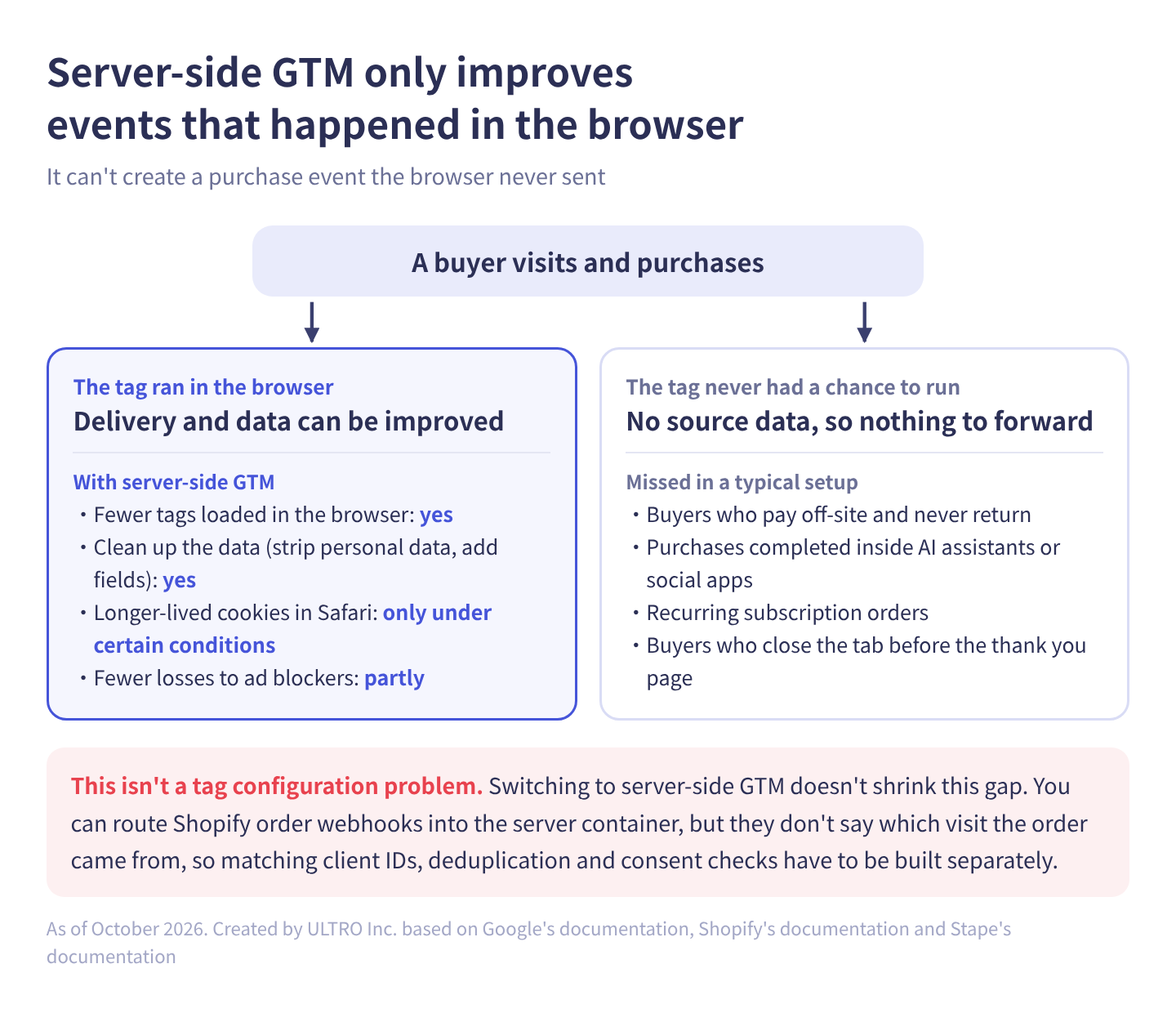
In table form:
| Goal | With server-side GTM | Why |
|---|---|---|
| Load fewer third-party scripts in the browser | Yes | One request is fanned out to multiple destinations on the server |
| Clean up data (strip personal data, add fields) | Yes | The server transforms data before sending |
| Keep cookies longer in Safari | Only under certain conditions | When the server runs within the same infrastructure as the site |
| Lose fewer events to ad blockers | Partly | Requests to your own domain are less likely to be blocked, but nothing is sent if GTM or the Google tag itself is blocked |
| Capture buyers who pay off-site and never return | No | The thank you page never loads, so no event fires in the browser |
| Capture purchases completed inside AI assistants or social apps | No | The store’s pages are never opened |
| Record recurring subscription orders | No (not as is) | Orders are created automatically; the buyer never visits |
| Capture buyers who close the tab before the thank you page | No | The tab closed before the tag could send |
The last four rows aren’t tag configuration problems: the tag never gets a chance to run in the buyer’s browser. At one of our clients’ Shopify stores, we matched Shopify orders against GA4 purchases one by one and found that 21% of orders were missing from GA4. Switching to server-side GTM doesn’t shrink this kind of gap.
If you route Shopify order webhooks (Shopify’s automatic notifications to your server when an order is placed) into the server container, you can send purchases that never passed through the browser. Stape’s Shopify app can send purchase and refund webhooks to a server container. But Shopify webhooks don’t include cookie data, so you can’t tell which visit the order came from. Stape itself positions webhooks as a secondary option for events outside the website, such as phone or offline sales. Matching orders to the original visit’s client ID, deduplicating against browser purchases, and checking consent all have to be built separately. For the causes of missing purchases and how to check for them, see GA4 Not Tracking All Shopify Purchases?
How much does server-side GTM cost? (Cloud Run and Stape)
If you run it yourself on Google Cloud (Cloud Run), Google estimates $30 to $50 per server per month and recommends at least 2 or 3 servers in production.
Automatic provisioning from the Tag Manager interface creates a Google Cloud project and a single Cloud Run server. Google says this is free in most cases but meant for testing only, and that it doesn’t support a production workload. Google’s docs don’t all give the same numbers:
| Google doc | Production minimum | Estimated cost per server per month |
|---|---|---|
| Cloud Run setup guide | 2 instances (autoscaling 2 to 10) | About $45 (1 vCPU, 0.5 GB memory, CPU always allocated) |
| Server-side tagging overview | 3 instances | $30 to $50 |
| Server-side tagging fundamentals course (chapters 7 and 8) | 3 instances (3 to 6 handle 50 to 200 requests per second, chapter 8) | About $50 (chapter 7) |
As a sanity check, we priced one always-on instance with 1 vCPU and 0.5 GiB of memory at Cloud Run’s instance-based list prices for us-central1 ($0.000018 per vCPU-second and $0.000002 per GiB-second). A 30-day month comes to about $49 before the free tier (240,000 vCPU-seconds and 450,000 GiB-seconds a month per billing account, worth about $5), which lines up with Google’s estimates.
Multiply by the server count: 2 × $45 is $90, and 3 × $30 to $50 is $90 to $150. Servers alone start at roughly $90 to $150 a month. On top of that:
- Logging: Cloud Run logs every request by default. Google warns that logging charges can add up if your tagging server handles a lot of requests (for example, more than 1 million a month) and recommends disabling request logging.
- Outbound traffic: egress is billed on all data the server container sends out, both to vendors and back to browsers. Serving Google’s scripts through your server increases it.
- Preview server: to use GTM’s preview feature, you provision a separate preview server.
- Sales peaks: Google recommends raising the minimum instance count before high-traffic events like Black Friday. If you don’t have enough instances, the data from that period is lost and can’t be recovered.
If you configure a budget to disable billing when it’s reached, every service linked to that billing account stops immediately, including your tracking. Budget alerts are a safer way to keep an eye on spend.
Stape and other hosting services
For a store that stays under 500,000 requests a month, Stape’s Pro plan ($17 a month billed annually) costs less than a production Cloud Run setup (around $90 a month and up), and Stape handles the server maintenance. Stape is a hosting service built for server-side tagging. Its pricing as of October 2026:
| Plan | Per month, billed annually | Per month, billed monthly | Requests per month |
|---|---|---|---|
| Free | $0 | $0 | Up to 10,000 |
| Pro | $17 | $20 | Up to 500,000 |
| Business | $83 | $100 | Up to 5 million |
| Enterprise | $167 | $200 | Up to 20 million |
Higher plans add features such as longer log retention and, on Business, multi-zone infrastructure. Requests are not orders; they’re the requests that reach the server from browsers. Every page view, product view, add to cart and other event in a visit sends one, so the number is well above your monthly sessions. Check your current GA4 event count before picking a plan.
The cost people miss: maintenance
Bigger than the server bill is the design and maintenance work. With server-side GTM you manage three things, the browser tags, the server container and the Cloud Run or Stape configuration, and when an event goes missing you troubleshoot across all three. You’re no longer just implementing tags. You’re taking on infrastructure that someone has to own long term. If you hire an agency or developer, decide who maintains it before you commission the build.
How to set up server-side GTM
Setup takes six steps, from creating the server container to preparing for production traffic. This is an overview; for detailed instructions, see Google’s server-side tagging fundamentals course listed in the sources.
- Create a server container: in Tag Manager, open your account’s menu, click Create Container, select Server under Container Settings, and click Create.
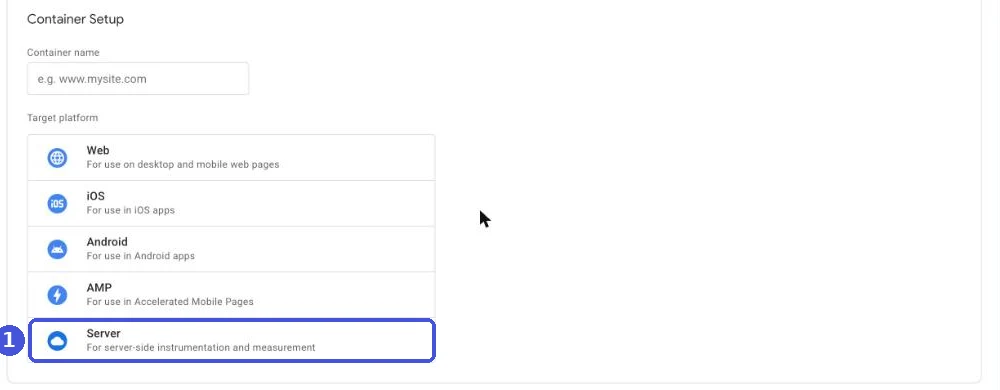
- Provision a tagging server: in the dialog that appears after creation, choose Automatically provision tagging server, deploy Cloud Run manually in an existing Google Cloud project, or use a service such as Stape.
- Point your domain at it: map a subdomain of your site, or ideally a same-origin path, to the tagging server. For a subdomain, add a DNS record with your domain provider.
- Change where browser tags send: in your web container’s Google tag, add the configuration parameter
server_container_urlwith your server container’s URL (for example, https://metrics.example.com) as the value. - Add destination tags: add a tag and trigger for each destination, such as GA4, to the server container. Use preview mode to check that the client receives requests and the tags fire.
- Prepare for production: before sending live traffic, raise the instance count in Cloud Run (Edit & Deploy New Revision) and decide whether to disable request logging.
The GA4 client in the server container has a Cookies and Client Identification setting, with JavaScript Managed and Server Managed options. Google’s course starts with JavaScript Managed, which is the only option that works until you change the server container’s domain settings, and considers the server-managed option after your own domain is in place. That choice affects continuity with your existing data, as covered below. Creating a server container requires admin access to the GTM account.
To send Google Ads conversions from the server container, add a Conversion Linker tag alongside the Google Ads Conversion Tracking tag. Enhanced conversions can also be sent from the server container.
Consent mode is configured in the web container only. Per Google’s docs, the Google tag picks up the choices from your consent banner and attaches the consent state to requests sent to the server container, and Google tags in the server container adjust what they send accordingly. If you use advanced consent mode with region-specific behavior, also enable region-specific settings on the tagging server.
Server-side GTM on Shopify: what to watch
On Shopify, four things need attention: the custom pixel sandbox, double counting with Shopify’s official apps, client ID changes, and the fact that you can’t change the store’s CDN and domain setup.
The custom pixel sandbox
On Shopify, GTM runs inside a custom pixel, so tracking that reads page elements doesn’t work; you build on Shopify’s customer events instead. You can’t add scripts directly to checkout or the thank you page the way you can in a theme, so Shopify’s documented approach is to run GTM in a custom pixel under Settings > Customer events. Custom pixels load in a Lax sandbox, an environment that limits what data can leave the page.
Shopify’s help center says pixel sandboxes can’t automatically detect events, metadata or user information from DOM scraping, outbound link clicks or page scrolling, and that page URLs detected automatically in the Lax sandbox may not exactly match the main window’s URL. To track with GTM, subscribe to Shopify’s customer events (page_viewed, checkout_completed and so on) and push them to the data layer. Google Tag Assistant’s Troubleshoot tag feature isn’t compatible with custom pixels; Shopify recommends testing with Shopify Pixel Helper instead. For how to build the pixel, see our Shopify custom pixel guide.
Per Shopify’s docs, the checkout_completed event fires only when the thank you page loads. If you show a post-purchase upsell, it fires on the first upsell page instead. Server-side GTM changes how this event is delivered after it fires; it does nothing for purchases where it never fired.
Double counting with the Google & YouTube and Facebook & Instagram apps
If you keep GA4 installed through the Google & YouTube app and add GA4 through server-side GTM, the same purchase is recorded twice. We couldn’t find a setting in the Google & YouTube app that sends GA4 data to a server container instead. If you move to server-side GTM, send GA4 through one path only.
Connecting through the app doesn’t capture every purchase either: the 21% gap mentioned above is from a store using the Google & YouTube app. Reconcile orders against GA4 in your own store before you choose a path.
The same goes for Google Ads conversions. If the app’s conversion action and a Google Ads tag in your server container both count purchases, Smart Bidding learns from double-counted numbers. To spot duplicates, see Duplicate purchases in GA4. For connecting through the app, see How to connect Shopify to GA4.
Meta works the same way. The Facebook & Instagram app sends both the pixel and the Conversions API, so if you keep it installed and also send purchases from a Meta Conversions API tag in your server container, they’re counted twice. When sending from the server container, use the same event name and event ID (event_id) as the browser pixel. If Meta receives events with matching values within 48 hours, it discards the ones that arrive later.
Client ID changes can break continuity
Setting the GA4 client’s Cookies and Client Identification to Server Managed makes the server issue an FPID cookie (a GA4 cookie set by the server) and use its value as the client ID (the identifier GA4 assigns to each browser). FPID is an HttpOnly cookie that JavaScript in the browser can’t read.
If you switch an existing site without migrating, a new ID replaces the existing client ID, and returning users are counted as new users. New user counts and repeat-visit analysis break at the switchover date. The GTM interface has an option to migrate from the JavaScript-managed client ID, but we couldn’t find Google documentation describing exactly how it behaves. Test it in a staging environment before switching.
We also watch for the effect on anything that sends purchases later. When you send purchases with the Measurement Protocol, you normally read the client ID from the browser’s _ga cookie and attach it to the order. After switching to Server Managed, the ID that reaches GA4 may not match the _ga value, and a purchase sent later could be attributed to a different user. (We found nothing in Google’s public documentation on this point.)
You can’t change the store’s CDN and domain setup
Shopify manages content delivery (the CDN) for Shopify-hosted stores. Google’s preferred same-origin approach requires forwarding a path on the store’s domain to the tagging server, and we couldn’t find an officially supported way to do that on a standard Shopify store. You can point a subdomain at Cloud Run or Stape, but as covered above, that may meet the conditions under which Safari’s ITP caps cookies at 7 days. Stape promotes features for this (such as Cookie Keeper) in its Shopify app too.
Server-side GTM vs Google tag gateway, Meta CAPI Gateway and other options
Before adopting server-side GTM, check whether a lighter middle-ground option meets your goal. If you want Meta to receive server events, Shopify’s official integration is often enough.
It helps to think of tracking in three layers, built from the bottom up: basic tracking, signal enhancement, and full server-side. Google tag gateway and Meta’s Conversions API Gateway sit in the middle layer.
| Option | What it does | Server needed | Recovers purchases where the browser tag never ran | Good fit |
|---|---|---|---|---|
| Google tag gateway | Serves Google tags and routes some of their requests through your own domain | No (CDN or load balancer configuration) | No | Non-Shopify sites that want Google tags served from their own domain. No officially supported setup on standard Shopify-hosted stores (October 2026) |
| Server-side GTM | Receives browser data on your server, processes it and sends it to multiple destinations | Yes (Cloud Run, Stape, etc.) | Not in a typical setup | Companies that need data governance (consent, consistent definitions, multiple countries) |
| Meta Conversions API Gateway | Also sends Meta Pixel events to Meta from your own cloud environment | Yes (AWS, etc.; hosted options exist) | No | Sites without an official integration that want server delivery for Meta only |
| Shopify’s official integration (Facebook & Instagram app) | Shopify sends both the pixel and the Conversions API | No | For Meta, yes | Shopify stores that want Meta to receive conversions |
| Measurement Protocol from order data | Sends purchases missing from GA4, starting from Shopify orders | Yes if you build it; no with an app | Yes | Filling purchases missing from GA4 |
Google recommends Google tag gateway for more durable tagging and also suggests combining it with server-side GTM. But neither Shopify’s help center nor Google’s tag gateway docs describe a setup for standard Shopify stores. A US analytics company also notes that the standard approach of putting Cloudflare in front of the site isn’t supported for Shopify-hosted storefronts. And both tag gateway and server-side GTM still take their first signal from the browser.
Which stores need server-side GTM?
Whether you need server-side GTM comes down to one question: can browser tracking plus middle-ground options still meet your requirements? Here’s how we judge it.
| Your situation | Server-side GTM | Do first, or instead |
|---|---|---|
| You run sites in several countries and need consent handled differently by region | Good fit | Settle your consent banner and consent mode setup first |
| You want to combine CRM or back-office data with your tracking data and send it to ad platforms | Good fit | Decide which fields to send and what consent covers |
| Someone in-house or at an agency can keep monitoring the server and the tracking | Prerequisite met | — |
| You run GA4, Google Ads and Meta through Shopify’s official apps | Usually not needed | Check the basics: each action counted once, tags firing on the thank you page |
| You want GA4 purchases to match your Shopify orders | Not the right tool if that’s the only goal | Reconcile by order ID and send missing purchases with the Measurement Protocol |
| A lot of your traffic is on Safari and cookie lifetime worries you | Depends on your CDN and domain setup | Check whether you can run it same-origin first |
Most of our clients’ Shopify stores fall into the bottom three rows. They run GA4, Google Ads and Meta through Shopify’s official apps, and the actual problem is that GA4 shows fewer purchases than Shopify. Switching to server-side GTM leaves most of that problem in place.
If you only want to fix missing GA4 purchases: the Measurement Protocol
If the goal is to fill purchases missing from GA4, sending orders to GA4 with the Measurement Protocol is more direct than moving all your tracking server-side. The Measurement Protocol is Google’s API for sending events from a server straight to GA4, so it can send purchases that never passed through the browser.
Attach the client ID and session ID captured from the original visit at checkout, and purchases sent later keep that visit’s source. For specs and timing rules, see the GA4 Measurement Protocol guide.
We built this approach into a Shopify app, GapFill. It’s our own product, so read with that in mind. Rather than switching your tracking over the way server-side GTM does, it recovers missing GA4 purchase events server-side and works alongside your existing tags. It matches Shopify orders against GA4 purchases by transaction ID and sends only the orders still missing from GA4 26 hours after they were placed. The missing purchases report is free.
Our Shopify appGapFill: Recover missing GA4 purchase events server-sideWorks alongside your existing tags. Free missing purchases report.See GapFill →Server-side GTM and GapFill aren’t an either-or choice. A store that runs server-side GTM for governance still has purchases the browser never reported, and can add just those.
What to check after setup
After setting up server-side GTM, check three things: events are arriving, nothing is double counted, and the gap has actually shrunk.
- Are events arriving? Do events sent from the server container show up in GA4’s Realtime report or DebugView? In the server container’s preview, does the client receive requests and do tags fire?
- Is anything double counted? In a GA4 Exploration, check whether the Transactions metric is 2 or more for any Transaction ID. In Google Ads, make sure you don’t have two purchase conversion actions set as primary.
- Did the gap shrink? Match Shopify order IDs against GA4 transaction IDs one by one, and compare the share of orders missing from GA4, and the skew by payment method, before and after the switch.
- Did users jump? A spike in new users on the switchover date means client IDs changed.
- Did sources break? Watch for sudden increases in (not set) or direct. See Why GA4 shows (not set) or direct for how to trace the cause.
To add the dimension in an Exploration, open the dimension picker, select Transaction ID under Ecommerce, and click Confirm in the top right.
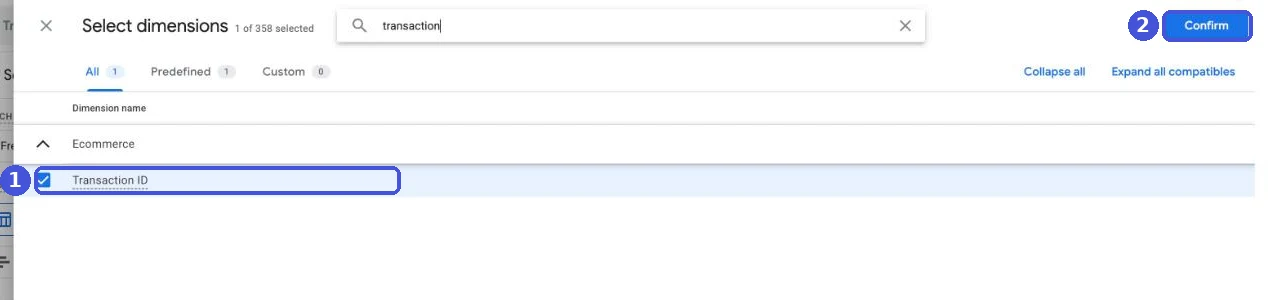
When you compare numbers before and after, record the switchover date. Don’t compare periods tracked under different setups as if nothing changed, and don’t treat a new setup as proof that nothing is missing anymore.
Sources
- Server-side tagging (Google for Developers)
- An introduction to server-side tagging (Google for Developers)
- Cloud Run setup guide (Google for Developers)
- Custom domain configuration (Google for Developers)
- Send data to server-side Tag Manager (Google for Developers)
- Prepare for high traffic events (Google for Developers)
- Set up the server container (Server-side tagging fundamentals, Google for Developers)
- Set up Google Analytics 4 (Server-side tagging fundamentals, Google for Developers)
- Plan your infrastructure (Server-side tagging fundamentals, Google for Developers)
- Upgrade your infrastructure for live traffic (Server-side tagging fundamentals, Google for Developers)
- Cloud Run pricing (Google Cloud)
- Google tag gateway for advertisers (Google for Developers)
- Set up Google tag gateway for advertisers (Google for Developers)
- Tracking Prevention in WebKit (WebKit)
- Intelligent Tracking Prevention 2.1 (WebKit)
- Implement consent mode with server-side Tag Manager (Google for Developers)
- Google Ads conversions (server-side Tag Manager, Google for Developers)
- Custom pixels (Shopify Help Center)
- Pixels overview (Shopify Help Center)
- Creating a Google Tag Manager custom pixel (Shopify Help Center)
- Web Pixels API (Shopify.dev)
- checkout_completed (Shopify.dev)
- Handling Duplicate Pixel and Conversions API Events (Meta for Developers)
- Conversions API Gateway setup (Meta for Developers)
- Pricing (Stape)
- Stape Conversion Tracking app for Shopify (Stape)
- Server-side Google Analytics 4 for Shopify (Stape)
- Google Tag Gateway for Shopify (Analyzify, August 2026)
FAQ
What is server-side tagging?
It's a Google Tag Manager setup where a server container runs on infrastructure you control, receives tracking data from the browser, and forwards it to GA4, Google Ads, Meta and other destinations. It's also called server-side GTM or sGTM. The main differences from a web container are fewer tags running in the browser and the ability to process data on your own server before it's sent.
How much does server-side GTM cost?
On Google Cloud (Cloud Run), Google's docs estimate $30 to $50 per server per month and recommend at least 2 or 3 servers in production, so server costs start at roughly $90 to $150 a month. Heavy logging and outbound traffic add more. Hosting services such as Stape are cheaper at smaller volumes: as of October 2026, Stape is free up to 10,000 requests a month and $17 a month (billed annually) up to 500,000 requests.
Is server-side GTM free?
For testing, nearly. Automatic provisioning from the Tag Manager interface creates a single Cloud Run server that is free in most cases. Google says this setup is for testing and doesn't support a production workload. Stape's free plan covers 10,000 requests a month, which most live stores outgrow quickly.
Will server-side GTM fix missing purchases in GA4?
Not in a typical browser-fed setup. Server-side GTM forwards events that happened in the browser, so purchases where the tag never ran, such as off-site payments where the buyer never returns or purchases completed inside AI assistants or social apps, have no source data to forward. To fill those, send orders to GA4 from your server with the Measurement Protocol.
Does server-side GTM get around Safari's ITP?
It depends on your infrastructure. Safari deletes cookies created in JavaScript after 7 days without user interaction, while cookies set in an HTTP response aren't subject to that rule. But WebKit also caps server-set cookies at 7 days when it detects third-party CNAME cloaking or third-party IP address cloaking. Whether you can run the server within the same infrastructure as your site decides how much it helps.
Can I use server-side GTM with Shopify?
Yes, by loading GTM in a custom pixel that sends to your server container, or by using an app such as Stape's. Watch for three things: custom pixels run in a restricted Lax sandbox, GA4 must not also be sent through the Google & YouTube app, and changing how client IDs are managed can disconnect returning users from their history. Google's preferred same-origin setup and Google tag gateway have no officially supported setup on standard Shopify-hosted stores.
Do I need a developer to set up server-side GTM?
For a production setup, usually yes, or a hosting service that handles the infrastructure. Someone has to manage the web container, the server container and the server itself, and keep monitoring them. Budget for that ongoing work, not just the initial build.
- Server-side GTM receives data from browser tags on your own server and forwards it to GA4 and ad platforms. The first signal still comes from the browser.
- In a typical browser-fed setup, purchases where the tag never ran (off-site payments, purchases inside AI assistants and social apps, recurring subscription orders) are not recovered.
- Google estimates $30 to $50 per Cloud Run server per month, with 2 or 3+ servers in production. Stape starts at $17 a month. Count the people who maintain it as part of the cost.
- On Shopify, watch the custom pixel sandbox, double counting with the Google & YouTube app, and client ID changes.
- If you only want Google tags served from your own domain on a non-Shopify site, Google tag gateway may be enough. For Meta, Shopify's official integration often covers server events. Server-side GTM is for companies that need tight control over their data.
Written byRyushi Nagata
CEO, ULTRO Inc. (Tokyo)Shopify Partner. Ryushi handles Shopify store builds, maintenance, advertising and CRM end to end, and has managed more than ¥4 billion in ad spend over his career. He holds Google Ads certifications (Search, Display, Video, Shopping, Apps, Performance Max, Measurement) and the Google Analytics certification.
How many purchases is GA4 missing in your store?
GapFill matches your Shopify orders against GA4 purchases, shows what GA4 missed, and recovers those purchase events server-side. It works alongside your existing tags, and the missing purchases report is free.