Google Tag Assistant: How to Check GA4, GTM and Google Ads Tags

The three ways to start Google Tag Assistant, how to connect, how to read Summary, Hits Sent, Data Layer and Consent, how it relates to GA4 DebugView, troubleshooting Google Ads conversions, a checklist for when it won't connect, and what to watch on Shopify.
GA4 shows fewer purchases than you expect, a Google Ads conversion action is stuck at “Unverified,” or you’re not sure a tag you built in GTM is actually firing. In all of these cases, the first step is the same: use Google Tag Assistant to see what your tags really send.
The trouble is that Tag Assistant has several entry points, plus similarly named extensions such as Legacy and Companion. The extensions changed in late 2024, and many guides still describe the old setup.
This guide is for ecommerce and marketing teams who want to check their own GA4, GTM and Google Ads tags. It covers the entry points, how to connect, how to read the screens, how to check consent, what to do when it won’t connect, and what to watch on Shopify. It follows Google’s and Shopify’s help centers as of October 2026. We tested it in October 2026 on a store we operate.
What is Google Tag Assistant?
Google Tag Assistant is Google’s free tool for checking when, what and where the Google tags on your site sent data. It covers Google tags placed directly on the site (GA4 and Google Ads tags) and Google Tag Manager containers.
With Tag Assistant you can:
- See which Google tags and containers loaded on a page
- See, for each event such as a page view or click, which tags fired and what they sent where (hits)
- Inspect the data layer (dataLayer, where the site passes data to GTM and tags)
- Check the state of consent mode (how cookie consent is passed to Google tags)
- Share a debug session or export it to a file
Hit details are only available for Google tags. In GTM Preview you can see whether non-Google tags in the container, such as the Meta Pixel, fired. To see what was sent to Meta, use Meta Pixel Helper or Test events in Events Manager. Debug information is shown only in the browser of the person who connected; regular visitors don’t see anything.
Three ways to start Tag Assistant
You can start Tag Assistant from the Chrome extension, from tagassistant.google.com, or from GTM’s Preview. If you’re new to it, start at tagassistant.google.com. Use GTM Preview only when you’re testing unpublished changes in GTM.
| Entry point | How to start | What you check | Best for |
|---|---|---|---|
| tagassistant.google.com | Add domain, enter a URL, click Connect | Hits sent by published tags, event by event | Start here. Checking GA4 and Google Ads hits event by event |
| Chrome extension | Open a page and click the extension icon | The Google tags on the current page | A quick check that tags are present. Troubleshoot tag opens a full debug session |
| GTM Preview | Click Preview in a GTM workspace | Container behavior, including unpublished changes | Testing triggers before you publish |
The Google Tag Assistant Chrome extension
The extension isn’t required, but with it installed Tag Assistant can detect Google tags inside iframes (pages embedded in a page, such as third-party payment forms), debug pop-ups and new tabs opened from the current window, and debug multiple windows in the same session. If your site involves an external payment page or booking form, install it.
To install it, open Tag Assistant in the Chrome Web Store and click Add to Chrome. Pinning it to the toolbar makes it easier to reach. On any page, clicking the icon opens a side panel listing the Google tags found on the page. Click Troubleshoot tag to start debug mode on tagassistant.google.com.
How to use Tag Assistant: connecting to your site
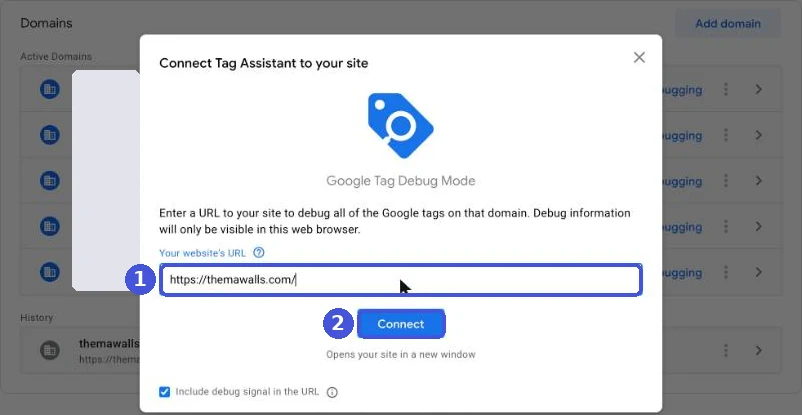
On tagassistant.google.com, click Add domain, enter your site’s URL and click Connect. Your site opens in a debug tab, and your actions are logged.
- (Optional) Install the Tag Assistant extension from the Chrome Web Store
- Open tagassistant.google.com and sign in with your Google account
- Click Add domain
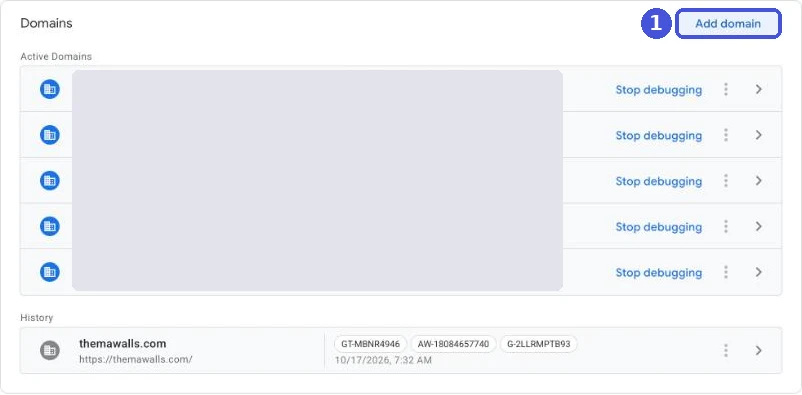
- In the dialog that opens, enter the URL of the site you want to check, starting with “https://”, and click Connect
- Your site opens in a new tab, and a small “Tag Assistant Connected” badge appears in the bottom right
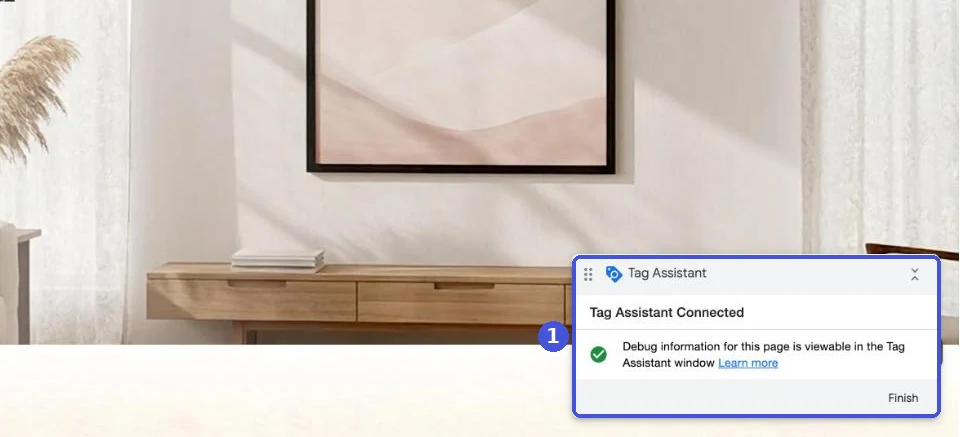
- Go back to the Tag Assistant tab and click Continue on the “Connected” message
- On your site, do what you want to check (move between pages, add to cart, submit a form). Events are added to the list on the left in Tag Assistant
Google’s help center says connecting adds a debug parameter (_dbg) to the URL. In our test (without the extension), the parameter was gtm_debug= followed by a number. As long as the parameter is there, debugging continues as you move around the same domain. Don’t paste URLs with that parameter into ad destinations or anywhere else.
To stop, click Finish in the bottom right of your site, or stop debugging from the list on the Tag Assistant home page. Domains you used before can be reopened from Active domains or History on the home page. If you start from the extension, click its icon on the page you want to check and click Troubleshoot tag in the side panel; the same debug session starts in a new tab.
Starting from GTM Preview
To test GTM changes before publishing, start from GTM’s Preview.
- In GTM, open the container and click Preview at the top right of the Workspace tab. Tag Assistant opens in a new tab
- Enter your site’s URL and click Connect. Your site opens with the connected badge in the bottom right
- Go back to the Tag Assistant tab and click Continue to open the debug view
To test an earlier version, go to Versions, open the More actions menu for that version and choose Preview. If the debug parameter breaks your site, uncheck Include debug signal in the URL before connecting. Preview data is visible only to the person who enabled it and anyone it’s shared with.
Reading Tag Assistant: Summary, Hits Sent, Data Layer and Consent
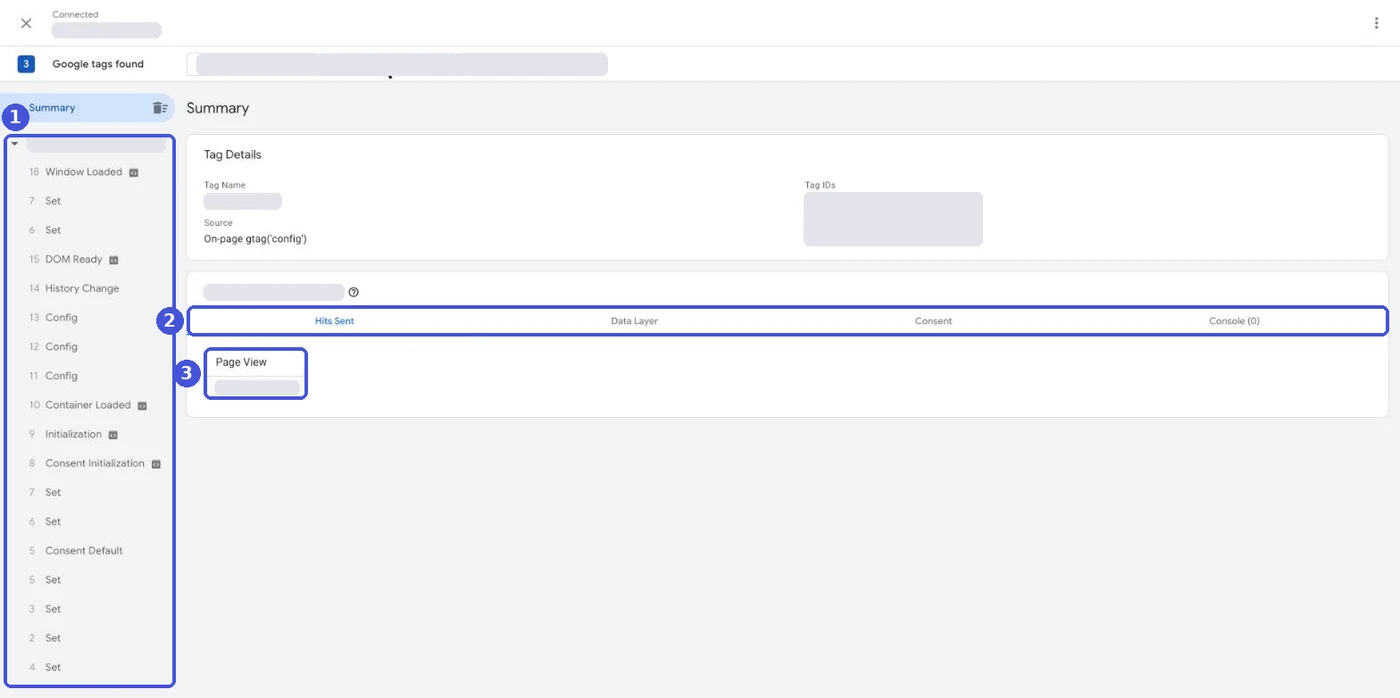
In Tag Assistant, first check whether Hits Sent shows a hit. If not, work backward through the tag details, the API Call and the Data Layer. Working back from what was sent to what triggered it makes it easier to find where things break.
| Area | What it tells you |
|---|---|
| Top bar and tag details | “Connected,” the domain, the number of Google tags found, and chips for each tag ID (GA4, Google Ads, etc.; selecting one filters hits to that ID). Tag details include the tag name, the source (such as gtag(‘config’) on the page), the tag ID and destination IDs |
| Summary and the event list on the left | Numbered events under each page, newest on top: Window Loaded, DOM Ready (when the page structure has finished loading), Config, Container Loaded, consent default commands and so on |
| API Call | Shown at the top when you select an event. The code that triggered it, for example dataLayer.push({event: "gtm.load"}) |
| Hits Sent | The first tab in the tag’s output. Which hits (page view and so on) were sent. Click one to open its details |
| Data Layer | The values in dataLayer at that event |
| Consent, Console | The consent mode state (which can appear empty; see the consent section) and messages or errors about the tag |
The hit details show the destination URL (https://analytics.google.com/g/collect for GA4; your own domain if you use server-side GTM or similar) and a table of parameters, with a toggle to format it for reading. Look for the event name (en), Client ID (cid), consent state (gcs), and event parameters (those starting with ep.).
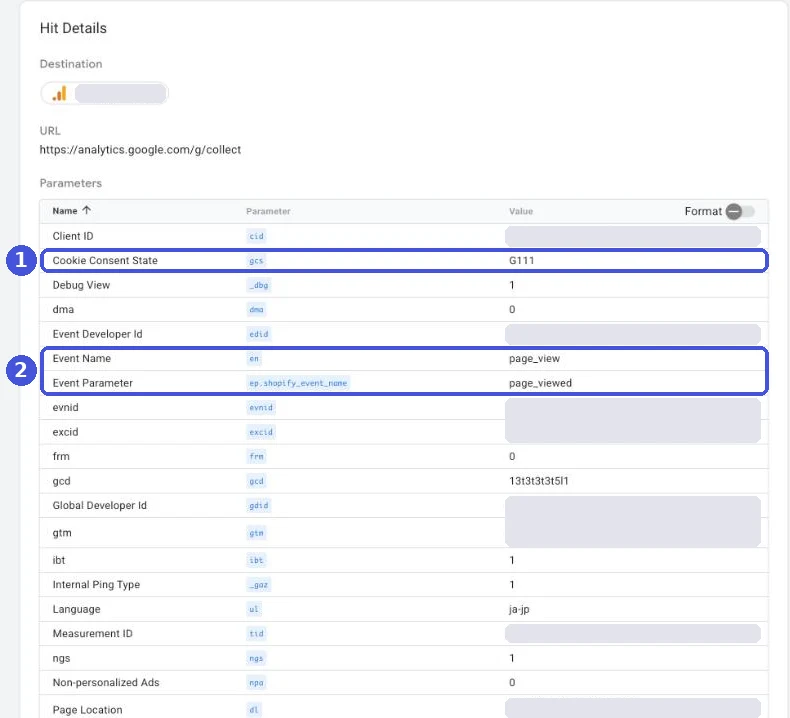
Our store sends GA4 through Shopify’s Google & YouTube app. On storefront pages before checkout, the app’s GA4 tag and hits appeared as shown, with the event parameter ep.shopify_event_name (value page_viewed). In GTM Preview, you can also see each trigger’s firing status alongside the tags.
Example: checking a GA4 purchase
Here’s an end-to-end check that GA4 purchases are being sent correctly.
- Connect Tag Assistant to your home page. If you start on the thank you page, nothing before it is recorded
- Select your GA4 measurement ID (starts with G-) from the tag ID chips at the top
- Add a product to the cart and complete a test order (on Shopify, you can use a payment test mode)
- In the event list, select the purchase event on the thank you page
- In Hits Sent, check that exactly one hit went to your GA4 measurement ID. Two hits mean a duplicate. This often happens when GA4 is installed through both an app and GTM; see GA4 duplicate purchases for fixes
- Click the hit to open its details and check for transaction_id (the order ID), value (amount), currency (such as USD) and items (the product list)
If checkout moves to another domain, the connection drops partway. On Shopify, this happened when we were logged in to the store and checkout moved to Shop (shop.app). In that case, check purchases in GA4 Realtime and DebugView (see below).
Hits are real even while Tag Assistant is connected. Test purchases show up in GA4 reports and in Google Ads conversions linked to GA4. Turning on GA4’s “Developer traffic” data filter excludes debug-mode hits from reports. But data filters only apply to data from the time they’re created, and excluded data can’t be recovered later. Keep a note of the date, time and order number of each test.
How to check consent mode in Tag Assistant
To verify consent mode, compare the API Call of the event that sets the default state with the API Call after consent, and check the consent state (gcs) in the hits. Google’s developer documentation (updated October 13, 2026) gives these steps:
- Connect Tag Assistant to your site and accept all in the site’s consent banner
- Default state: in Summary, select the earliest Consent event and check in the API Call that four parameters are set:
ad_storage(advertising cookies),ad_user_data(sending user data for ads),ad_personalization(ad personalization) andanalytics_storage(analytics cookies) - After consent: select the most recent Consent event and check that the same four were updated
- Tag behavior: select a tag and check that it behaved according to the consent settings
The documentation says you can also check the On-page Default and On-page Update columns in the Consent tab of the tag’s output, and that an empty Consent tab means consent mode isn’t implemented on the page. When we tested on our store, though, the API Call of the consent default event showed default consent settings, while the Consent tab on the same screen said “Consent not configured” and “Default consent state has not been set yet.” We also didn’t see the On-page Default and On-page Update columns at the time.
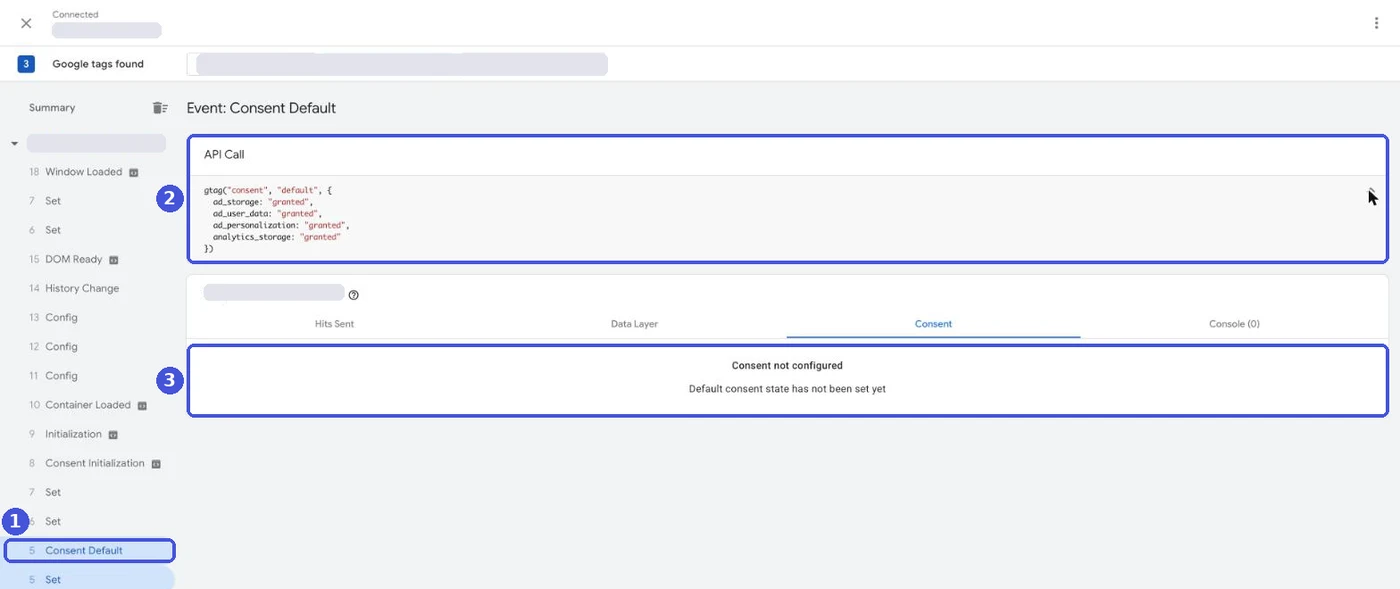
So an empty Consent tab doesn’t always mean consent mode is missing. Check the API Call and the gcs value in the hit details too. Hits also carry a gcd parameter, but Google doesn’t publish definitions for gcs and gcd values. If the default state is set after tags fire, move the code that calls the consent default command above all other tags (gtag.js), or fire the consent setup on the Consent Initialization trigger (GTM). If you set different defaults by region, change your location in Chrome and repeat the steps.
Test declining in the banner, too. Showing a banner and actually applying a refusal to tag hits are two different things, so check the API Call and hits after declining.
Tag Assistant and GA4 DebugView
While Tag Assistant is connected, GA4 events sent from that device also appear in GA4 DebugView. The debug parameter added to the URL when you connect turns on debug mode.
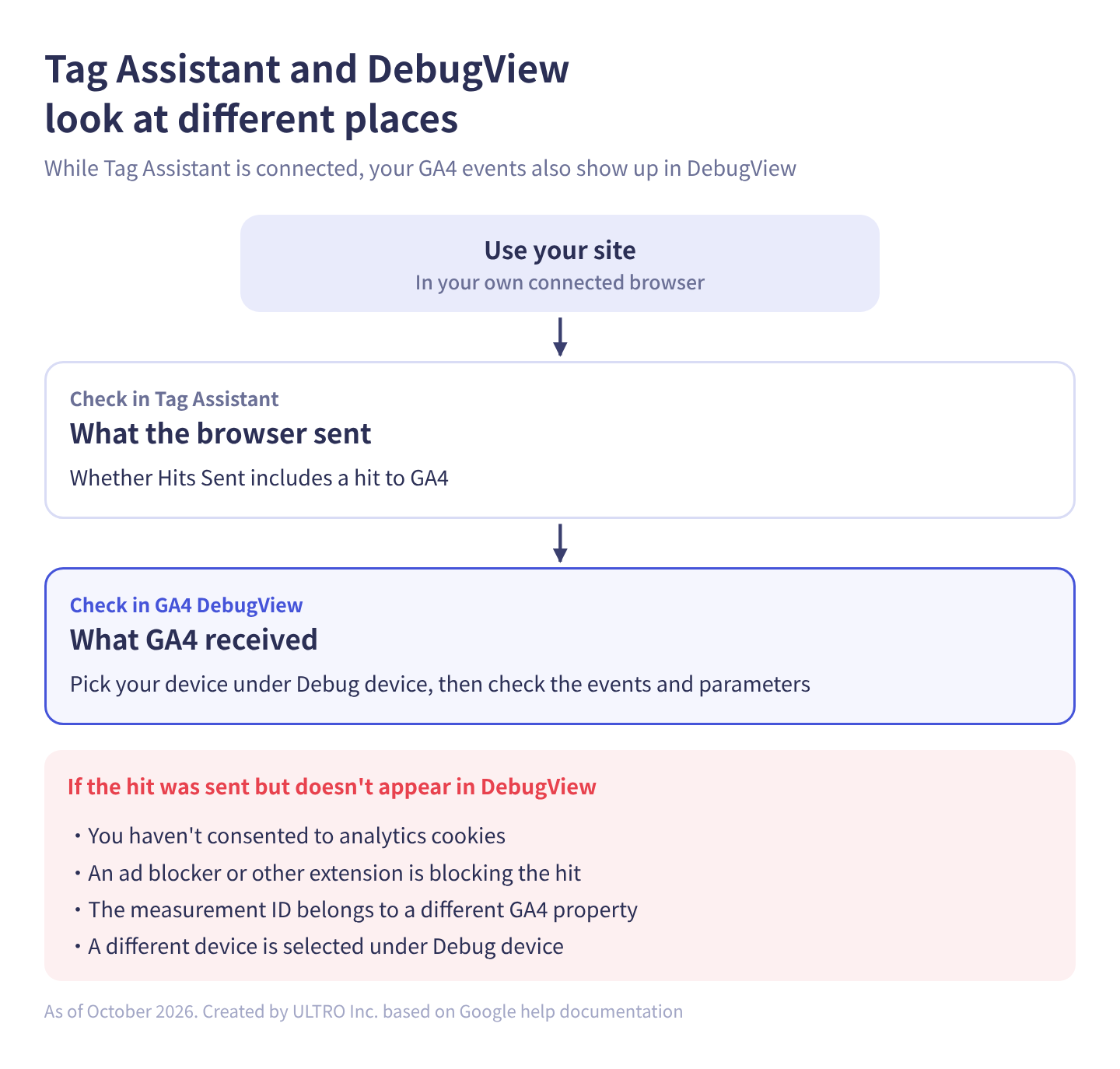
To open DebugView, go to GA4 Admin > Data display > DebugView and choose your device from the Debug device menu at the top left. Events from the last 60 seconds appear in the middle and the last 30 minutes on the left; click an event to see its parameters. You can also set debug_mode on the tag, but that applies to everyone’s hits, and setting it to false doesn’t turn it off (you have to remove the parameter), so connecting with Tag Assistant is usually enough.
Tag Assistant shows what the browser sent; DebugView shows what GA4 received. If Tag Assistant shows a hit that DebugView doesn’t, suspect:
- You haven’t consented to analytics cookies under consent mode (GA4’s help center says events won’t appear in DebugView in that case)
- An ad blocker or other extension is blocking the hit
- The measurement ID belongs to a different GA4 property than the one you’re viewing
- A different device is selected under Debug device
Checking Google Ads tags with Tag Assistant
If a Google Ads conversion action is “Unverified” or “Tag inactive,” the fastest route is to start Tag Assistant troubleshooting from Google Ads. Google Ads’ help center gives these steps:
- In Google Ads, open Goals > Summary, choose All conversions from the Conversions menu, and find actions whose Tracking status is “Unverified,” “Tag inactive” or “Needs attention”
- Hover over the status and select Troubleshoot, then Continue. Tag Assistant opens
- Enter the URL of the page to test and select Connect. Start from a landing page or the home page, not the conversion page
- Complete the conversion on your site (a purchase or form submission). If nothing registers, select “I thought I already triggered it”
- Select Finish to see the troubleshooting results. Select Close Tag Assistant to return to Google Ads
Verified actions can take about 30 minutes to show up in Google Ads. If you use GTM, select Debug live version in Tag Assistant before continuing. If you close the window without selecting Finish, the session times out.
When you track Google Ads conversions through GTM, Google’s help center asks for the Google tag in addition to the conversion tag and the conversion linker. To check yourself on tagassistant.google.com, select your Google Ads ID (starts with AW-) at the top and look for a hit under Hits Sent on the conversion page.
Tag Assistant not connecting: a checklist
When Tag Assistant can’t connect, first make sure the page actually has a Google tag, then check whether browser extensions or your consent management tool are blocking it. Google’s help center lists these causes and fixes:
| What to check | Fix |
|---|---|
| Whether the URL has a Google tag | Try another page’s URL. Check in developer tools that the tag loads |
| Typos in the domain or URL | Re-enter it, starting with “https://” |
| Ad blockers and other browser extensions | Disable them on the pages you’re testing |
| Extension permissions | Make sure the Tag Assistant extension can read and change site data for those pages |
| Consent management platform (CMP) | If it doesn’t load Google tags at all until consent, Tag Assistant can’t connect. Configure it to work with Google’s consent API |
| The debug parameter breaks the page | Uncheck Include debug signal in the URL (checked by default) when connecting |
| The tag loads after Tag Assistant tries to connect | Click Retry |
| You closed the debug tab or moved to another domain | Reopen the session from Active domains or History on the home page. For pages on another domain, connect to that domain separately |
| Tags inside an iframe | Only debuggable with the extension installed |
| Multiple redirects | The debug window may not load. Connect using the URL after the redirects |
| AMP pages | Not supported |
| Firewall, proxy or CSP (a site setting that limits where scripts can load from) | Check in developer tools whether Google tag loading or hits are blocked |
If you still can’t find the cause, get someone else to look at the session. Tag Assistant can share a debug session, or export it: after you click Finish, open the three-dot menu and choose Export to save a .json file you can send to your agency or Google support. Start recording from the landing page or a step before the event you’re checking, not from the thank you page.
Using Tag Assistant on Shopify
On Shopify, tags inside a custom pixel added under Settings > Customer events aren’t visible to Tag Assistant. Shopify’s help center states that Tag Assistant’s Troubleshoot tag feature “isn’t compatible with custom pixels, and doesn’t detect any Google tags in a custom pixel.”
Custom pixels run in a sandbox, isolated from your storefront pages. Google also says it doesn’t support Google tags run in a custom pixel and recommends the Google & YouTube app. For how custom pixels work, see Shopify custom pixels.
| How the tag is installed / situation | Visible in Tag Assistant? | Check instead with |
|---|---|---|
| Google tag or GTM placed directly in the theme | Yes (storefront pages) | — |
| Google tag or GTM inside a custom pixel | No (stated by Shopify and Google) | Shopify Pixel Helper, the Network tab in developer tools, GA4 Realtime and DebugView |
| Google & YouTube app | No official statement. On our store, visible on pages before checkout | From checkout onward: GA4 Realtime and DebugView, the Network tab |
| Logged in and moved to Shop checkout (shop.app) | In our test, the connection dropped at that point | Same as above |
For what Tag Assistant can’t see, use:
- Shopify Pixel Helper: a Chrome extension Shopify recommends for checking that pixels receive events without errors
- The Network tab in developer tools: filter Chrome’s Network tab by
collect?v=2to see hits to GA4 and their contents - GA4 Realtime and DebugView: place a test order and check that purchase arrives with its parameters
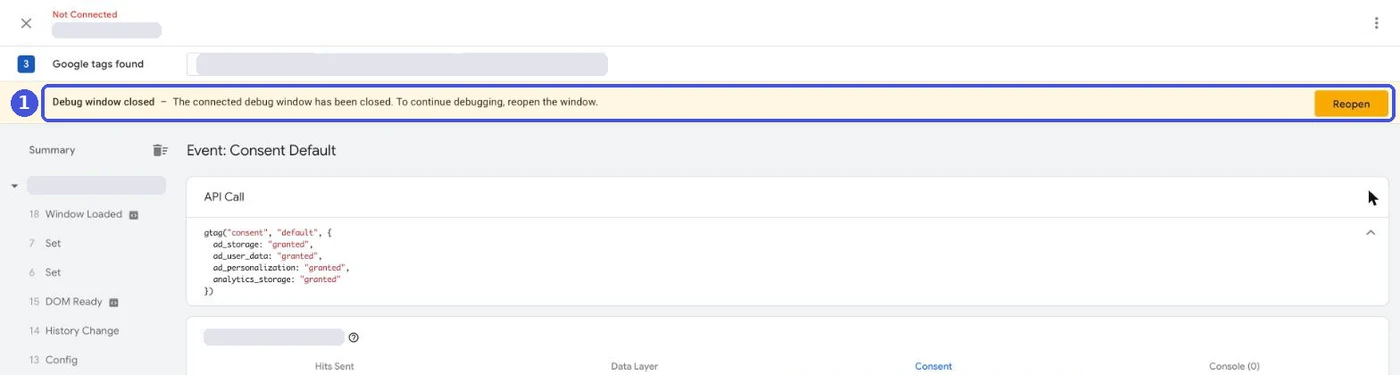
On our store, when we went to checkout while logged in to the store, checkout moved to Shop (shop.app) and Tag Assistant showed it was no longer connected, with a message that the debug window had been closed and a button to reopen it. We didn’t test checkout while logged out, or how the thank you page appears.
In the Shopify Community, merchants have reported Tag Assistant showing the warning “This Google tag should have been loaded before the gtag(‘event’) command was called” for the Google & YouTube app’s tag (2024). We check purchases by placing test orders and looking at GA4 Realtime and DebugView. For installing GA4 through the app, see Shopify GA4 setup.
Tag Assistant vs tag coverage and tag diagnostics
Tag Assistant shows what happened on the page you opened. For the state of tags across your whole site, use tag coverage and tag diagnostics.
| Tool | What it shows | How fast | Where to open it |
|---|---|---|---|
| Tag Assistant | Events and hits on the pages you connect | Immediately | tagassistant.google.com, the extension, GTM Preview |
| Tag coverage | Whether each page loads the Google tag (“Tagged,” “No recent activity,” “Not tagged”) | Up to 24 hours | GA4: Data streams > your stream > Configure tag settings. GTM: Google tags tab > your Google tag > Admin > Tag coverage |
| Tag diagnostics | Site-wide tag issues (untagged pages, a tag that stopped sending data, tags placed too low on the page, missing transaction IDs, etc.). Status: “Excellent,” “Good,” “Needs attention,” “Urgent,” “No recent data” | Continuous monitoring | Google tag settings > Tag quality > View diagnostics |
Use them in this order: find problem pages in tag diagnostics or tag coverage, open those pages in Tag Assistant to find the cause, then check again in Tag Assistant after fixing. Tag coverage can take up to 24 hours to update for newly tagged pages. If a page is flagged “Not tagged” by mistake, verifying in Tag Assistant that the tag fires correctly should make the alert clear itself within 24 hours.
What Tag Assistant can’t show you
Tag Assistant only shows tags that fired in your browser. Even when your tags work correctly, purchases where the tag never ran in the buyer’s browser never reach GA4. Here’s the split:
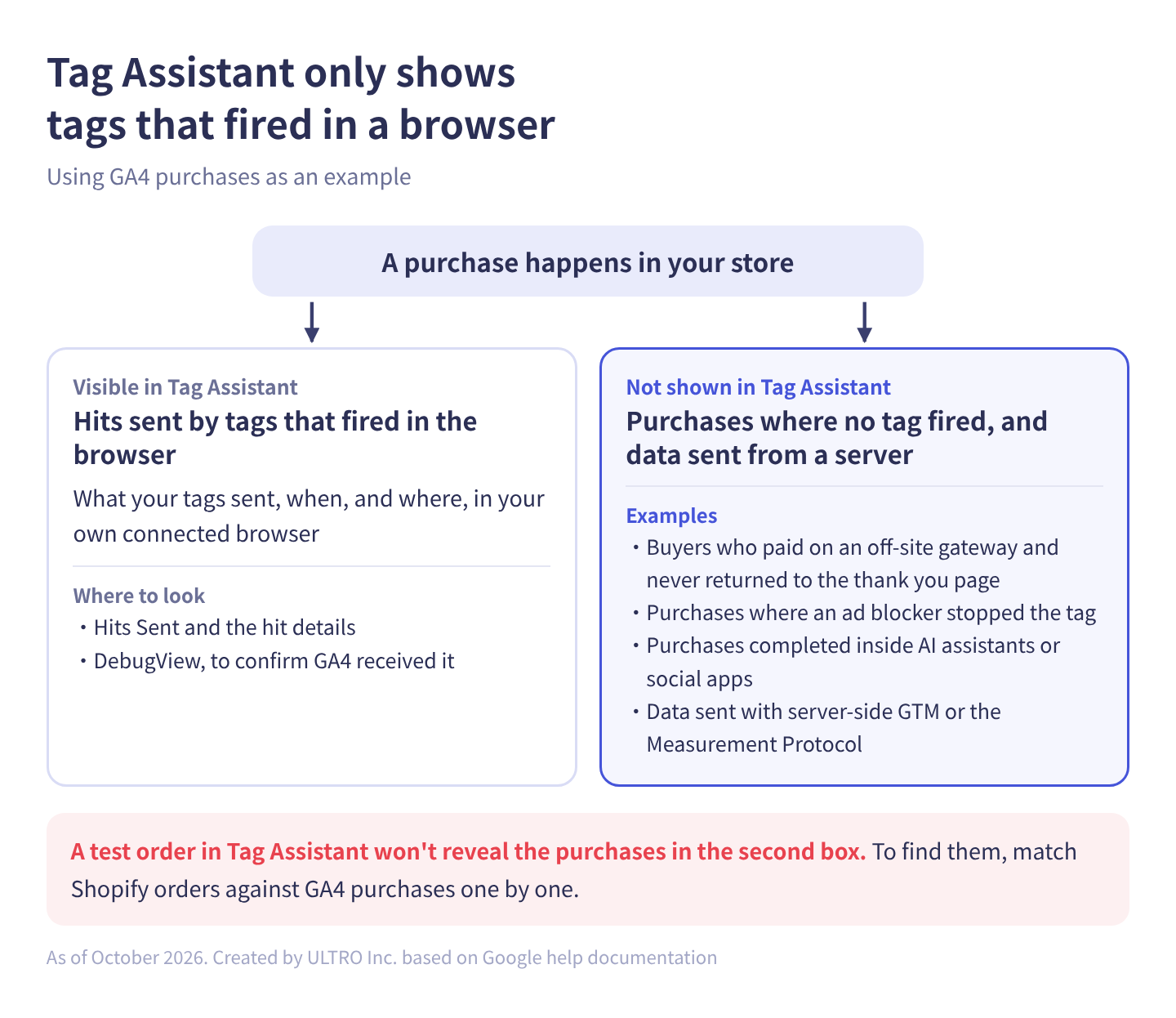
Examples include buyers who paid through an off-site payment gateway and closed the tab instead of returning to the thank you page, purchases where an ad blocker stopped the tag, and purchases completed inside AI assistants or social apps. In each case the tag never gets a chance to run on the thank you page, so a test order in Tag Assistant won’t reveal anything wrong. In one of our clients’ Shopify stores (connected through the Google & YouTube app), we matched Shopify orders against GA4 purchases one by one from August to mid-September 2026 and found that 21% of orders weren’t in GA4. For how to find and fill that gap, see GA4 Not Tracking All Shopify Purchases?
Purchases that never go through a browser can only be filled in from a server. Data sent from a server with server-side GTM or the Measurement Protocol doesn’t appear in Tag Assistant (for server-side GTM, use the server container’s Preview).
We built a Shopify app, GapFill, that recovers missing GA4 purchase events server-side. It’s our own product, so read with that in mind. It matches Shopify orders with GA4 purchases by transaction ID and sends only the ones GA4 missed. It works alongside your existing tags, and the missing purchases report, which shows where and how much you’re missing, is free.
Our Shopify appGapFill: Recover missing GA4 purchase events server-sideWorks alongside your existing tags. Free missing purchases report.See GapFill →What happened to Tag Assistant Legacy and Companion? (Merged in December 2024)
Tag Assistant Legacy and the Tag Assistant Companion extension were merged into a single Tag Assistant extension in December 2024. Companion is the one going away, not Legacy.
Google had announced plans to retire Legacy, but reversed course in December 2024 and released one extension combining both feature sets (timing per PPC Land’s report). Google’s help center says Legacy users are updated to the unified extension automatically, with nothing to uninstall, and that Companion is uninstalled automatically once that update happens. Help pages differ on when Companion support ends: some say “in 2025,” others “in the coming months.”
Advice like “Legacy is gone, so install Companion” predates the merge. Today, the only extension to install is Tag Assistant from the Chrome Web Store. Some older guides also say sessions can no longer be recorded or exported; the current Tag Assistant can export a session to a .json file, as described in the checklist above.
Sources
- Troubleshoot with Tag Assistant (Tag Manager Help)
- Tag Assistant Chrome extension (Tag Manager Help)
- Use Tag Assistant (Tag Manager Help)
- Record and export a Tag Assistant session (Tag Manager Help)
- Preview and debug containers (Tag Manager Help)
- Tag coverage summary (Tag Manager Help)
- Limitations of using a custom pixel for conversion measurement on Shopify (Tag Manager Help)
- [GA4] Monitor events in DebugView (Google Analytics Help)
- [GA4] Data filters (Google Analytics Help)
- Use Tag Assistant to troubleshoot unverified or inactive conversion actions (Google Ads Help)
- Troubleshoot tag issues with tag diagnostics (Google Ads Help)
- Frequently asked questions about migrating to the Google & YouTube app (Google Ads Help)
- Verify consent mode implementation (Google for Developers)
- Creating a Google Tag Manager custom pixel (Shopify Help Center)
- Testing Steps (#2) no longer work for “Create a Google Tag Manager custom pixel” (Shopify Developer Community, February 2025)
- Tag assistant error with google and youtube app (Shopify Community, 2024)
- Google unifies Tag Assistant tools after user feedback (PPC Land, January 2, 2025)
FAQ
Is Google Tag Assistant free?
Yes. Tag Assistant, including tagassistant.google.com, the Chrome extension and GTM's Preview, is free. You only need a Google account to sign in.
Has Tag Assistant Legacy been discontinued?
No. In December 2024, Legacy and Tag Assistant Companion were merged into one extension called Tag Assistant. If you had Legacy installed, it updates to the unified extension automatically, so you don't need to reinstall anything. Once that update happens, Companion is uninstalled automatically, and Companion itself is being deprecated.
Should I install Tag Assistant Companion?
No. Install the unified Tag Assistant extension instead. The features Companion provided, such as detecting tags inside iframes and debugging pop-ups and new tabs, are part of the unified extension.
What should I do if GTM Preview won't connect?
First, check that the page at that URL actually has the GTM container and that it's published. Then disable ad blockers and other browser extensions, check whether your consent management tool blocks the tags themselves before consent, and reconnect using the URL after any redirects. If the debug parameter breaks the page, uncheck Include debug signal in the URL.
Why don't my events show up in GA4 DebugView?
Consent is a common cause. According to GA4's help center, if you use consent mode and haven't consented to analytics cookies, events won't appear in DebugView. Accept the consent banner in the connected tab and repeat the actions. Other causes: an ad blocker blocking the hits, or a measurement ID that belongs to a different GA4 property.
Can Tag Assistant check Meta Pixel and other non-Google tags?
It only shows hit details for Google tags. In GTM Preview you can see whether non-Google tags in the container, such as the Meta Pixel, fired. To see what was sent to Meta, use Meta Pixel Helper or Test events in Events Manager.
Does Tag Assistant work on Shopify stores?
It works for tags placed in your theme and Google tags that run on your storefront pages. On our store, the GA4 tag installed through the Google & YouTube app also appeared on pages before checkout. But Shopify's help center states that Tag Assistant doesn't detect Google tags inside a custom pixel added under Settings > Customer events. For those, use Shopify Pixel Helper, the Network tab in your browser's developer tools, and GA4 Realtime or DebugView.
Does Tag Assistant check server-side tracking?
No. It shows what the browser sent. Data sent from a server with server-side GTM or the Measurement Protocol doesn't appear in it. Use the server container's Preview for server-side GTM, and DebugView or Realtime in GA4.
- Tag Assistant is Google's free tool for checking when, what and where Google tags sent data.
- In December 2024, Legacy and Companion were merged into one extension. Companion is the one going away.
- If you're new to it, start at tagassistant.google.com. Use GTM Preview only when testing unpublished GTM changes.
- An empty Consent tab doesn't always mean consent mode is missing. Check the API Call and the gcs parameter in the hit too.
- Tags inside Shopify custom pixels and data sent from servers don't appear in Tag Assistant. It only shows tags that fired in your browser.
Written byRyushi Nagata
CEO, ULTRO Inc. (Tokyo)Shopify Partner. Ryushi handles Shopify store builds, maintenance, advertising and CRM end to end, and has managed more than ¥4 billion in ad spend over his career. He holds Google Ads certifications (Search, Display, Video, Shopping, Apps, Performance Max, Measurement) and the Google Analytics certification.
How many purchases is GA4 missing in your store?
GapFill matches your Shopify orders against GA4 purchases, shows what GA4 missed, and recovers those purchase events server-side. It works alongside your existing tags, and the missing purchases report is free.