Unassigned Traffic in GA4: What It Means, Why It Grows, and How to Fix It

What Unassigned means in GA4, how it differs from (not set) and Direct, the main reasons it grows (no source arrives, or UTMs that match no rule), how to check what's inside, and how to reduce it.
Open GA4’s Traffic acquisition table and you’ll see a row called Unassigned among the channels. It’s not ads, search or social, and when revenue or purchases show up there, you’ll want to know where they came from.
Revenue stuck in Unassigned makes your ads, newsletters and other sources look weaker than they are. Start with the steps in “How to see what’s inside Unassigned” below. If you run Shopify with the Google & YouTube app and Unassigned jumped partway through 2026, server-side purchase tracking is the likely cause.
This article is for anyone who uses GA4 to judge traffic and ad results. It covers what Unassigned means, how it differs from (not set) and Direct, the main reasons it grows, how to see what’s inside, and how to reduce it. Details reflect Google’s help center as of October 2026.
If you run a Shopify store with the Google & YouTube app and Unassigned revenue grew partway through 2026, also read our article on Shopify’s server-side purchase tracking to GA4. We found purchases sent this way landing in Unassigned with no source.
What Unassigned means in GA4
Unassigned in GA4 is where a session goes when it doesn’t match any rule in the default channel group (how GA4 looks at a session’s source and medium and sorts it into channels like Organic Search and Paid Social).
Source is where a visit came from (google, instagram and so on), and medium is how it came (cpc for ads, email and so on). On links you share, you set them by adding ?utm_source=…&utm_medium=… to the URL. These are UTM parameters. Channels are decided mostly by the session’s source and medium. For example, a medium of email means Email, and a search-engine source with a medium of cpc means Paid Search. Anything that matches no rule ends up in Unassigned.
You’ll find Unassigned under Session primary channel group (Default channel group) in the Traffic acquisition table (under Acquisition, or under the lead generation collection in some properties).
Unassigned vs (not set) and Direct
(not set) and Direct look similar but mean different things.
| Label | What it means | Where it shows up |
|---|---|---|
| Unassigned | Matches no channel rule | Channel group |
| Direct | Source is (direct) and medium is (not set) or (none). A visit with no source information | Channel group |
| (not set) | A dimension’s value never reached GA4 | Source / medium, landing page and more |
Bookmarks and typed URLs go to Direct. Sessions where no source / medium value arrived at all don’t match the Direct rule either, so they land in Unassigned. For the causes of (not set) by dimension, see our (not set) in GA4 article.
Why Unassigned traffic grows
There are two main causes: the source / medium never arrives, or a value arrives but matches no rule.
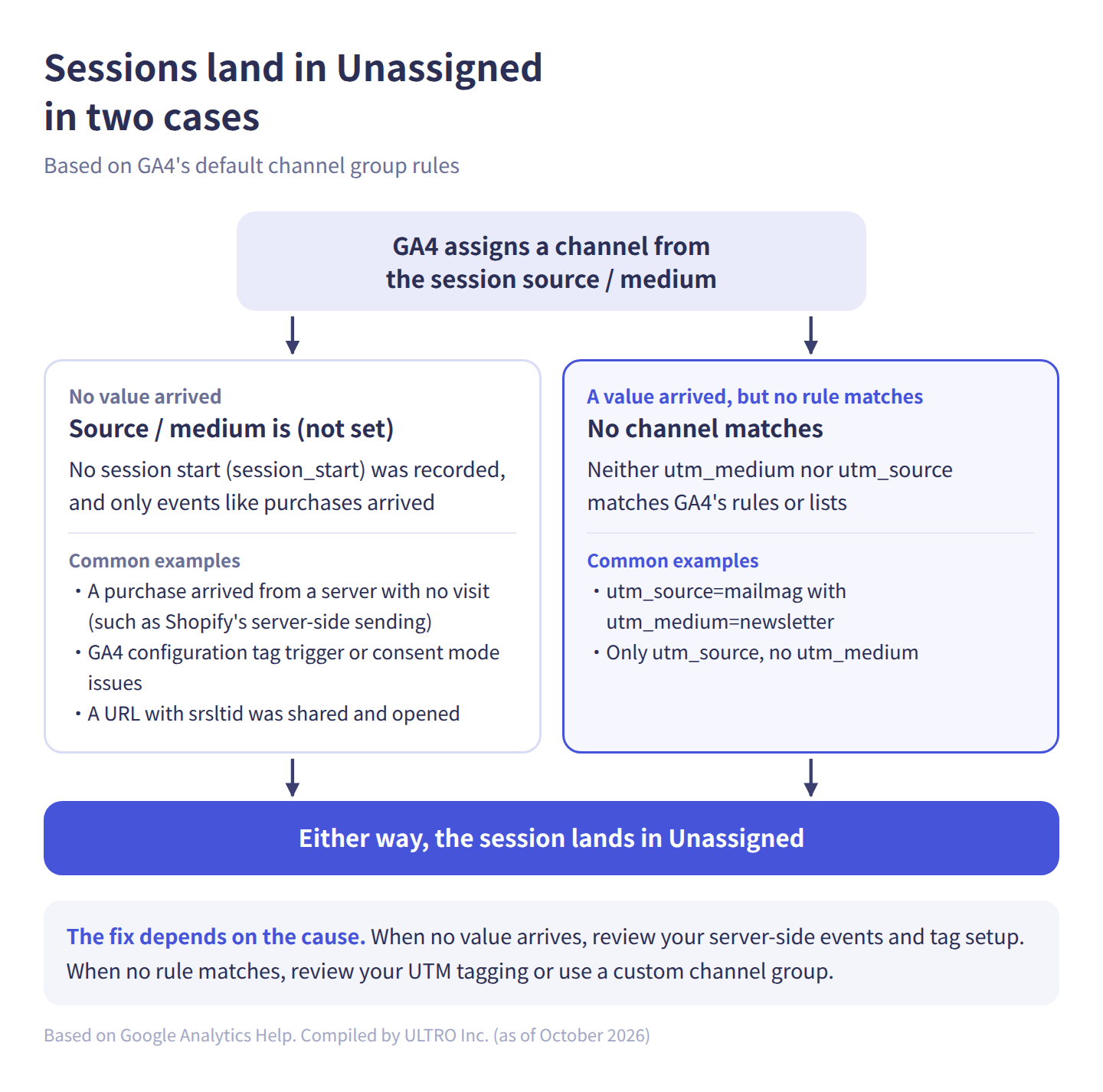
Here it is as a table.
| Cause | How source / medium looks | Common example |
|---|---|---|
| An event arrives from a server with no visit | (not set) / (not set) | Sending a purchase with Measurement Protocol without the original visit’s IDs. Shopify’s Google & YouTube app server-side sending |
| The session start (session_start) wasn’t recorded | (not set) / (not set) | The GA4 configuration tag in Google Tag Manager isn’t triggered on Initialization. Consent mode runs on the default command only |
| A URL with srsltid opened outside Google | (not set) / (not set) | A URL carrying srsltid from Merchant Center auto-tagging was shared and opened from social or a message |
| Custom utm_medium, and utm_source isn’t on any list | e.g. mailmag / newsletter | Your email tool’s name as utm_source and newsletter as utm_medium |
| No utm_medium | e.g. partner / (not set) | Links with only utm_source. If the source isn’t on GA4’s lists, nothing matches |
The source / medium never arrives
GA4 sets source and medium from the session start (session_start) event. If no session start is recorded and only events like purchases arrive, source / medium is (not set), and the session lands in Unassigned. Google’s help center lists two causes: a GA4 configuration tag that isn’t triggered on Initialization, and consent mode set with only the default command, which drops the first event carrying session_start.
This often happens with server-side events. With Measurement Protocol (sending events to GA4 from a server), in our tests the session source wasn’t carried over unless we included the original visit’s client ID and session ID (the numbers GA4 uses to identify visitors and visits). See our Measurement Protocol article.
On Shopify, the Google & YouTube app started sending purchases from Shopify’s server to GA4 in 2026. In a client store, purchases sent this way landed in Unassigned with no page views and no source. See our article on Shopify’s server-side purchase tracking.
UTM values match no rule
If utm_medium carries a custom value and utm_source matches no rule either, the session lands in Unassigned even though values arrived. Google’s help center says the Email rule requires the source or medium to match email, e-mail, e_mail or e mail, so utm_source=mailmag with utm_medium=newsletter is Unassigned. With utm_source=email, though, it’s Email even when the medium is newsletter.
Many channel rules match when the source is on one of Google’s lists (search, social, shopping or video sites), whatever the medium. For example, utm_source=line goes to Organic Social even with a custom medium.
Links with only utm_source and no utm_medium also match nothing unless the source is on those lists or matches email, sms and the like. Putting a referring site’s domain in utm_source doesn’t make it Referral, because the Referral rule needs a medium of referral, app or link. Every channel’s rule is listed in Google’s “[GA4] Default channel group” help article. For UTM tagging, see our UTM parameters article.
How to see what’s inside Unassigned
You can check what’s inside Unassigned in the Traffic acquisition table.
- Open Reports > Traffic acquisition and note the sessions and revenue on the Unassigned row
- Click the dimension name at the top left of the table and switch to Session source / medium
- Click Add comparison, choose Session primary channel group (Default channel group) as the dimension, Exactly matches, and Unassigned as the value, then apply
- Each row shows two lines, “All Users” and “Unassigned”. Look at the rows with numbers on the Unassigned line
Pick a date range that covers the days before and after Unassigned started growing.
Here’s how rows map to causes.
| Row inside Unassigned | Likely cause |
|---|---|
| (not set) / (not set) | No source / medium arrived. A server-side event, a session with no session_start, or a shared srsltid URL |
| A medium like newsletter or line | Custom utm_medium |
| Medium is (not set) but the source has a value | Only utm_source was set |
If the (not set) / (not set) row has purchases or revenue, create the same comparison in the Landing page report and look at the (not set) landing page row. These are sessions where a purchase arrived with no page views. Sessions split by consent mode settings and purchases made after a 30-minute session timeout look the same as server-side purchases. To tell them apart, check changes made around that date and the breakdown by event name (whether events other than purchase exist).
What to check when it suddenly grows
- In the Traffic acquisition chart, find the day Unassigned started growing
- Check for changes to UTM tagging, tags, apps or the consent banner around that day
- Look for annotations on the chart (such as “New Shopify integration”). Click the icon under the chart to see their names
- Use the steps above to see whether the increase is (not set) / (not set) or a custom medium
How to reduce Unassigned traffic
The fix depends on the cause.
| Cause | Fix |
|---|---|
| Custom utm_medium | Use rule-matching values such as email, cpc or social on new links. To keep your values, map them with a custom channel group |
| No utm_medium | Always set utm_source and utm_medium together |
| Server-side events you built | Ask your developer to send them with the original visit’s client ID and session ID |
| Shopify’s Google & YouTube app server-side sending | Can’t be fixed on the store side. Compare channels with Unassigned excluded, and include it only for totals |
| No session_start recorded | Review the GA4 configuration tag trigger and consent mode settings. See our (not set) article |
Here’s how to tag common campaigns.
| Campaign | utm_source | utm_medium | Channel |
|---|---|---|---|
| Newsletter | Your email tool’s name, etc. | ||
| LINE messages | line | social | Organic Social |
| Affiliate | Network name | affiliate | Affiliates |
| Instagram profile link | social | Organic Social |
Create custom channel groups under Admin > Data display > Channel groups. Copy the default channel group into a new group and add rules that map your custom media to Email and so on. Google’s help center says custom channel groups can be applied retroactively. Creating one doesn’t shrink Unassigned in the Default channel group, though. Switch the report’s dimension to your new channel group to see the change.
Some Unassigned traffic remains by design: purchases that never pass through your store’s pages, such as purchases sent by Shopify’s Google & YouTube app from the server, or subscription renewal orders sent from a server. For those, compare channels with Unassigned excluded, and include it only when you look at totals.
Summary
- Unassigned in GA4 is where sessions go when they match no rule in the default channel group
- Direct is a visit with no source information, and (not set) means a value never arrived. Both are different from Unassigned
- The two main causes are a source / medium that never arrives and UTM values that match no rule
- Switch Traffic acquisition to Session source / medium and compare with Unassigned to see which cause you have
- Use rule-matching UTM values or a custom channel group, and send session IDs with server-side events
Sources
- [GA4] Default channel group (Google Analytics Help)
- [GA4] What the value “(not set)” means in your reports (Google Analytics Help)
- [GA4] Traffic-source dimensions scope (Google Analytics Help)
- [GA4] Custom channel groups (Google Analytics Help)
- Send Measurement Protocol events to Google Analytics (Google for Developers)
FAQ
What does Unassigned mean in GA4?
It's where sessions go when they don't match any rule in the default channel group (how GA4 sorts sessions into channels like Organic Search and Paid Social). Google's help center says a session is Unassigned when no other channel rule matches.
What's the difference between Unassigned and Direct?
Direct is for visits where the source is (direct) and the medium is (not set) or (none), meaning there's no source information. Unassigned is where visits go when no rule matches. Bookmarks and typed URLs go to Direct. Visits from links with a custom utm_medium go to Unassigned.
What's the difference between Unassigned and (not set)?
(not set) means a dimension's value never reached GA4. Unassigned is the result of channel classification. Sessions whose source / medium is (not set) match no rule, so they land in Unassigned. See our (not set) in GA4 article for the causes.
Why did Unassigned traffic suddenly increase in GA4?
Check for changes around that date to your UTM tagging, tags, apps or consent banner. If your Shopify store uses the Google & YouTube app, the server-side purchase tracking that started in 2026 can add purchases with no source to Unassigned. Look for a "New Shopify integration" annotation on GA4 report charts and see whether Unassigned grew from that date.
How do I reduce Unassigned traffic in GA4?
It depends on the cause. For UTMs, use utm_medium values that match GA4's rules, such as email or cpc, or map your custom values with a custom channel group. When no source arrives, send server-side events with the original visit's session ID and fix your tag loading order. Some Unassigned traffic remains by design.
Can I exclude Unassigned when I analyze channels?
For channel comparisons, excluding it keeps it from skewing the comparison. But totals like revenue and purchases will then be lower than reality. Include it for totals and exclude it for breakdowns. Before excluding it, check what's in it at least once.
- Unassigned is where sessions go when they don't match any rule in the default channel group
- Direct is a visit with no source information, and (not set) means a value never arrived. Both are different from Unassigned
- Two main causes: the source / medium never arrives (server-side events, tag or consent mode setup problems, shared srsltid URLs), or UTM values match no rule (a custom utm_medium with an unlisted source, or no utm_medium)
- To check: switch Traffic acquisition to Session source / medium and compare with Unassigned. (not set) / (not set) means the first cause, values mean the second
- To reduce: use rule-matching UTM values or a custom channel group, send session IDs with server-side events, and fix tag order
Written byRyushi Nagata
CEO, ULTRO Inc. (Tokyo)Shopify Partner. Ryushi handles Shopify store builds, maintenance, advertising and CRM end to end, and has managed more than ¥4 billion in ad spend over his career. He holds Google Ads certifications (Search, Display, Video, Shopping, Apps, Performance Max, Measurement) and the Google Analytics certification.
How many purchases is GA4 missing in your store?
GapFill matches your Shopify orders against GA4 purchases, shows what GA4 missed, and recovers those purchase events server-side. It works alongside your existing tags, and the missing purchases report is free.