UTM Parameters: GA4 Guide, Builder and Naming Conventions

All nine UTM parameters from utm_source to utm_marketing_tactic, a naming convention table you can use per channel, how they map to GA4's channel groups, and what to watch for with Google Ads and Shopify.
You send emails, post on social and run ads, yet GA4’s reports are topped by Direct and Unassigned. Most of the time, that comes down to how UTM parameters are added and how their values are chosen.
This guide covers the nine UTM parameters, a naming convention you can use as is for each ecommerce channel, how values map to GA4’s default channel groups, and what to watch for with Google Ads and Shopify. Screen names are as of October 2026.
What are UTM parameters?
UTM parameters are a string you add to the end of a link to say where the visit came from. Google Analytics reads the values and records them as source, medium and campaign.
https://example.com/lp/?utm_source=klaviyo&utm_medium=email&utm_campaign=2026_autumn_saleEverything after ? is parameters, joined with &. You add them to links you control: emails, social posts, ads, QR codes, and links in guest posts on other sites.
The 9 UTM parameters and their GA4 names
GA4’s help lists nine parameters for manual tagging. In practice you use the top three every time, and most teams never touch the last four.
Here’s how the three required ones travel from the URL to GA4.
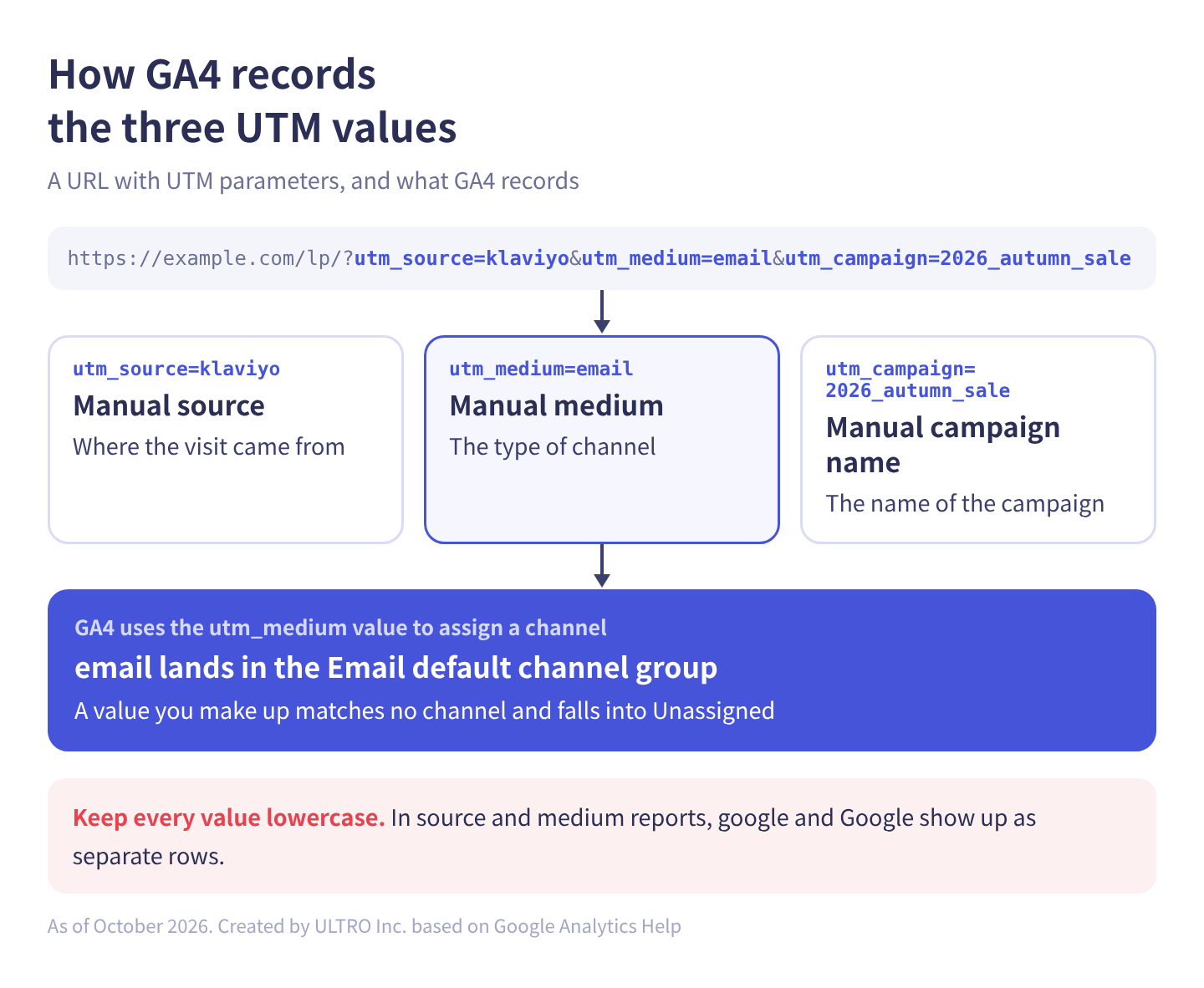
All nine are listed below.
| Parameter | GA4 dimension | Required | What goes in it |
|---|---|---|---|
| utm_source | Manual source | Yes | Where the visit came from (klaviyo, instagram, bing) |
| utm_medium | Manual medium | Yes | The type of channel (email, cpc, social) |
| utm_campaign | Manual campaign name | Yes | The campaign name (2026_autumn_sale) |
| utm_term | Manual term | No | The search keyword |
| utm_content | Manual ad content | No | Variations within a campaign (hero_banner, text_link) |
| utm_id | Manual campaign ID | No | An ID to join with data import |
| utm_source_platform | Manual source platform | No | The platform used to run the campaign |
| utm_creative_format | Not currently reported in GA4 | No | The format, such as video or carousel |
| utm_marketing_tactic | Not currently reported in GA4 | No | The tactic, such as retargeting |
The three marked required are the ones Google’s help says you should always use: utm_source, utm_medium and utm_campaign.
utm_content tends to get ignored, but it’s what tells you whether people clicked the header image or the text link in the same email. Starting it after someone asks “which creative worked?” is too late, so it’s easier to include it from the start.
Naming conventions: three rules
1. Use lowercase for everything
GA4 treats values as case-sensitive; its help says utm_source=google and utm_source=Google are different. If Facebook, facebook and FB are mixed, the same platform shows up as three rows in your source and medium reports, and adding them up takes manual work. (GA4’s channel definitions aren’t case-sensitive, so the channel still comes out right. It’s the source and medium rows that split.)
If several people create links, don’t rely on “lowercase only” as a verbal rule. Keep one sheet that builds the tagged URLs, and have everyone copy from it.
2. Use only letters, numbers and underscores
Spaces and special characters get URL-encoded into something hard to read. Pick either underscores (_) or hyphens (-) as your separator and don’t mix them.
3. Don’t make up utm_medium values
This is the most important rule. GA4 uses the utm_medium value directly to assign a channel. A value you invent matches no channel and falls into Unassigned.
UTM parameters and GA4 default channel groups
Here are the GA4 channel rules ecommerce stores use most, taken from GA4’s help. Put one of these values in utm_medium and traffic lands in the channel you intend.
| Channel you want | Value for utm_medium | Condition on source |
|---|---|---|
email | Source or medium is email (or e-mail and similar) | |
| SMS | sms | Source or medium is exactly sms |
| Paid Search | Contains cp (such as cpc), starts with paid, or is ppc or retargeting | Source matches GA4’s list of search sites |
| Paid Social | Same as Paid Search | Source matches GA4’s list of social sites |
| Organic Social | social, social-network, social-media, sm | Or source matches the list of social sites |
| Display | display, banner, cpm | — |
| Affiliates | affiliate | — |
| Referral | referral, app, link | — |
| Cross-network | — | Campaign name contains cross-network |
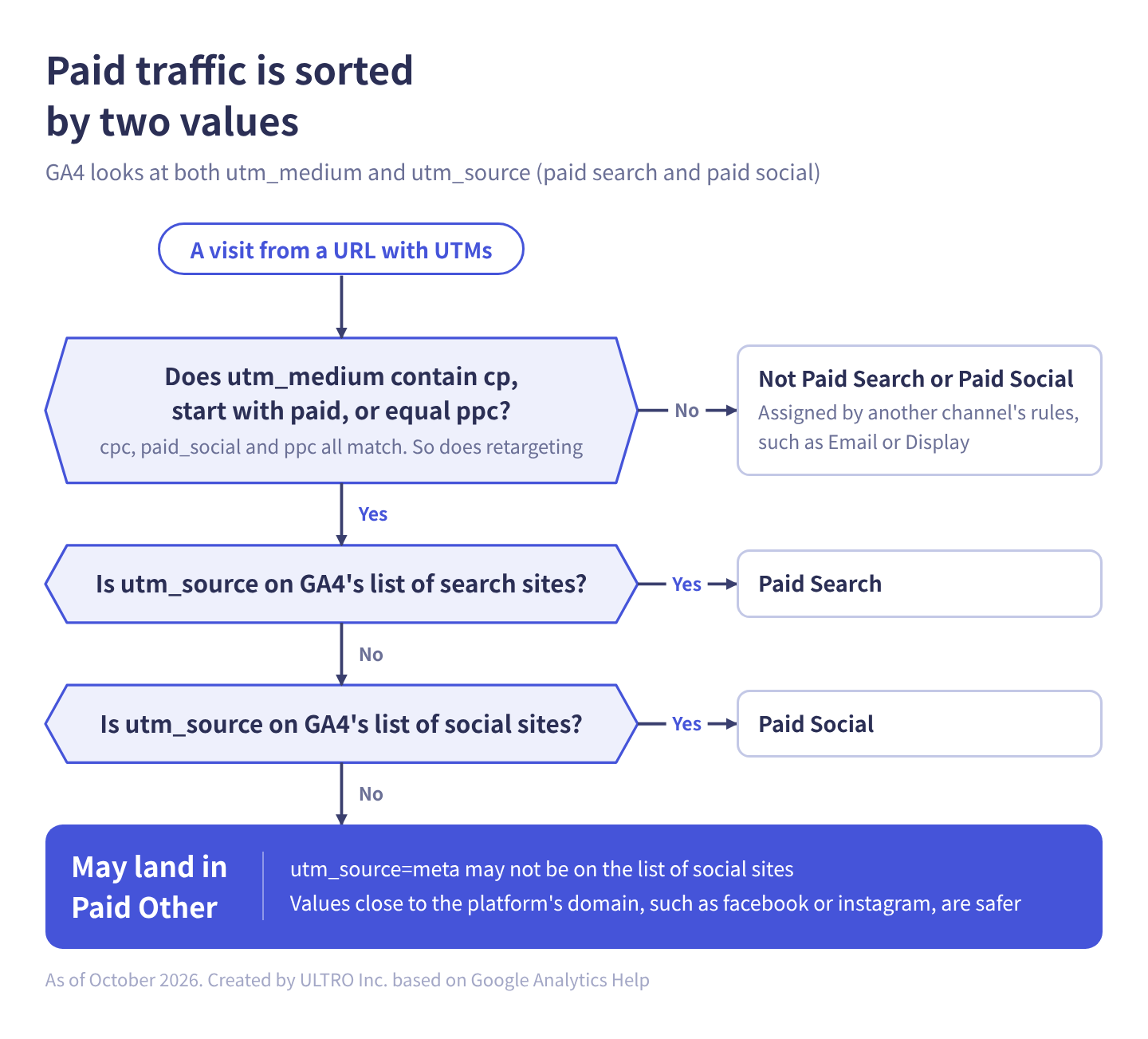
Paid Search and Paid Social are the ones to watch: utm_medium alone doesn’t decide them. GA4 also checks whether utm_source is a search site or a social site. If you tag Meta ads with utm_source=meta, meta isn’t guaranteed to be on GA4’s list of social sites, so the traffic may land in Paid Other instead of Paid Social. A value close to the platform’s domain, such as utm_source=facebook or utm_source=instagram, is safer.
Here’s the same logic as a flowchart:
One more trap for stores: GA4’s Paid Shopping and Organic Shopping rules also match a campaign name containing shop or shopping. A paid campaign named summer_shop_launch with utm_medium=cpc can end up in Paid Shopping rather than Paid Social. Avoid those words in campaign names unless you mean it.
UTM naming convention cheat sheet for ecommerce
| Where the link goes | utm_source | utm_medium | Notes |
|---|---|---|---|
| Email (Klaviyo, Shopify Messaging, etc.) | Tool name | email | Tools can often add these automatically |
| SMS | Tool name | sms | Keep separate from email |
| Instagram posts and stories | instagram | social | Add them to your profile link too |
| TikTok posts | tiktok | social | — |
| Meta ads | facebook / instagram | cpc | So they land in Paid Social |
| Google Ads | Don’t add | Don’t add | Leave it to auto-tagging (see below) |
| Affiliates | Network name | affiliate | — |
| QR codes on print and package inserts | print | qr or anything | Free choice if Unassigned is fine; use referral to classify it |
| Press and other publications | Publication name | referral | — |
QR codes are the one row marked “anything” because GA4’s default channel groups have no channel for print. Rather than forcing it into an existing channel, create a custom channel group and view it separately.
UTM builder
Enter the destination URL and the three values to build a tagged URL. You’ll see a warning if there are uppercase letters or other characters. The defaults are the example from the top of this article.
The URL is built entirely in your browser, and nothing you enter is sent anywhere. Don't use this for Google Ads links (the reason is in a section below).
If the destination URL already has a ?, the builder joins with &, and anything after # (a position on the page) stays at the end. The utm_medium warning only checks whether the value appears in the tables above.
Don’t use UTM parameters on internal links
First, a common explanation that’s wrong: “UTMs on internal links split sessions and break tracking” was true of Universal Analytics. It doesn’t happen in GA4.
Google’s help spells this out as a difference between UA and GA4.
| How sessions are handled | |
|---|---|
| Universal Analytics | Picking up new campaign parameters on the site starts a new session |
| GA4 | A session doesn’t restart at midnight or when new campaign parameters are encountered |
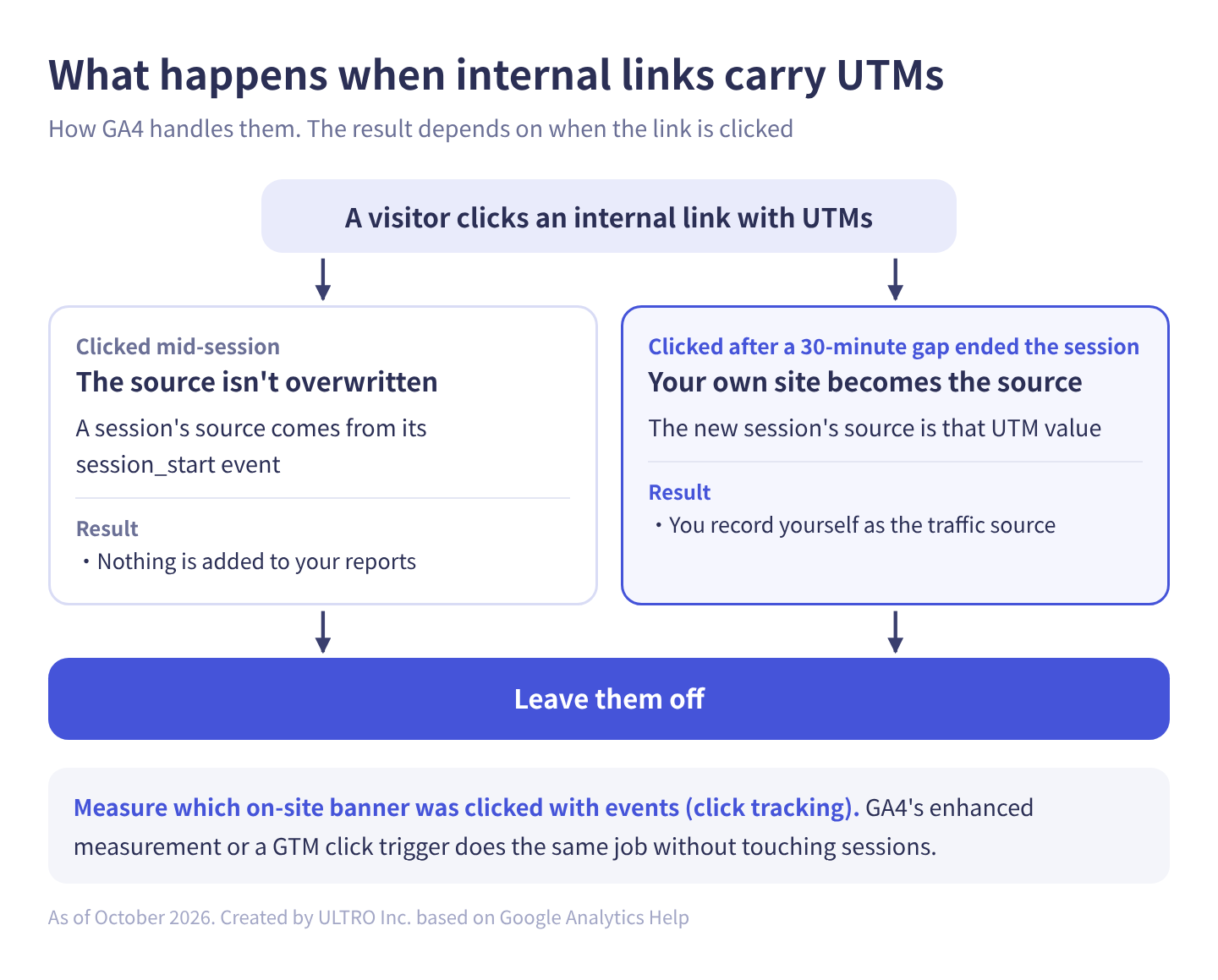
Session attribution lives on the session_start event, which Google’s help says carries the information that determines a session’s attribution, such as the GCLID parameter, UTM parameters and the referring URL. In other words, clicking an internal link with UTMs mid-session doesn’t overwrite that session’s source.
Even so, leave them off, for two reasons.
First, they don’t tell you anything. The source doesn’t change, so nothing is added to your reports.
Second, they cause real damage when clicked after a session ends. If 30 minutes pass, the session times out, and the visitor resumes through that link, the new session’s source becomes that UTM value: your own site. You end up recording yourself as the traffic source.
To find out which on-site banner was clicked, use events (click tracking), not UTMs. GA4’s enhanced measurement or a GTM click trigger does the same job without touching sessions. See GA4 events and Google Tag Manager for how.
What happens when you add manual UTMs to Google Ads
GA4’s reports don’t change. If you look at sales in Shopify, add them anyway. Most guides stop at “it’s pointless, don’t,” and miss what happens on the Shopify side.
Auto-tagging wins in GA4
Google’s help says that when you use manual tagging and auto-tagging together, GA4 uses the auto-tagged values for traffic-source dimensions such as source and medium.
With auto-tagging on, Google Ads adds a gclid to the URL at click time. From the gclid, GA4 receives the campaign, ad group and keyword, which is more than manual UTMs carry, so those values are used. Adding utm_source=google&utm_medium=cpc to your Google Ads URLs doesn’t change source / medium in GA4. Google’s help says manually tagged values are still used for the Manual ad content and Manual term dimensions. For how the click ID works, see What Is GCLID?
Shopify doesn’t read the gclid
This is the catch. Open Shopify’s UTM-based reports and Google Ads traffic is missing. GA4 reconstructs campaign information from the gclid, but Shopify doesn’t, so visits without UTMs in the URL don’t show up in those reports.
Side by side with GA4:
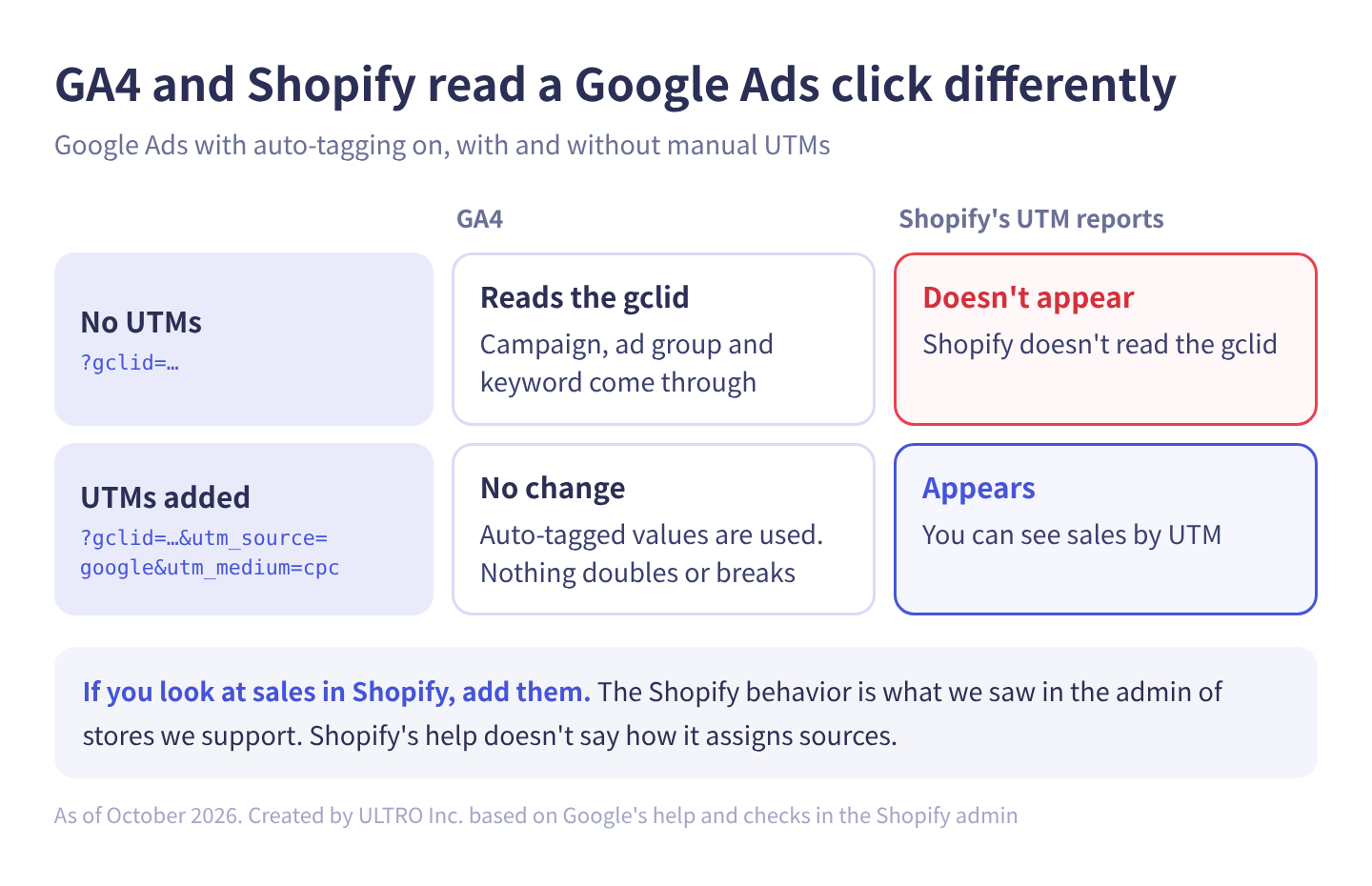
Shopify’s help doesn’t describe how it determines traffic sources, so we can’t point to official confirmation. It’s behavior we’ve verified in the Shopify admin of our client stores.
If you want Shopify sales by UTM, add UTMs through Google Ads’ final URL suffix or tracking template. GA4 still uses the auto-tagged values, so having both doesn’t double or break anything in its reports.
Check other platforms’ click IDs before deciding
For other click IDs, such as Microsoft Advertising’s msclkid or Meta’s fbclid, we couldn’t find anything in GA4’s help that describes them the same way. Don’t assume they behave like the gclid. Look at how source / medium actually appears in your reports, and add UTMs where a platform’s traffic isn’t classified the way you want.
When checkout or forms run on another domain
A common reason UTMs stop working on ecommerce sites is a cart, checkout or form on a different domain.
When the buyer returns from the payment page, GA4 treats that domain as a new referral, and the conversion is credited to the payment provider’s domain. Top-ranking guides rarely mention it, but however carefully you design your UTMs, leaving this gap open makes your ad results disappear.
There are two fixes in GA4 Admin:
- List unwanted referrals: add the payment or form domains so they aren’t counted as sources.
- Configure your domains: treat visits across several domains you own as one visit.
Both are under Admin > Data collection and modification > Data streams > your web stream > Configure tag settings. Configure your domains appears in the Settings list; List unwanted referrals appears once you click Show more.
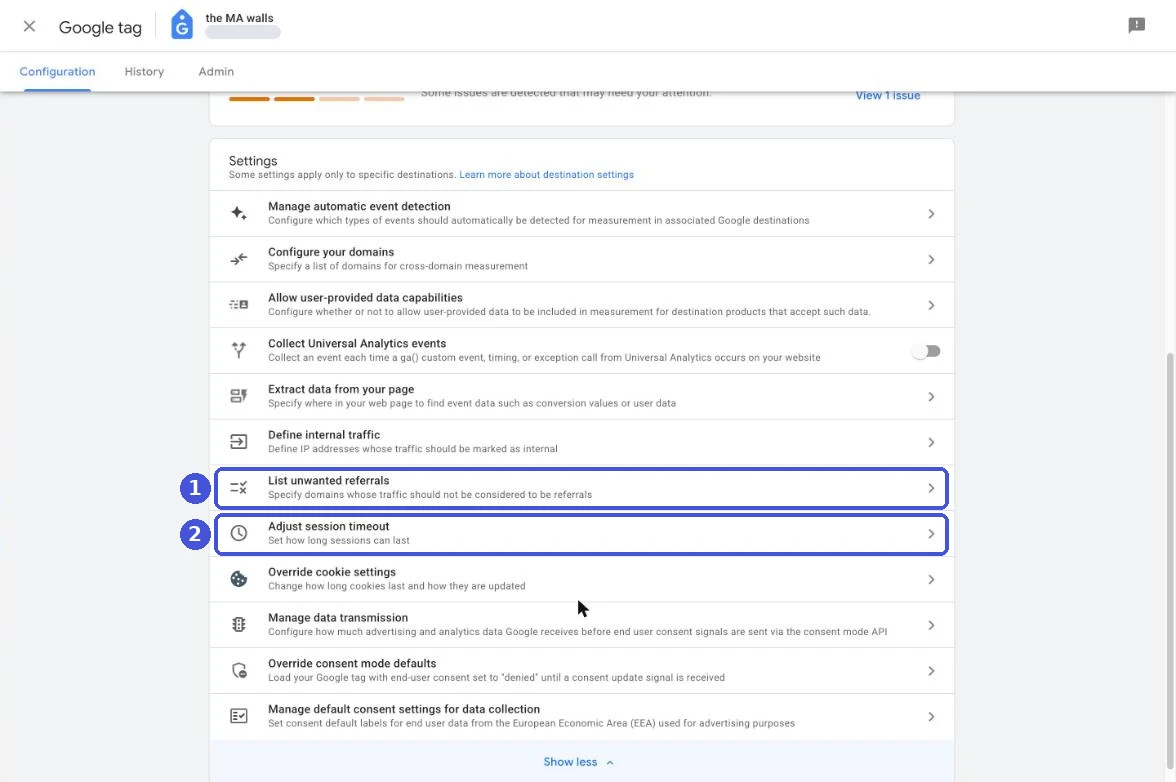
For the steps and which domains to add, see GA4 Referral Exclusion.
These two settings fix the source of purchases that reach GA4. A purchase where the buyer never came back from the external payment provider doesn’t reach GA4 at all. To check how many are missing, see GA4 Not Tracking All Shopify Purchases? We built a Shopify app, GapFill, for this. It’s our own product, so keep that in mind. It recovers missing GA4 purchase events server-side, works alongside your existing tags, and the missing purchases report is free.
Our Shopify appGapFill: Recover missing GA4 purchase events server-sideWorks alongside your existing tags. Free missing purchases report.See GapFill →How to check UTM parameters in GA4
Check your reports the day after you send.
Open the Traffic acquisition report (under Reports > Business objectives > Generate leads, or under Life cycle > Acquisition, depending on your property’s setup). The table shows Session primary channel group (Default Channel Group).
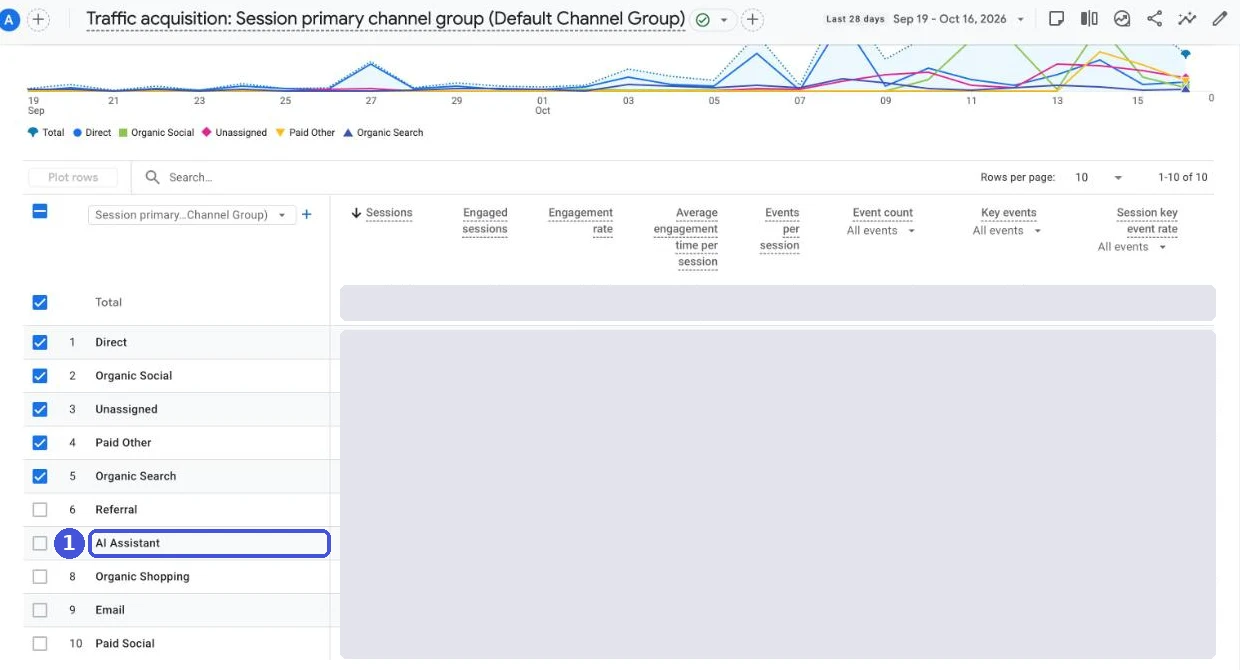
Check that traffic landed in the channels you intended. If Unassigned is growing, suspect your utm_medium values. Switch the dimension at the top left of the table to Session source / medium to see the values that were actually sent.
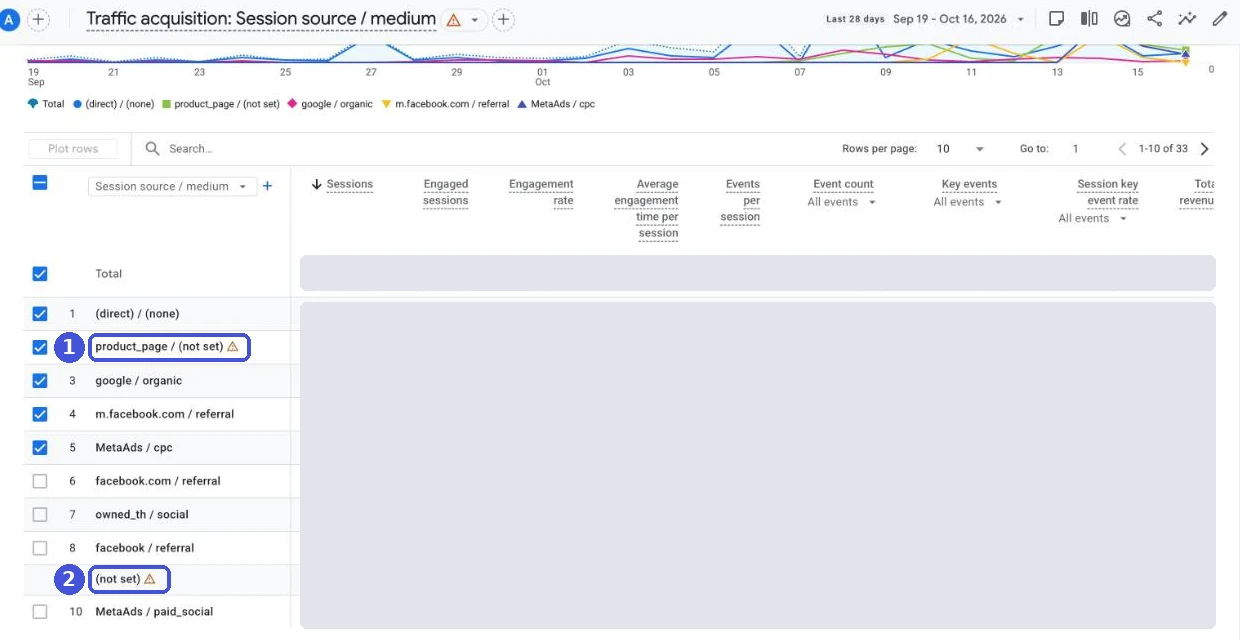
If you see (not set) here, GA4 (not set) covers the causes. To break results down by utm_campaign or utm_content, create an exploration and search for the dimension names in the table above (Manual campaign name, Manual ad content and so on) to add them. See GA4 Explorations for how.
To check a URL right after sending, don’t wait for the standard reports: the Realtime report shows it within minutes.
For why GA4’s numbers don’t match your ad platforms or Shopify, see Attribution. Even with correct UTMs, a purchase that never reaches GA4 gets no credit; see GA4 Not Tracking All Shopify Purchases? for how to check.
The AI Assistant channel and UTMs
In 2026, GA4 added AI Assistant to its default channel groups. It automatically sorts traffic from generative AI such as ChatGPT and Gemini based on the referrer. According to GA4’s help, when the referrer matches the list of AI assistants, the medium is set to ai-assistant and the campaign to (ai-assistant).
We see AI Assistant in the channel list of our own property too (it’s in the screenshot above). For how to tell AI-driven visits and orders apart in GA4 and Shopify, see GA4 AI Assistant Channel.
The thing to avoid: don’t write utm_medium=ai-assistant yourself. GA4’s rule also matches a medium of exactly ai-assistant, so hand-tagged links get mixed in with real AI traffic and you can no longer tell which is which.
Common UTM mistakes
| Symptom | Common cause |
|---|---|
| Lots of Unassigned | utm_medium is empty or made up |
| The same platform shows up on two rows | Inconsistent case or spelling (Facebook and facebook) |
| More sessions than you’d expect | UTMs on internal links |
| Ad results land in Direct | Redirects or link shorteners dropping the parameters |
| Conversions credited to the payment domain | Unwanted referrals list not set up |
| Paid campaigns in Paid Shopping | shop or shopping in the campaign name |
| UTMs on Google Ads have no effect in GA4 | Auto-tagging takes priority (working as designed) |
Some link shorteners don’t pass the query string through on redirect. Before you use one, click it and check that the parameters are still on the landing URL.
If you track email performance over time, make sure your email tool’s automatic UTMs don’t clash with your manual naming rules.
When you’re deciding what to improve across the site, look at the traffic breakdown alongside Ecommerce Conversion Rate.
Naming conventions can’t be unified retroactively: past data stays inconsistent. Settle them before you launch campaigns.
Sources
- Traffic-source dimensions, manual tagging, and auto-tagging (Google Analytics Help)
- URL builders: Collect campaign data with custom URLs (Google Analytics Help)
- [GA4] Default channel group (Google Analytics Help)
- [GA4] Campaigns and traffic sources (Google Analytics Help)
- About auto-tagging (Google Ads Help)
- [GA4] Comparing metrics: Google Analytics 4 vs Universal Analytics (Google Analytics Help)
- [GA4] About Analytics sessions (Google Analytics Help)
FAQ
Do I need all three UTM parameters?
Google's help says you should always use utm_source, utm_medium and utm_campaign. utm_medium in particular feeds directly into GA4's channel assignment, so leaving it out tends to put traffic in Unassigned.
Are UTM parameters case-sensitive?
Yes. Google's help says utm_source=google and utm_source=Google are different values. If Facebook and facebook are mixed, they show up as two separate sources in source and medium reports. GA4's channel definitions themselves aren't case-sensitive, so channel assignment still works, but keeping everything lowercase is the safe choice.
Can I use UTM parameters on internal links?
Don't, but not for the reason usually given. GA4 doesn't start a new session when campaign parameters change, so clicking one mid-session doesn't overwrite the source (sessions splitting was Universal Analytics behavior). You learn nothing from them, and if a session has timed out after 30 minutes and the visitor resumes through that link, the new session's source becomes your own site. Track on-site navigation with events instead.
If I add UTMs to Google Ads, which wins: auto-tagging (gclid) or the UTMs?
In GA4, auto-tagging wins. Google's help says that when you use both, the auto-tagged values are used for traffic-source dimensions such as source and medium. But Shopify's admin doesn't read the gclid, so Google Ads traffic without UTMs doesn't appear in Shopify's UTM-based reports. If you want Shopify sales by UTM, add manual UTMs even though GA4's reports won't change.
What is utm_id for?
It's an ID that identifies a campaign, used to join data when you upload ad costs or other campaign data to GA4. It should match the campaign ID in the data you import. If you don't use data import, you don't need it.
I launched a campaign with the wrong UTMs. Can I fix it afterwards?
You can't rewrite UTM values in data GA4 has already collected. Fix the URLs that are still live, then use a GA4 custom channel group to group the inconsistent values into the same channel so your reports read correctly again.
- utm_source, utm_medium and utm_campaign are required. utm_medium drives GA4's channel assignment.
- Keep every value lowercase and stick to letters, numbers, underscores and hyphens. Different cases are counted as different values in source and medium reports.
- Don't add UTMs to internal links. GA4 doesn't split the session, but they tell you nothing, and clicking one after a session times out makes your own site the source.
- For Google Ads, auto-tagging wins in GA4 so its reports don't change. Shopify doesn't read the gclid, so add manual UTMs if you look at sales in Shopify.
- If checkout or forms run on another domain, set up the unwanted referrals list as well.
Written byRyushi Nagata
CEO, ULTRO Inc. (Tokyo)Shopify Partner. Ryushi handles Shopify store builds, maintenance, advertising and CRM end to end, and has managed more than ¥4 billion in ad spend over his career. He holds Google Ads certifications (Search, Display, Video, Shopping, Apps, Performance Max, Measurement) and the Google Analytics certification.
How many purchases is GA4 missing in your store?
GapFill matches your Shopify orders against GA4 purchases, shows what GA4 missed, and recovers those purchase events server-side. It works alongside your existing tags, and the missing purchases report is free.