What Is Google Tag Manager? How to Use It for Ecommerce

What tags, triggers and variables mean, the five setup steps, which tags an online store should add first and in what order, and why pasting GTM into a Shopify theme doesn't track purchases.
Search for “GTM” and you get articles about Google Tag Manager mixed with articles about go-to-market strategy. This one is about the first: the Google tool for managing tracking tags.
It’s for people setting up GTM for the first time. It covers what the terms mean, the five setup steps, which tags an online store should add first, and where Shopify trips people up. Interface labels are as of October 2026.
What is Google Tag Manager?
Google Tag Manager (GTM) is a free Google tool for adding and removing the tags on your website or app from one web interface. Tags here means tracking code and related snippets, such as the GA4 tag or an ad platform’s conversion tag.
Normally, adding a GA4 or ad tag means editing your site’s HTML. The more tags you have, the more often you ask your developer for changes or edit your theme directly. With GTM, you add code to your site once, and every tag you add, change or remove after that happens in GTM.
What GTM can and can’t do
| What it means | |
|---|---|
| Can | Manage GA4, Google Ads, Meta and other tags in one place |
| Can | Fire tags only under conditions, such as “only on the order confirmation page” or “only when this button is clicked” |
| Can | Check tags in Preview before publishing, and roll back to an earlier version |
| Can | Limit who can edit (with user permissions) |
| Can’t | Store data or build reports (that’s GA4’s job, or another tool’s) |
| Can’t | Change your site’s design or features |
| Can’t | Make tracking correct just by adding tags (someone still has to design the conditions) |
GTM is only the delivery system. What to send, where, and with which values is up to you.
Google Tag Manager vs Google Analytics
GTM and GA4 do different jobs. GA4 collects and analyzes visits, events and purchases. GTM delivers tags, including the GA4 tag, and stores nothing itself. You can run GA4 without GTM, by connecting it through a platform integration or adding the Google tag directly. GTM earns its place when you manage several tags or need custom conditions.
Tags, triggers and variables
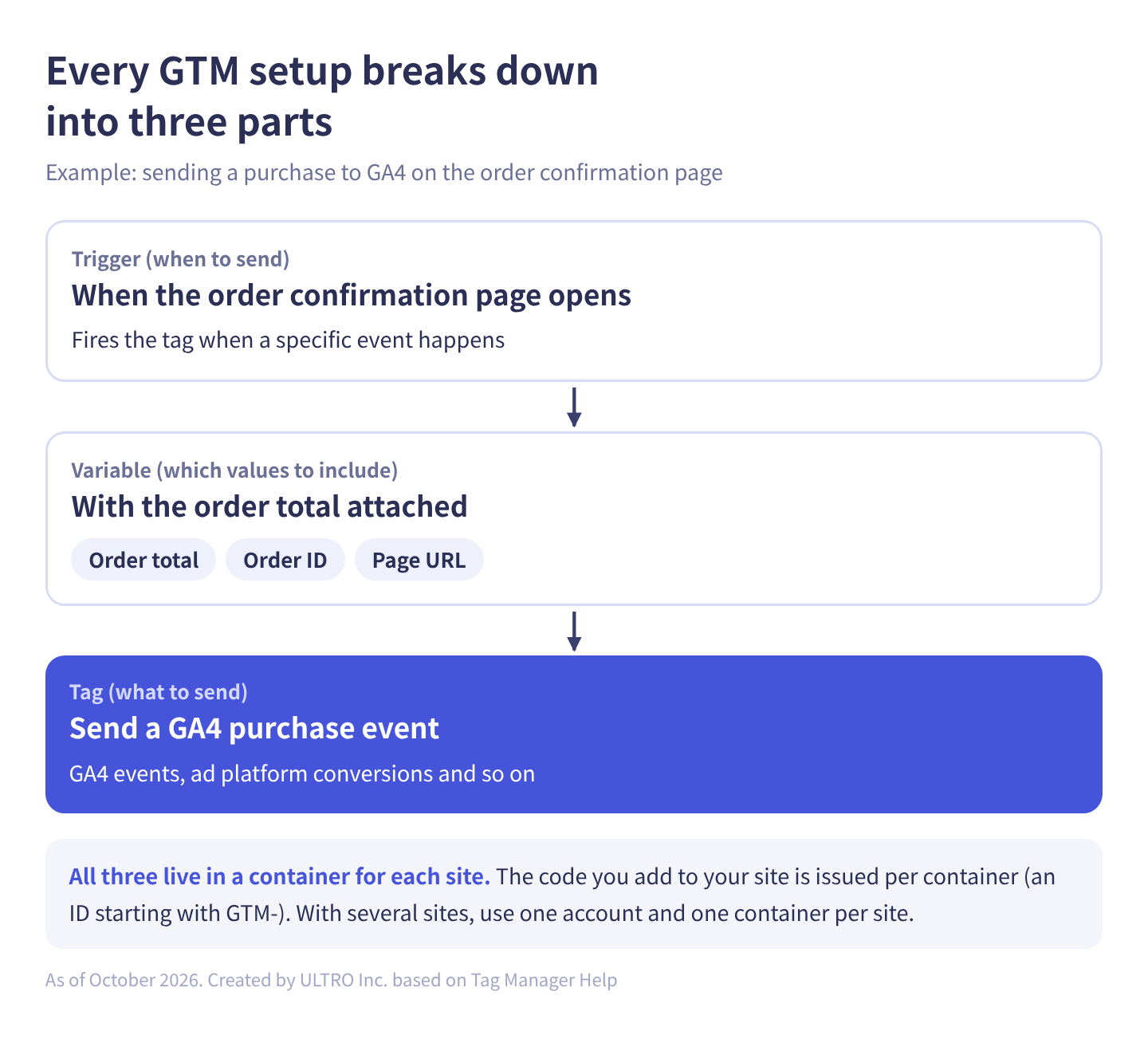
You build everything in GTM from three parts: tags (what to send), triggers (when to send) and variables (which values to send). Google’s help center describes them like this:
| Term | Google’s description | In plain terms |
|---|---|---|
| Tag | Tracking code and related snippets you set up and manage, from Google Ads, third parties and so on | What to send (a GA4 event, an ad conversion and so on) |
| Trigger | Causes your tag to fire when certain events occur | When to send (when this page opens, when this button is clicked) |
| Variable | Used to simplify and automate your tag configurations | Which values to include (order total, order ID, page URL and so on) |
“When the order confirmation page opens (trigger), send a GA4 purchase event (tag) with the order total attached (variable).” Most GTM setups break down into this shape.
Accounts and containers
GTM has two levels: accounts and containers. An account is for a company or organization, and Google’s help center says you typically only need one Tag Manager account per company. A container is the collection of tags, triggers, variables and related settings installed on one website or app, and the code you add to your site is issued per container (an ID starting with GTM-).
If you run several sites, the basic setup is one account with one container per site.
How to use Google Tag Manager: five setup steps
Setting up GTM takes five steps: create an account and container, add the code in two places, create a tag and trigger, check it in Preview, and publish. Nothing reaches your site until you publish.
Before you start, check what’s already running. Open your site’s source and search for GTM- and G- to see whether GA4 is already installed. If your Shopify store uses the Google & YouTube app, GA4 is already running, and adding a second GA4 tag through GTM records every purchase twice.
- Create an account and container. Sign in to Google Tag Manager with your Google account, enter an account name (your company) and a container name (your site’s domain), and choose Web as the target platform.
- Add the code in two places. After you create the container, GTM shows a snippet to paste as high in the
<head>as possible and anoscriptsnippet to paste right after the opening<body>tag. Add both to every page. You can find the same code later under Admin > Install Google Tag Manager. On Shopify, don’t paste it into your theme (theme.liquid). It won’t run on checkout, so you’d miss the purchases you most want to track (more below). - Create a tag and trigger. GA4 is the easiest place to start. Go to Tags, click New, and choose Google Tag as the tag type. In Tag ID, enter your GA4 measurement ID (it starts with
G-; find it in GA4 under Admin > Data streams), and choose Initialization - All Initialization Events as the trigger. - Check that it fires in Preview. Click Preview, and your site opens in GTM’s debug mode in your browser only. Go through the pages you care about and make sure the tags you expect appear under Tags Fired. How to read the Tag Assistant screen is covered in our Google Tag Assistant guide.
- Publish. This is the step people skip. Saving changes in GTM doesn’t update your site. Your tags run in production only after you click Submit and publish.
How to use GA4 itself, once GTM delivers it, is covered in our GA4 basics guide.
Three habits to learn first
- Nothing changes until you publish. When the setup looks right in GTM but tracking never starts, this is usually why.
- Firing in Preview doesn’t mean it fires in production. Preview only runs in your own browser. After publishing, go through the real flow once in the browser you normally use.
- Firing in GTM doesn’t mean the data arrived. After publishing, open GA4’s Realtime report and check that your own visit shows up. To check purchases, place one test order and check that
purchaseis recorded exactly once.
Which tags an online store should add first
The first tags an online store should add to GTM are GA4 on every page, the GA4 purchase event, and each ad platform’s conversions, in that order. Containers tend to fill up with tags added “because we could,” until nobody can explain what’s in them. Adding tags in this order keeps that from happening.
| Order | Tag | Purpose |
|---|---|---|
| 1 | GA4 (every page) | Baseline data for the whole site |
| 2 | GA4 purchase event | Capture revenue on the analytics side too |
| 3 | Each ad platform’s conversions | Send the signals ad platforms optimize on |
| 4 | Recovery layers such as enhanced conversions and conversion APIs | Reduce what tags miss |
| 5 | Heatmaps, chat and similar | Inputs for improving the site |
There’s a reason for this order. We think of tracking in three layers (basic tracking, signal recovery and server-side) and build from the bottom up. If you add the upper layers before the base is solid, the gaps in the base just carry upward.
We use four checks to tell whether basic tracking works. Run them after you build tags in GTM and you’ll redo less work:
- Do tags fire on every page?
- Does each action fire exactly once (not twice)?
- Does the click ID (
gclidand others) survive the landing after an ad click? (For how to spot one going missing, see our guide to gclid.) - Do identifiers carry over across multiple domains?
If “exactly once” breaks, revenue gets recorded at double its real value. How to track down the cause is in GA4 duplicate purchases.
Setups that hash values entered in forms and send them, such as Google Ads enhanced conversions, are also commonly built in GTM as part of the signal recovery layer. The details are in our guide to enhanced conversions.
Google Tag Manager on Shopify: the theme doesn’t cover checkout
If you paste the GTM code into your Shopify theme (theme.liquid), it runs on product and collection pages but not on checkout. So the purchase data you care about most never shows up. It’s the biggest gotcha with GTM on Shopify.
Checkout used to accept scripts directly. According to Shopify’s developer docs, the deadline to upgrade the Thank you and Order status pages was August 28, 2025 for Plus and August 26, 2026 for other plans, and upgraded pages don’t support checkout.liquid, Additional scripts or script tags. Additional scripts became read-only on August 28, 2025. checkout.liquid for the information, shipping and payment steps was already unsupported. As of October 2026, custom pixels are the way to capture checkout events.
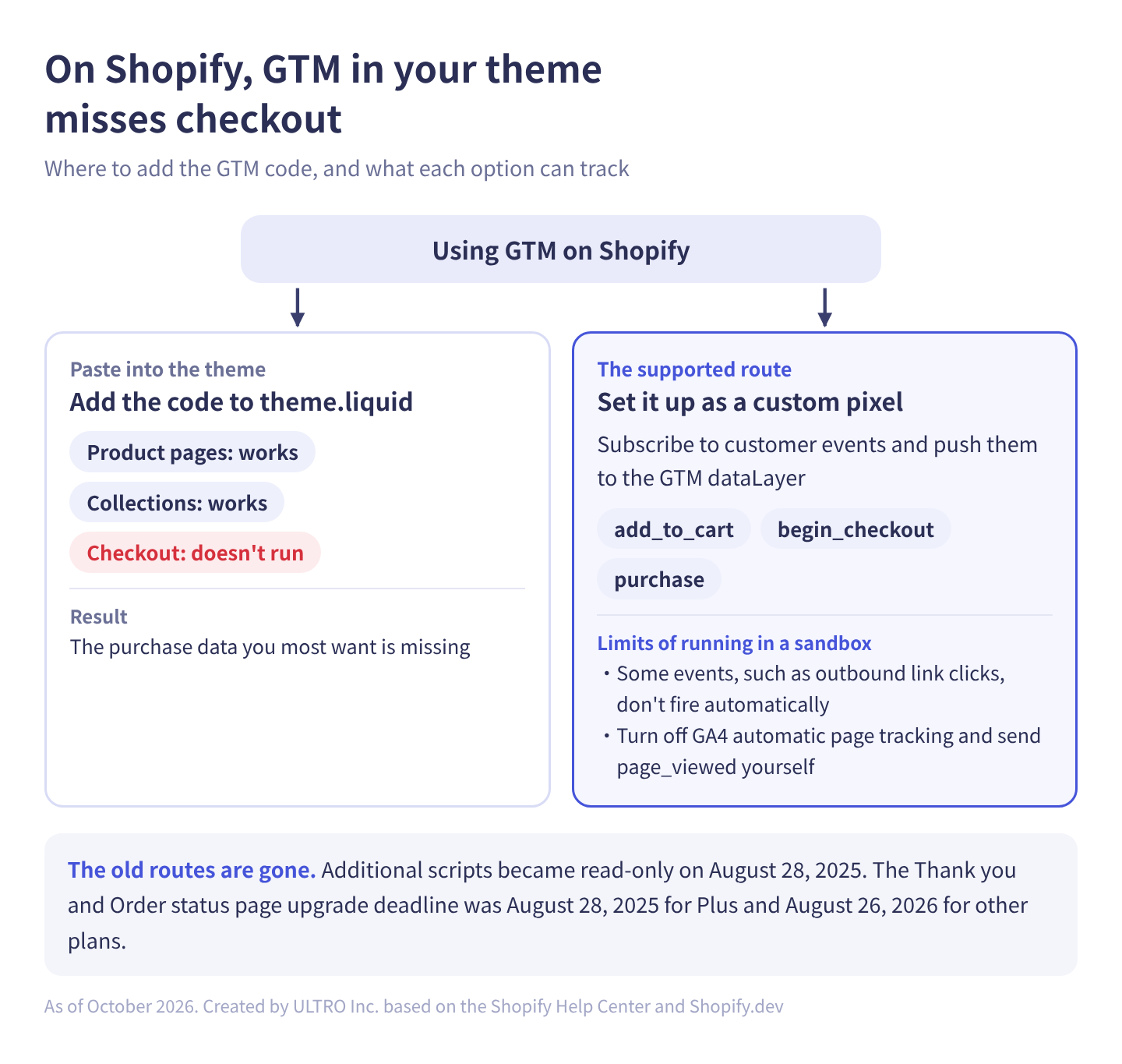
Shopify’s help center has a tutorial for setting up GTM as a custom pixel. The main points:
- Copy the GTM install code, remove the HTML script tags, and paste what’s left into a custom pixel.
- Add code that subscribes to Shopify customer events and pushes them to GTM’s
dataLayer. - In GTM, create a custom event trigger matching each event name, and variables to read the values.
Shopify’s example mappings include product_added_to_cart to add_to_cart, checkout_started to begin_checkout and checkout_completed to purchase. You map parameters yourself too, for example checkout.order.id to transaction_id and checkout.totalPrice.amount to value.
There are limits. Custom pixels run in a sandbox, and tag managers loaded inside follow the same restrictions. Shopify’s help says that outbound link clicks can’t be tracked automatically; that GA4 page URLs can include sandbox information, so you should turn off GA4’s automatic page tracking and send your own page_viewed event; that Google Tag Assistant’s Troubleshoot tag feature isn’t compatible with custom pixels and doesn’t detect Google tags inside them; and that adding and using custom pixels is unsupported by Shopify.
The steps and code examples are in our guide to Shopify custom pixels. Even with a correct custom pixel, purchases where the thank you page never loaded don’t reach GA4. Our Shopify app GapFill recovers missing GA4 purchase events server-side and works alongside your existing tags. It’s our own product, so read with that in mind.
Our Shopify appGapFill: Recover missing GA4 purchase events server-sideWorks alongside your existing tags. Free missing purchases report.See GapFill →On Shopify, ask whether you need GTM at all
If you only need GA4 on Shopify, the Google & YouTube app integration covers the basics. (Shopify’s help says certain ecommerce events are tracked automatically without listing them, so check in GA4’s DebugView that they actually arrive.) Reasons to add GTM come later: delivering several non-Google tags, or sending events under your own conditions. Sending the same event from both the app and GTM double counts it.
What the integration does and doesn’t capture is laid out in how to connect GA4 to Shopify.
When you’re better off without GTM
GTM is often treated as a given, but sometimes not installing it makes life easier.
| Situation | How to think about it |
|---|---|
| You deliver only one or two tags | An official integration or a theme setting is usually enough |
| Your platform has an official integration | Like Shopify’s Google & YouTube app: if the integration covers it, it breaks less often |
| Nobody in-house can work in GTM | When the person who set it up leaves, nobody can explain the container |
| You can’t add code to checkout or forms | You can’t track purchases, so there’s little point. Shopify isn’t in this group: you can’t use the theme, but custom pixels are a way in |
On the other hand, with three or more ad platforms, frequently changing tracking conditions, or work split with an agency, not having GTM costs more effort. The deciding factors are the number of tags and how often they change.
How GTM tracking breaks, and how to check
GTM tracking problems mostly come down to forgetting to publish, double counting, trigger conditions that don’t match, missing click IDs, and site changes that break triggers. Most of these throw no error and just skew the numbers, so it helps to be able to work backward from the symptom. The events you send to GA4 and their parameter rules are in our guide to GA4 events, and troubleshooting Google Ads conversions that don’t record is in our guide to Google Ads conversion tracking.
| Symptom | Common cause | Where to check |
|---|---|---|
| Nothing is tracked | Not published, or the code is only on some pages | GTM version history, source of every page template |
| Purchases are doubled | The same event is sent through two routes | GA4 DebugView, GTM Preview |
| One page isn’t tracked | Trigger conditions don’t match the URL | Trigger conditions vs the actual URL |
| Only ad platform numbers are off | The click ID drops during a redirect | Parameters on the landing URL |
| A sudden drop from one day | Theme change, app swap, form rebuild | Change history and the date the drop started |
| Published on Shopify, but nothing arrives | The custom pixel’s permission is set to Required and visitors in consent-required regions never grant consent (no banner) | Customer events settings and whether a banner exists |
The site-change row is the trickiest. When a redesign changes class names or the DOM structure, triggers and variables that depend on them stop capturing values without throwing errors. Make “check tracking whenever the site changes” part of your routine.
The Google tag (gtag.js), and three things you’ll run into next
GTM or the Google tag: pick one
Google’s developer docs describe gtag.js as a JavaScript framework for adding Google tags to web pages, which can only send data to Google services, and Tag Manager as a web-based system for creating and installing tags without manual coding. Unlike gtag.js, Tag Manager also handles third-party and custom tags.
The same docs say that if you use Google Tag Manager, you don’t need to add gtag.js snippets to your site. If you run both and send the same data, you double count.
Consent mode
Consent mode is Google’s way of adjusting how tags behave based on the choice a visitor makes in a cookie consent banner. Whether you need it depends on where your customers are and which features you use. How to decide is in our guide to cookie consent.
Server-side GTM
Server-side GTM routes tags through a server you run instead of sending everything from the browser. In our view, the point of server-side GTM isn’t adding more tags. It’s controlling your data: connecting to your CRM, unifying event definitions across platforms, and managing consent strictly. The first signal still comes from the browser.
Costs, and where it helps an online store and where it doesn’t, are covered in our guide to server-side GTM.
Google tag gateway for advertisers
Google tag gateway for advertisers serves Google’s scripts from your own domain as first-party resources. Google’s docs say you can set it up on infrastructure you already run: a CDN, a load balancer or a web server. It sits between the standard setup and server-side GTM, without the build-out the latter needs. If your site is on Cloudflare, you can do it from GTM: go to Admin > Google tag gateway, click Sign into Cloudflare, and pick your domains under Manage domains. You need the Super Administrator, Administrator or Zaraz Admin role in Cloudflare. Other CDNs and web servers need manual setup.
All three assume basic tracking already works. If GA4 doesn’t yet record each purchase exactly once, you don’t need to touch them.
Sources
All checked in October 2026.
- Tag Manager overview (Tag Manager Help)
- Set up Google Analytics in Tag Manager (Tag Manager Help)
- Google tag and Tag Manager (Google for Developers)
- What is Google tag gateway for advertisers (Google for Developers)
- Set up Google tag gateway for advertisers with Cloudflare (Google Ads Help)
- Creating a Google Tag Manager custom pixel (Shopify Help Center)
- checkout.liquid (Shopify.dev)
- Compare Google Tag Manager and Tag Manager 360 (Google Marketing Platform)
FAQ
What does GTM stand for?
In analytics, it stands for Google Tag Manager. In business, GTM also stands for go-to-market (strategy), so searches for GTM return both kinds of articles.
What's the difference between Google Tag Manager and Google Analytics?
GTM delivers tags. It doesn't store or analyze data. GA4 collects and analyzes traffic data. GTM can deliver the GA4 tag, but you can also run GA4 without GTM.
Is Google Tag Manager free?
The standard version is free. It allows three workspaces for concurrent work, and approval workflows and zones are only in the paid Tag Manager 360. For most online stores, the standard version is enough.
Do I need both GTM and the Google tag (gtag.js)?
No. Google's developer docs say that if you use Google Tag Manager, you don't need to add gtag.js snippets to your site. Sending the same data through both causes double counting.
Can I paste GTM directly into my Shopify theme?
You can, but it won't track purchases. Code in your theme doesn't run on checkout. Shopify's help center explains how to set up GTM as a custom pixel and push customer events to the dataLayer.
I installed GTM but my tags don't fire. Where do I look?
First check whether you published. GTM changes don't reach your site until you publish them. Then open Preview, go to the page in question, and see whether the tag fired and whether the trigger conditions matched.
Does Google Tag Manager slow down my site?
The GTM container loads asynchronously, but the impact depends on how many tags you deliver through it and what they do. Don't leave unused tags in place, and don't load heavy third-party tags on every page without a condition.
- GTM delivers tags. It doesn't collect or analyze data itself.
- Think in three parts: tags (what to send), triggers (when to send) and variables (which values to send).
- An online store starts with GA4 and each ad platform's conversions. First check that they fire on every page, exactly once per action.
- On Shopify, GTM pasted into the theme can't track checkout. A custom pixel is the supported route.
- If you have only one or two tags and an official integration covers them, not installing GTM is a valid choice.
Written byRyushi Nagata
CEO, ULTRO Inc. (Tokyo)Shopify Partner. Ryushi handles Shopify store builds, maintenance, advertising and CRM end to end, and has managed more than ¥4 billion in ad spend over his career. He holds Google Ads certifications (Search, Display, Video, Shopping, Apps, Performance Max, Measurement) and the Google Analytics certification.
How many purchases is GA4 missing in your store?
GapFill matches your Shopify orders against GA4 purchases, shows what GA4 missed, and recovers those purchase events server-side. It works alongside your existing tags, and the missing purchases report is free.