Google Ads Conversion Tracking: Shopify Setup and Fixes

The three ways to track Google Ads conversions, how to set them up on Shopify without double counting, the 2026 changes, a top-down checklist for when conversions aren't recording, and why Google Ads and Shopify numbers never match.
Google Ads gives you more than one way to set up conversion tracking, and on Shopify an app creates some conversion actions for you. That’s why we keep hearing the same three questions: “Which of these is actually tracking?”, “I set it up, so why is it zero?” and “Why is it higher than my Shopify orders?”
This guide is for anyone running Google Ads for a Shopify store or owning its tracking. It covers the ways to track conversions, how to set them up on Shopify without double counting, the 2026 changes, a checklist for when conversions aren’t recording, and why Google Ads and Shopify never quite agree. Specs follow Google’s help and documentation as of October 2026. Interface labels follow the help center and may differ slightly from what you see.
Three ways to track Google Ads conversions
How a conversion is tracked is set per conversion action (each outcome you track), and you can mix methods in one account. The three methods are the Google tag on your site (the classic “conversion tag”), importing GA4 key events (the events GA4 counts as outcomes, formerly called conversions), and sending conversions from a server.
| Google tag (conversion tag) | Import GA4 key events | Data Manager / API | |
|---|---|---|---|
| How it sends | The Google tag on your site sends to Google Ads at the moment of purchase | Key events counted in GA4 are imported into the linked Google Ads account | Sent from your server or a connected service |
| Best for | Using Google Ads features such as enhanced conversions | Reusing your existing GA4 setup | Adding in-store or phone sales, or purchases the tag can’t reach |
| View-through conversions | Reported | Not reported | — |
| Data freshness (last click) | About 3 hours | About 12 hours | Varies |
Google Ads Help describes reusing GA4 measurement as efficient, but recommends the Google tag when you need Google Ads-specific features such as enhanced conversions. Conversions imported from GA4 don’t show view-through conversions (conversions from people who saw an ad but didn’t click), and to see cross-device conversions you need Google signals turned on in GA4. For how GA4 events and key events work, see GA4 events.
Which conversions flow from GA4 into Google Ads also depends on GA4’s attribution settings, where web conversions can credit either Google paid channels or paid and organic channels. For properties linking to Google Ads for the first time, the default is Google paid channels.
Decide these first: primary vs secondary, count and conversion window
Before you create a conversion action, decide whether it’s used for bidding (primary or secondary), how it’s counted, and its conversion window. Changing them later only affects conversions recorded from that point on.
| Setting | For ecommerce purchases | Notes (Google Ads Help) |
|---|---|---|
| Goal category | Purchase | Actions are grouped into standard goals by category |
| Action optimization | Make exactly one purchase action primary | Primary actions show in the Conversions column and are used for bidding. Secondary actions show only in All conversions and aren’t used for bidding in standard goals (unless they’re in a custom goal) |
| Value | Use different values for each conversion (the order amount) | We couldn’t confirm in Google’s help whether the Google & YouTube app’s value includes tax, shipping or discounts |
| Count | Every | Count every purchase. Use One for leads and sign-ups |
| Click-through conversion window | 30 days (default) | 1 to 30, 60 or 90 days. Google recommends at least 7 days |
| Engaged-view conversion window | 3 days (default) | 1 to 30 days |
| View-through conversion window | 1 day (default) | 1 to 30 days |
Goals marked as account-default goals are preselected for optimization every time you create a new campaign. If your account has add to cart or begin checkout alongside purchase, check which goals are account defaults.
Engaged-view conversions (people who watched a video ad for a while and converted later without clicking) never show up in outside analytics tools, so they’re a common reason Google Ads and GA4 disagree. Our own view: the fewer purchases an account gets, the more it pays to start with purchase as the only primary action.
How to create a conversion action with the Google tag
If you use the Google & YouTube app on Shopify, you don’t need this section; skip to the next one. To track with the Google tag, create the conversion action under Goals in Google Ads, scan your domain and choose how to connect. Google Ads Help gives these steps:
- Go to Goals > Summary and click + Create conversion action.
- Click Edit data sources for “Conversions on a website.”
- Enter your website domain and click Scan. Google Ads detects whether a Google tag or Analytics property is available.
- Choose a conversion category, then choose how to track: Automatically without code (URL-based), Manually using code, or Set up in Google Tag Manager. Set the name, value, count, conversion window, attribution and enhanced conversions.
To send the purchase value and a transaction ID (the order ID), you need the code-based method. If the same conversion action receives the same transaction ID twice, the second one isn’t counted. Use an ID that’s unique per order and no longer than 64 characters. The help center doesn’t say duplicates are removed across separate conversion actions.
If you track in GTM, you also need a conversion linker, which stores ad click information in your site’s first-party cookies. Tag Manager Help says a container that loads a Google tag on every page doesn’t also need a Conversion Linker tag.
Adding the conversion ID and label in GTM
In GTM, you put the conversion action’s Conversion ID and Conversion label into a tag and fire it on a purchase trigger. Tag Manager Help gives these steps:
- In GTM, add a new tag, and under Tag Configuration choose Google Ads > Google Ads Conversion Tracking.
- In Google Ads, open the conversion action, click Use Google Tag Manager under Tag setup, and copy the Conversion ID and Conversion label. The ID is unique per account; the label is unique per conversion action.
- Enter the Conversion ID and Conversion label in the tag. Add Conversion Value, Transaction ID and Currency Code as needed. If Conversion Value is empty, it’s sent as 0.
- Under Triggering, choose your purchase trigger. Save, test in Preview, then publish.
Purchase value and transaction ID usually come from data layer variables. For how GA4 purchase events are structured, see GA4 events.
Shopify setup: the Google & YouTube app’s purchase conversion
On Shopify, connecting your Google Ads account through the Google & YouTube app creates purchase and other conversion actions and maps them to Shopify events. You don’t need to add any tags to your theme.
Google Ads Help lists five steps:
- Install the Google & YouTube app
- Connect your Google Ads account (Recommended)
- Set up conversion measurement (confirm how Shopify events map to conversion actions)
- Confirm Google tags
- Verify your new conversion actions
When you connect Google Ads, purchase, add to cart and checkout started are set as the suggested account defaults, and the help center tells you to set the app’s conversions as primary. While purchase volume is low, we keep purchase as primary and, after connecting, either set add to cart and checkout started to secondary in Goals > Summary or remove them from the account-default goals so bidding focuses on purchases. That’s our approach, not Google’s guidance.
The app’s purchase isn’t tracked by the Google tag alone. Google Ads Data Manager Help says purchase conversions driven by Shopify’s “Checkout completed” event are also sent server to server from the store to Google Ads, and deduplicated against the Google tag’s. Purchase is the only event supported so far, and the setup requires accepting the customer data policies. If you change which conversion action receives Shopify events, expect up to 12 hours for the change to take effect. For the rest of the app’s setup, including GA4, see Shopify GA4 setup.
Three ways purchases get double counted
Shopify purchases get double counted when two primary actions count the same order, or when the same action receives it from two paths.
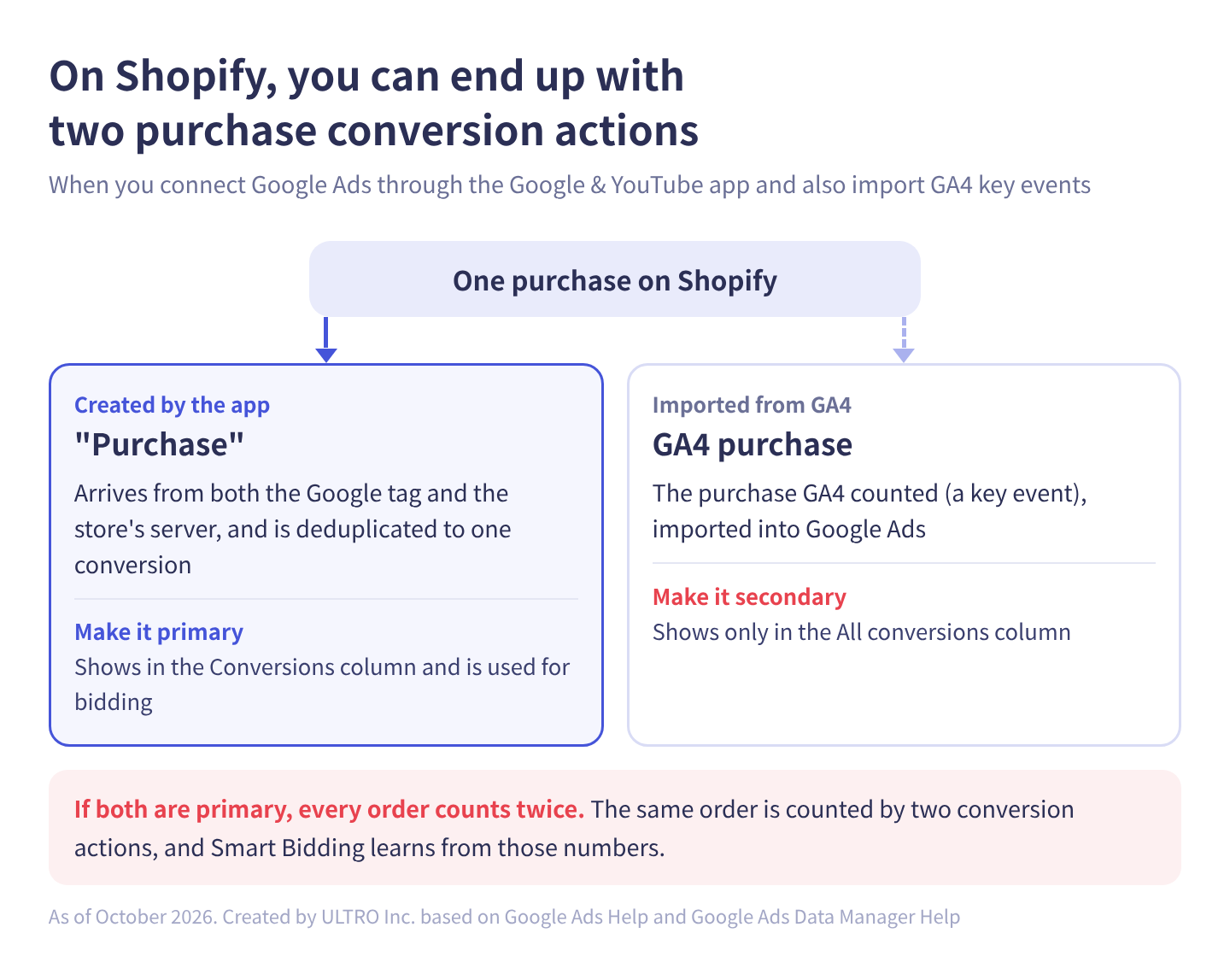
In table form:
| Pattern | What happens | Fix |
|---|---|---|
| The app’s Purchase and a purchase imported from GA4 are both primary | The same order is counted by two actions, and Smart Bidding learns from those numbers | Make the GA4 import secondary |
| An old Google Ads purchase tag is left in your theme, Additional scripts, GTM or a custom pixel | It sends alongside the app’s tag | Remove the old tag. Google’s help also says to remove legacy tags after switching to the app |
| The purchase tag fires twice, for example when the thank you page is reloaded | With the same transaction ID, the repeat is removed within that action | Check that purchases carry a transaction ID |
Google Ads Help says that when an account already has goals from an Analytics property, conversion actions based on GA4 key events are set to secondary to avoid counting the same event twice for bidding. People still switch them to primary by hand, so check Goals > Summary for two primary purchase actions. For adding tags with a custom pixel, see Shopify custom pixels. For double counting on the GA4 side, see GA4 duplicate purchases.
What changed in 2026: enhanced conversions, the Google tag and offline imports
2026 brought a unified enhanced conversions setting, an announced Google tag / Tag Manager merge, and offline imports moving to the Data Manager API. Enhanced conversions hash (irreversibly scramble) first-party data such as the buyer’s email address and send it to recover conversions that cookies couldn’t tie to an ad. On Shopify, you can turn it on in the Google & YouTube app’s Google Ads settings.
| When | Change | Source |
|---|---|---|
| From April 2026 | Google Ads accepts user-provided data from website tags, Data Manager and API connections at the same time | Google Ads Help, enhanced conversions settings update |
| May 2026 (announced) | Google announced that Google tags will be upgraded to containers with Tag Manager features, with no rollout date given. Existing functionality isn’t removed and on-page tag behavior doesn’t change | Tag Manager Help, Google tag and Tag Manager update |
| From June 2026 | Enhanced conversions for web and for leads merge into a single on/off setting | Google Ads Help, enhanced conversions settings update |
| From June 15, 2026 | Offline conversion imports and enhanced conversions for leads uploads move to the Data Manager API. In the Google Ads API, developer tokens with no offline conversion uploads between December 17, 2025 and June 15, 2026 are restricted | Same, and Google Ads API Deprecations |
If you already use enhanced conversions and have accepted the customer data terms, you don’t need to do anything: you’re migrated to the new setting. With the Tag Manager update, container optimization isn’t automatic; you choose whether to do it.
Consent mode and Google Ads conversions
With consent mode, conversions from people who decline ad cookies are no longer tracked with cookies. What happens to them depends on whether you use basic or advanced consent mode.
| Basic | Advanced | |
|---|---|---|
| Tag loading | Not loaded until the visitor interacts with the consent banner | Loaded when the page opens |
| When consent is denied | Nothing is sent | Cookieless pings and the consent state are sent |
| Modeling | General model | Advertiser-specific model, more detailed |
Per Google Ads Help, one requirement for consent mode conversion modeling is 700 ad clicks over a 7-day period per country and domain grouping. Modeled conversions are included in the Conversions column. If your store gets fewer ad clicks than that, assume declined conversions are simply missing.
Shopify’s cookie banner only runs pixels for visitors who consented, in regions where you’ve set consent to be required.
Google Ads conversions not recording? Check in this order
When conversions aren’t recording, start with what the Google Ads interface tells you: status, then tag firing, then click ID and consent, then conversion window and reporting delay, then primary vs secondary and duplicates. Work down the list and stop when you find the cause.
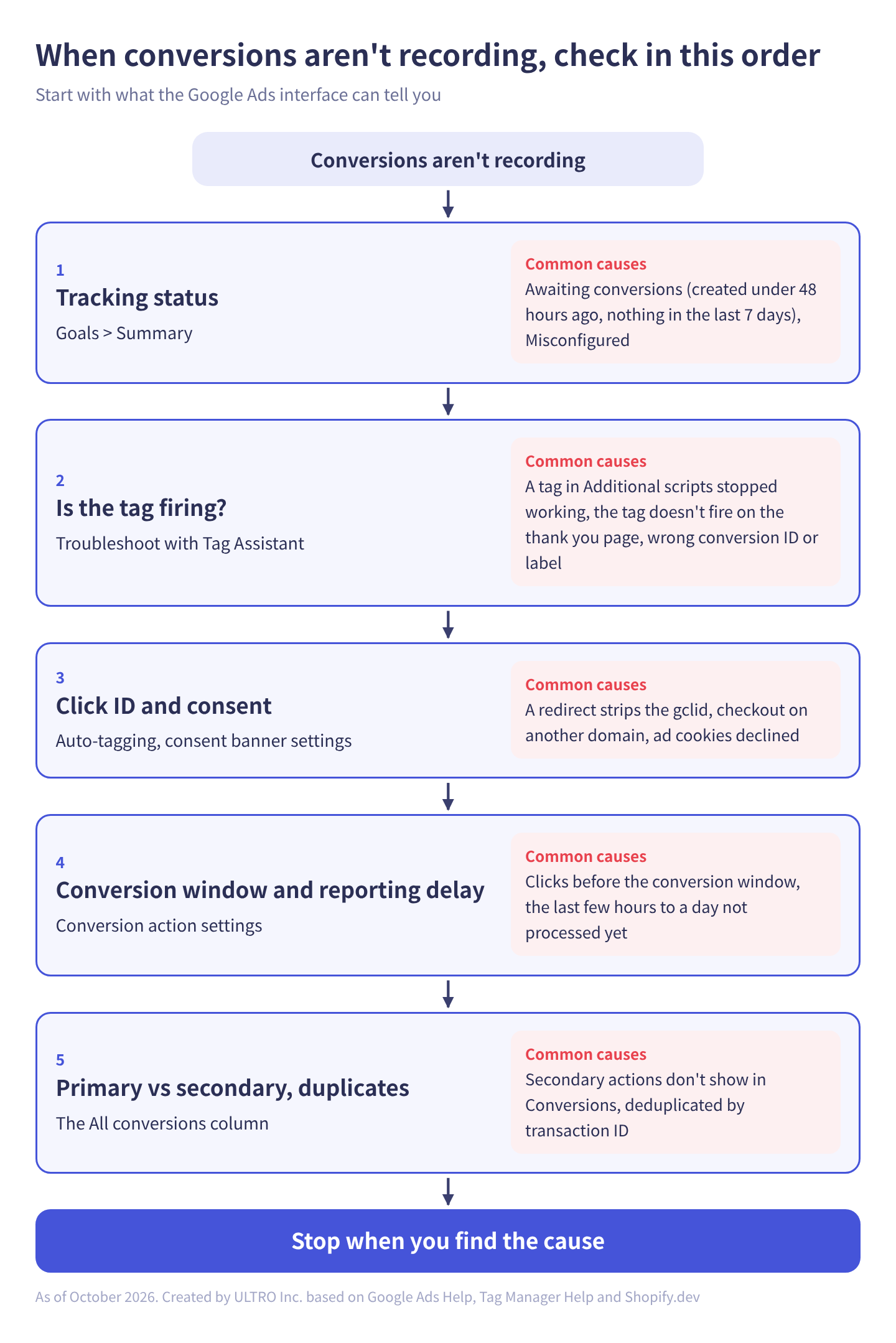
In table form:
| # | Check | Where | Common causes |
|---|---|---|---|
| 1 | Tracking status | Goals > Summary | Created under 48 hours ago or nothing in the last 7 days (Awaiting conversions), broken tag (Misconfigured) |
| 2 | Is the tag firing? | Tag Assistant troubleshooting, started from the status | A tag in Shopify’s Additional scripts stopped working (Plus: August 28, 2025; others: August 26, 2026), the tag doesn’t fire on the thank you page, the wrong conversion ID or label |
| 3 | Is the ad click ID (the gclid in the URL) kept? | Auto-tagging, Tag Assistant, landing page URLs | Auto-tagging is off, a redirect strips the gclid, checkout on another domain doesn’t carry it over |
| 4 | Consent state | Consent in Tag Assistant, consent banner settings | Ad cookies declined, the tag doesn’t wait for the banner |
| 5 | Conversion window | Conversion action settings | Purchases from clicks before the window aren’t counted |
| 6 | Reporting delay | Date range | The last few hours to a day haven’t been processed yet |
| 7 | Primary vs secondary, duplicates | Goals > Summary, the All conversions column | Secondary actions don’t appear in Conversions; repeats removed by transaction ID |
1. Check the tracking status
As of October 2026, Google Ads Help lists five statuses: Active, Needs attention, Misconfigured, Awaiting conversions and Removed. Needs attention means recording hasn’t stopped but something needs fixing; Misconfigured means a setup error or broken tag has stopped recording. Older labels such as Unverified, Tag inactive and Recording still appear in some help articles, including the Tag Assistant one. They mean the same thing whichever label you see.
2. Check that the tag fires with Tag Assistant
If you ever pasted a Google Ads purchase tag into Additional scripts on Shopify’s Thank you or Order status page, suspect that first. Shopify.dev says script tags on the order status page stopped working on August 28, 2025 for Plus stores and on August 26, 2026 for all other stores, which was also the non-Plus deadline for upgrading those pages. If conversions dropped to zero on a particular day, that change may be why.
In Goals > Summary, hover over the status, click Troubleshoot, then Continue to open Tag Assistant. Connect from your home page or a landing page rather than the conversion page, and go all the way through a test order. Results show up in Google Ads about 30 minutes after you finish. For the full walkthrough and what to do when it won’t connect, see Google Tag Assistant.
3. Click ID and multiple domains
The basics are: the tag runs on every page, one action sends exactly once, the click ID survives as visitors move between pages, and the identifier carries over across domains. In Google’s setup, the conversion linker handles the last two. Site redesigns, form changes and CMS migrations can break this without any error. For how the gclid works and what strips it, see GCLID.
4. Consent state
If ad cookies are declined, the tag can fire but nothing is tracked with cookies. The difference between basic and advanced is covered in the consent mode section above.
5–6. Conversion window and reporting delay
Changing the conversion window doesn’t apply to past clicks. Typical delays (Google Ads Help, “About data freshness,” and others):
| Data | Last click | Other models |
|---|---|---|
| Google Ads conversion tracking | About 3 hours | About 15 hours |
| Imported from Google Analytics | About 12 hours | About 24 hours |
| Changing the conversion action in the Shopify–Data Manager connection | Up to 12 hours | — |
7. Primary vs secondary, duplicates
Secondary actions don’t appear in the Conversions column, only in All conversions. If the numbers seem to be missing, switch columns. If they’re too high, go back to “Three ways purchases get double counted” above.
Why Google Ads and Shopify numbers don’t match
Google Ads purchases don’t match Shopify orders because the two record on different dates, count different scopes and treat modeling differently, and because some purchases can’t be tracked by a tag at all. They will never match exactly.
| Difference | Google Ads | Shopify |
|---|---|---|
| Date recorded | The day of the ad click | The day of the order |
| Scope | Purchases with a Google Ads click or engaged view within the conversion window | All orders |
| Watched a video ad, didn’t click, bought later | Counted as an engaged-view conversion | Not separated out |
| Modeling | Includes consent mode and other modeled conversions | None |
| Purchases nothing reached | Not included if neither the tag nor the server connection reached Google | Included |
If you look at purchases imported from GA4, GA4’s attribution settings and import delay come into play as well.
Before raising budgets, check that your conversion goals are right, that conversion values reflect business value, that no tag is duplicated, and that loosely related actions aren’t padding the count. If Google Ads shows more purchases than Shopify, suspect duplicates and non-purchase actions set as primary first.
Purchases the tag can’t reach, and how to fill the gap
The Google Ads conversion tag only fires when the thank you page loads in the buyer’s browser, so purchases from buyers who never come back from an off-site payment gateway, or whose ad blocker stops the tag, aren’t tracked. Enhanced conversions can’t recover these either, because nothing reached Google to match against. Some purchases never touch your site at all, such as orders completed inside an AI assistant (see AI orders in GA4). For which purchases go missing and why, see GA4 Not Tracking All Shopify Purchases?
Here are the ways to get purchases into Google Ads without the tag that we could confirm in Google’s help and documentation:
| Method | What it sends | Documented conditions |
|---|---|---|
| Shopify’s Data Manager connection (Google & YouTube app) | Purchases from the “Checkout completed” event | Requires the app and accepting the customer data policies. Deduplicated against the Google tag |
| Data Manager API (Google Ads multi-source conversions) | Web purchases with an ad identifier such as the gclid, user-provided data, session attributes or an IP address | Sent to a conversion action whose source is Website; deduplicated against the tag by transaction ID. Not used for bidding during the first 14 days. Google highly recommends uploading within 24 hours of the initial tag event |
| Offline conversion import | In-store or phone sales with a gclid or user-provided data | New integrations should use the Data Manager API |
Do purchases sent to GA4 with the Measurement Protocol reach Google Ads?
Here’s what Google’s documentation says about purchases sent with the GA4 Measurement Protocol (the API for sending events to GA4 from a server):
- Yes: the Measurement Protocol use cases page says GA4 includes Measurement Protocol events in exports to linked ad products such as Google Ads.
- Conditions: send within 63 days of the latest online event, and arrive within the key event’s attribution window. Backdated timestamps can go back up to 72 hours.
- session_id: for this use case (export to ad products), session_id isn’t required.
- History: the changelog (May 23, 2022) notes a fix for events sent with a user_id not being exported to Google Ads correctly.
We couldn’t find any mention of the Measurement Protocol in the import articles in Google Ads Help or Analytics Help. Whether an exported purchase is credited to a Google Ads click depends on GA4 attribution. The Measurement Protocol requires a client_id, but we couldn’t confirm in official sources how often a purchase sent without the original visit’s client_id (with a newly generated ID) gets credited to Google Ads.
In practice there’s another catch. If the app’s purchase is primary on your Shopify store, the GA4 purchase is secondary and isn’t used for bidding (unless it’s in a custom goal). Make it primary and it double counts with the app’s purchase. That’s why we don’t recommend adding purchases to GA4 as a way to increase Google Ads results. To fill the gap on the Google Ads side, look at the Data Manager paths in the table above. For the Measurement Protocol itself, see the GA4 Measurement Protocol guide.
If you want accurate GA4 numbers
If what you want is accurate GA4 reports and revenue analysis, that’s a separate job from Google Ads: recover the missing purchases on the GA4 side. We built a Shopify app for this, GapFill. It’s our own product, so read with that in mind. It recovers missing GA4 purchase events server-side, matching Shopify orders against GA4 purchases and sending only the orders GA4 doesn’t have. It works alongside your existing tags, and the free missing purchases report shows how big the gap is first.
Our Shopify appGapFill: Recover missing GA4 purchase events server-sideWorks alongside your existing tags. Free missing purchases report.See GapFill →Common mistakes
- Two primary purchase actions: the app’s purchase and the purchase imported from GA4 count the same order twice.
- Leaving add to cart in the account-default goals: every new campaign gets it preselected for optimization.
- Judging right after a change: data takes hours to a day to arrive, and conversion window changes don’t apply retroactively.
- Switching to the app with an old tag still in the theme: it sends alongside the app’s tag.
- Expecting enhanced conversions to fix missing purchases: they only recover purchases where the tag fired but cookies couldn’t connect them to an ad.
Sources
- Set up conversions for your website (Google Ads Help)
- About conversion tracking (Google Ads Help)
- About conversion goals (Google Ads Help)
- About primary and secondary conversion actions (Google Ads Help)
- About conversion counting options (Google Ads Help)
- About conversion windows (Google Ads Help)
- Use a transaction ID to minimize duplicate conversions (Google Ads Help)
- Create Google Ads conversions based on Google Analytics key events (Google Ads Help)
- Set up conversion tracking with the Google & YouTube app on Shopify (Google Ads Help)
- Shopify (Google Ads Data Manager Help)
- Troubleshoot conversion tracking status (Google Ads Help)
- Use Tag Assistant to resolve issues with unverified or inactive conversion actions (Google Ads Help)
- About data freshness (Google Ads Help)
- Enhanced conversions settings update (Google Ads Help)
- About offline conversion imports (Google Ads Help)
- Deprecations (Google Ads API, Google for Developers)
- About consent mode (Google Ads Help)
- About consent mode modeling (Google Ads Help)
- Conversion linker (Tag Manager Help)
- Google Ads conversions (Tag Manager Help)
- Google tag and Tag Manager update (Tag Manager Help)
- Script tag deprecation: Order status page (Shopify.dev)
- Select attribution settings (Analytics Help)
- Measurement protocol use cases (Google for Developers)
- Measurement Protocol changelog (Google for Developers)
- Send events: Google Ads multi-source conversions (Data Manager API, Google for Developers)
- Send events: Google Ads offline conversions (Data Manager API, Google for Developers)
- Google’s help and documentation were checked on October 17, 2026.
FAQ
Should I track Google Ads conversions with the Google tag or by importing from GA4?
Google's help recommends the Google tag if you need Google Ads features such as enhanced conversions. A GA4 import reuses your existing GA4 setup, but it doesn't report view-through conversions and its data arrives later than the Google tag's. On Shopify, the usual setup is to make the purchase conversion action created by the Google & YouTube app primary.
Why are Google Ads purchases double counted on my Shopify store?
The two common causes are that both the app's purchase conversion action and a purchase imported from GA4 are set as primary, or that an old Google Ads purchase tag is still in your theme or GTM. For the first, make the GA4 import secondary. For the second, remove the old tag.
Why does Google Ads show zero conversions after I set up tracking?
Start with the tracking status in Goals > Summary. An action created less than 48 hours ago, or with nothing recorded in the last 7 days, shows Awaiting conversions. If the status points to a problem, start Tag Assistant troubleshooting from there to check whether the tag fires. Also remember that secondary actions don't show in the Conversions column, only in All conversions.
How long does it take for Google Ads conversions to show up?
Per Google Ads Help, Google Ads conversion tracking data takes about 3 hours with last click attribution and about 15 hours with other models. Conversions imported from Google Analytics take about 12 hours with last click and about 24 hours with other models.
Why did my Google Ads conversion tag in Shopify's Additional scripts stop working?
Additional scripts and script tags on the Thank you and Order status pages stopped working on August 28, 2025 for Shopify Plus stores and on August 26, 2026 for all other stores. Connect Google Ads through the Google & YouTube app or add the tag with a custom pixel instead. If you use the app, don't leave the old tag in place.
Do I need a Conversion Linker tag?
If you track Google Ads conversions in Google Tag Manager, the conversion linker stores ad click information in first-party cookies. Tag Manager Help says a container that loads a Google tag on every page doesn't also need a Conversion Linker tag. On Shopify, the Google & YouTube app installs the Google tag for you.
Do purchases sent to GA4 with the Measurement Protocol reach Google Ads?
Google's Measurement Protocol docs say GA4 includes Measurement Protocol events in exports to linked ad products such as Google Ads, as long as they're sent within 63 days of the latest online event and arrive within the key event's attribution window. But if the GA4 purchase is a secondary action in Google Ads, it isn't used for bidding (unless it's in a custom goal), and making it primary double counts with the Shopify app's purchase.
Will consent mode reduce my Google Ads conversions?
Conversions from people who decline ad cookies aren't tracked with cookies. With advanced consent mode, cookieless pings are sent, and if you meet the thresholds, conversions are modeled. One requirement in Google Ads Help is 700 ad clicks over a 7-day period per country and domain grouping.
- There are three ways to track: the Google tag, importing GA4 key events, and sending from a server through Data Manager or the API.
- On Shopify, connecting through the Google & YouTube app tracks the purchase action with both the Google tag and a server-to-server connection. Set any purchase imported from GA4 to secondary.
- When conversions aren't recording, check status, then tag firing, then click ID and consent, then conversion window and reporting delay, then primary vs secondary and duplicates.
- Google Ads and Shopify numbers differ because of the date each one records, the conversion window, engaged-view conversions, modeling, and purchases no tag can see.
- The official way to send Google Ads purchases the tag missed is Data Manager (the Data Manager API). New offline imports should also use the Data Manager API.
Written byRyushi Nagata
CEO, ULTRO Inc. (Tokyo)Shopify Partner. Ryushi handles Shopify store builds, maintenance, advertising and CRM end to end, and has managed more than ¥4 billion in ad spend over his career. He holds Google Ads certifications (Search, Display, Video, Shopping, Apps, Performance Max, Measurement) and the Google Analytics certification.
How many purchases is GA4 missing in your store?
GapFill matches your Shopify orders against GA4 purchases, shows what GA4 missed, and recovers those purchase events server-side. It works alongside your existing tags, and the missing purchases report is free.