GA4 AI Assistant Channel: Tracking AI Traffic and Shopify Orders

How GA4's AI Assistant channel (added May 2026) works, where chatgpt.com and other AI sources end up, how to check AI orders in Shopify, why direct checkout orders placed inside an AI never reach GA4, and how to reconcile and backfill them.
GA4’s channel list now includes an “AI Assistant” row, and store owners keep asking us how much of their ChatGPT traffic turns into revenue. The catch is that GA4 alone undercounts AI-driven orders. Orders that are completed inside an AI assistant never reach GA4 as purchases, and if you sell to US buyers, those orders are already happening.
This article is for Shopify store owners who use GA4 to look at traffic and sales. It covers how GA4’s AI Assistant channel is defined, how to read chatgpt.com and other AI sources, where to check AI orders in Shopify, why some AI orders never reach GA4, and how to reconcile the two. Everything here reflects Google’s and Shopify’s help docs as of October 2026.
There are two kinds of AI orders
There are two kinds of AI orders: shoppers who click a link in an AI answer and buy on your store, and orders completed entirely inside the AI. GA4 only sees the first kind. Shopify calls the second kind direct checkout: Shopify’s checkout, shown inside the AI’s own interface.
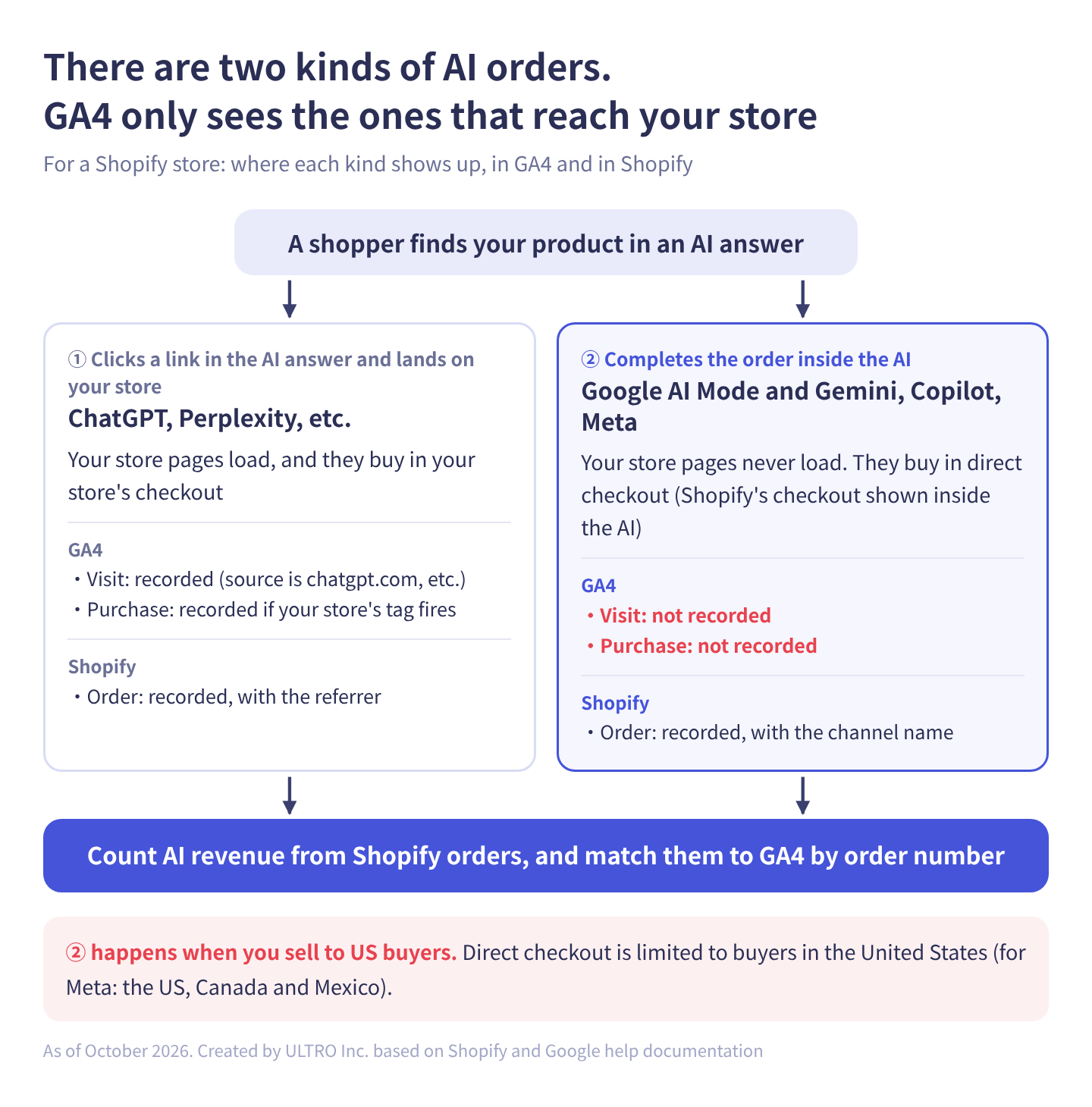
In table form:
| ① Clicks a link in the AI answer and lands on your store | ② Completes the order inside the AI | |
|---|---|---|
| Example | Clicks a link in a ChatGPT or Perplexity answer and lands on a product page. Finds a product in ChatGPT and buys in your store’s checkout | Buys in Google AI Mode and Gemini, Microsoft Copilot, or a Meta surface (Muse, shoppable ads on Facebook and Instagram) using Shopify’s checkout shown there (direct checkout) |
| Store pages | Load | Never load |
| GA4 visit | Recorded, with a source such as chatgpt.com | Not recorded |
| GA4 purchase | Recorded if your store’s tag fires | Not recorded |
| Shopify order | Recorded, with the referrer | Recorded, with the channel name |
| Who’s affected (October 2026) | Any store | Stores selling to US buyers (Meta: also Canada and Mexico) |
ChatGPT falls under ①. OpenAI launched Instant Checkout, which let buyers pay inside ChatGPT, in September 2025. For Shopify stores, it was replaced in March 2026, before it scaled, by a flow that sends shoppers to the store’s own checkout. Shopify’s help center now says ChatGPT users “complete their purchase on your online store checkout,” in ChatGPT’s in-app browser or, on ChatGPT web, in a new tab.
② happens on the channels in Shopify’s agentic storefronts (the feature that lets AI channels show and sell your products) that support direct checkout. As of October 2026, Shopify’s help center lists three:
| Channel | Direct checkout | Buyers who see it | Merchant requirements |
|---|---|---|---|
| Google AI Mode and Gemini | On by default for eligible stores | US | Store based in the US and selling to US customers |
| Microsoft Copilot | On by default for eligible stores | US | Selling to US customers |
| Meta (Muse, shoppable ads on Facebook and Instagram, etc.) | On by default for eligible stores | US, Canada, Mexico | Eligible for Shopify Catalog, and accepted the supplemental terms |
On Google AI Mode and Gemini, direct checkout is shown only to US buyers. Buyers elsewhere can still discover your products, but they’re sent to your online store, which makes their orders ①. For Meta, shoppable ads require the Facebook & Instagram sales channel with product syncing turned on, so orders placed inside Facebook and Instagram ads also count as ②, not just orders in Meta’s AI, Muse. Stores on Shopify’s Agentic plan are the exception: direct checkout is off by default there.
Perplexity doesn’t appear in Shopify’s agentic storefronts help pages as of October 2026. Visits from Perplexity are ①, and you see them as a source in GA4.
Who sees direct checkout orders
If your store sells to US buyers and meets the requirements above, assume ② orders are already in your admin. Direct checkout is on by default for eligible stores, so you may be getting these orders without having changed anything. Check the status in your Shopify admin under Sales channels > Agentic.
If you only sell to buyers outside the US (and outside Canada and Mexico for Meta), ② doesn’t apply to you yet as of October 2026. Shoppers from those countries who find your products through AI still reach your store as ①.
What is the GA4 AI Assistant channel?
GA4’s AI Assistant is a default channel that groups visits from AI assistants such as ChatGPT and Gemini. It was added on May 13, 2026. According to GA4’s release notes, when the referrer matches a recognized AI assistant, GA4 automatically sets the medium to ai-assistant and the campaign to (ai-assistant), and assigns the session to the AI Assistant channel.
The default channel group help page defines it like this:
| Item | Definition |
|---|---|
| Covers | Visits from sources like ChatGPT, Gemini, Deepseek, Copilot or Grok (Google’s examples) |
| Rule | Medium exactly matches ai-assistant |
| Excludes | Google’s AI Overviews and AI Mode (counted in Organic Search) |
| Based on | Whether the referrer matches Google’s list of AI assistants |
Google doesn’t publish the list itself, and its examples vary by page. The May 13, 2026 release note names ChatGPT, Gemini and Claude; the default channel group help page names ChatGPT, Gemini, Deepseek, Copilot and Grok. Perplexity appears on neither. The only reliable way to know is to check which channel each source lands in for your own property.
Google’s help center doesn’t say AI Assistant is applied to past data. Practitioners report that chatgpt.com visits from before the change stay in Referral or Unassigned, and Cardinal Path observed the channel populating from early June 2026 in client data. To compare AI traffic across May 2026, compare by source, not by channel.
AI traffic lands in more than one channel
AI visits can land in Referral, Unassigned, Direct and Organic Search as well as AI Assistant. If you treat the AI Assistant number as “all AI traffic,” you may be undercounting.
| Channel | Which AI visits land there |
|---|---|
| AI Assistant | Visits whose referrer matches Google’s list |
| Referral | AI sources not on the list (practitioners report Perplexity here), or visits recorded with medium referral |
| Unassigned | Visits with a source but no medium, for example only a UTM source |
| Direct | Visits with no referrer and no UTM, such as a copied URL or a mobile app that strips the referrer |
| Organic Search | Visits from Google’s AI Overviews and AI Mode |
The Organic Search row comes from Google’s help center. The Referral, Unassigned and Direct rows come from observations practitioners have published (Search Engine Journal, Cardinal Path, Clickport), not from Google’s documentation. When we checked GA4 for our own site (ultro.co.jp) in October 2026 over the past 90 days, the only source / medium containing chatgpt was chatgpt.com / ai-assistant; there were no referral or (not set) rows. Whether traffic splits depends on the site and the period, so check your own property using the steps in the next section. For what (not set), Direct and Unassigned mean, see GA4 (not set).
utm_source=chatgpt.com
ChatGPT automatically adds utm_source=chatgpt.com to links in its answers. OpenAI’s publishers and developers FAQ says ChatGPT includes this UTM parameter in referral URLs.
Only utm_source is added, not utm_medium. Google doesn’t explain in detail how GA4 classifies these visits. Practitioners report that through May 2026, UTM-only visits went to Unassigned with an empty medium, and from June they started landing in AI Assistant. Either way, the source is recorded as chatgpt.com, so filtering by source catches them.
We don’t recommend copying this by adding utm_medium=ai-assistant to your own links. GA4 sets that value from the referrer. If you add it by hand, you can’t tell your own traffic from real AI visits. Using ai-assistant for server-side purchases is a separate question, covered in the backfill section below.
Visits from ChatGPT ads are different from visits through links in ChatGPT’s answers. Treat them as paid traffic with their own UTMs.
Source group, added in June 2026
On June 11, 2026, GA4 also added a “Source group” dimension that consolidates source values for common platforms. The release note says it includes built-in grouping for emerging sources like ChatGPT (OpenAI) and Perplexity, and that it applies to past data too. Use it when you want to see AI traffic grouped by platform, separately from channels.
How to see AI traffic and purchases in GA4
There are three levels. The report in step 1 is enough to start. Use the exploration in step 2 when you want to see which orders came from AI, and the custom channel group in step 3 if you’ll track this monthly.
1. Find the AI Assistant row in the report
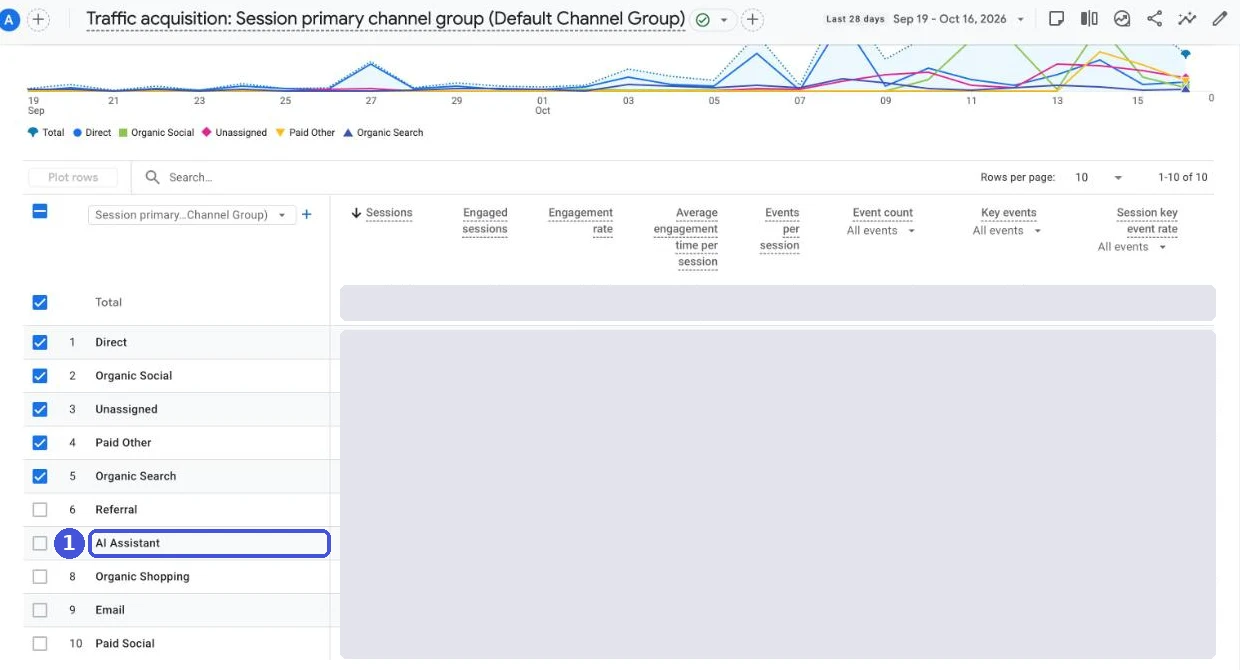
- In GA4 Reports, open Traffic acquisition. Depending on the property, it’s under Life cycle > Acquisition or under Business objectives > Generate leads.
- In the table titled “Traffic acquisition: Session primary channel group (Default Channel Group),” look for an
AI Assistantrow. If it’s there, check sessions, key events and purchase revenue.
- Switch the primary dimension at the top left of the table to “Session source / medium.” The options are Session primary channel group (Default Channel Group), Session default channel group, Session source / medium, Session medium, Session source, Session source platform and Session campaign.
- Type
chatgptin the search box above the table and see which medium chatgpt.com is recorded under. Repeat withperplexity,gemini,copilotand so on.
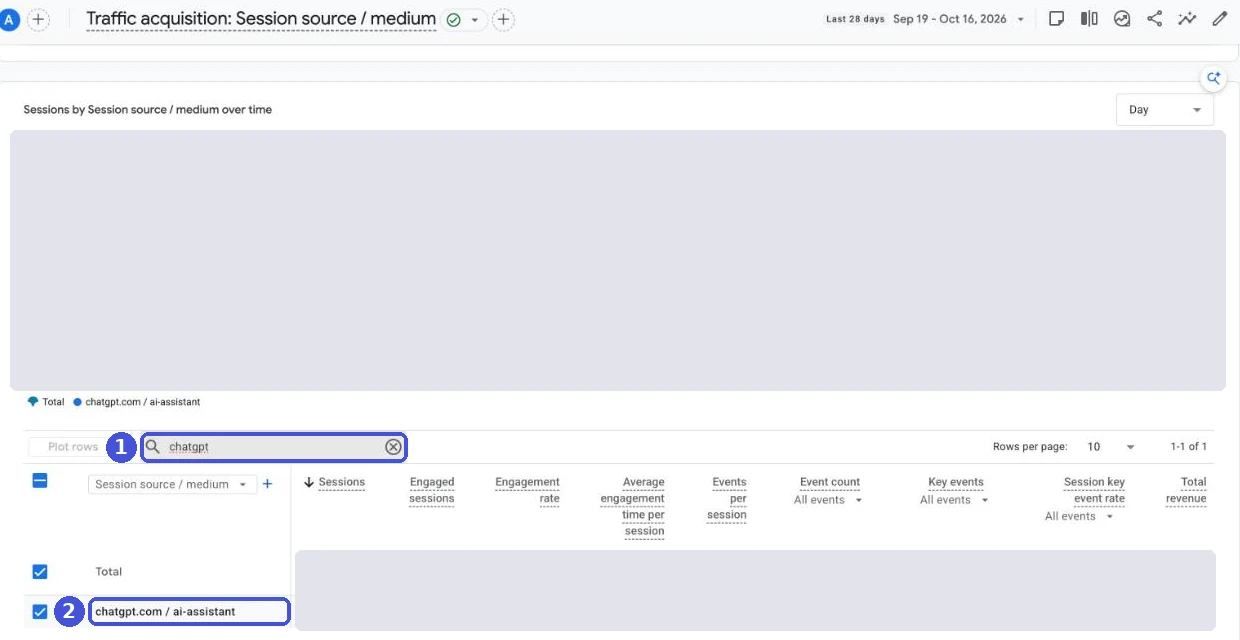
If you only see chatgpt.com / ai-assistant, as on our site, ChatGPT visits are landing in AI Assistant as Google describes. If you also see chatgpt.com / referral or chatgpt.com / (not set), the same ChatGPT traffic is split across other channels.
2. Group AI visits in an exploration
To group AI traffic across channels, use a Free form exploration.
- In Explore, choose Blank to create a new exploration.
- Add the dimensions “Session source / medium,” “Session default channel group” and “Transaction ID.”
- Add the metrics “Sessions,” “Transactions” and “Purchase revenue.”
- Add a filter on “Session source / medium” (choose from the dimensions you added in step 2), set it to “matches regex,” and paste this expression:
chatgpt|openai|perplexity|gemini\.google|copilot|claude\.ai|deepseek|grok| means “or,” and \. means a literal dot. This is an example, not a complete list of AI sources. copilot can also match unrelated sites with the same name, so check the rows by eye. Review the source list about once a quarter so you notice new AI sources.
- Put “Session source / medium” in Rows, then “Transaction ID.” You’ll see the order numbers of AI visits that went on to purchase. You’ll match this list against Shopify orders later in this article.
3. Create a custom channel group for ongoing tracking
If you’ll check this every month, create your own channel for AI sources so it shows up directly in reports.
- In GA4 Admin, under Data display, open Channel groups and click “Create new channel group” to copy the default group.
- Add a channel, then use “Add condition group” to set “Session source” to “matches regex” with the expression above.
- Use Reorder to place the new channel below the existing AI Assistant channel and above Referral and Organic Search, then save the group.
The copied group already contains AI Assistant. If you place your new channel above AI Assistant, the AI Assistant row empties out, so putting it right below AI Assistant is the safer choice.
Google’s help center says custom channel groups apply to historical data and that standard properties can create up to two. Channels are evaluated top to bottom, so in the wrong order, AI visits stay in Referral.
Where to check AI orders in Shopify
Shopify shows AI orders in three places: each order’s Conversion summary, the sales reports by channel and by referrer, and Sales channels > Agentic. Shopify’s help center says orders from AI channels appear in your admin with channel or referrer attribution.
| Where | What it shows | ① Orders from links | ② Orders inside the AI |
|---|---|---|---|
| Order details > Conversion summary | Source of the first visit, number of visits, UTM parameters | Shows the referrer | No store visit, so limited or empty |
| Report: Total sales by referrer | Sales by last-interaction referrer | Shown | Not shown |
| Report: Total sales by sales channel | Sales by the channel or app used for the order | Included in Online Store | Shown as the AI channel’s sales |
| Sales channels > Agentic | Sales, orders, online store sessions and conversion per AI channel | Included | Included |
Per order: the Conversion summary
- In your Shopify admin, go to Orders and click an order number.
- The Conversion summary shows the customer’s number of orders, visits in the last 30 days, and the source of the first visit.
- Click View conversion details, then View full sessions, to see each session’s referrer and any UTM parameters.
Shopify’s help center says details can take up to 48 hours to appear, and that the summary is empty for orders from channels other than Online Store or Hydrogen that have no source or landing page. Orders paid inside an AI have no store visit, so you can’t trace them here.
In reports
In Analytics > Reports, open “Total sales by sales channel” and “Total sales by referrer.” Total sales by referrer splits sales by the last-interaction referrer. Check in your own store which name AI sources such as chatgpt.com appear under.
Shopify’s referrer reports use Shopify’s own tracking (cookie-based sessions), separate from GA4. The same order can show different sources in GA4 and Shopify.
On the Agentic page
Sales channels > Agentic shows sales, orders, online store sessions and online store conversion for each AI channel. Pick a metric and click a channel name to see that channel alone. Shopify’s help center says sales here are “an aggregate of referral-based sales and sales that happen through direct checkout,” and Shop app sessions and sales are included too. The page also links to the Total sales report for agentic storefronts.
Because Agentic sales mix ① and ②, check each order’s sales channel in the order list when you need to separate them. ② orders carry the AI channel. ChatGPT orders (①) are placed in your own checkout, so their sales channel should be Online Store; check this in your admin.
Why orders placed inside an AI never reach GA4
Orders paid inside an AI never reach GA4 because the buyer never opens a page of your store, so there’s nowhere for the GA4 tag or Shopify custom pixels to run.
Shopify’s help center says this for each of Google AI Mode and Gemini, Microsoft Copilot and Meta:
Google Analytics and custom pixels won’t fire in Google AI Mode and Gemini’s direct checkout.
Only server-to-server pixels (checkout started and completed) fire. The Meta page adds that third-party analytics pixels, such as those used for marketing attribution, don’t fire either. Shopify doesn’t say which apps’ server-to-server events these are. The Meta page also says orders placed on Meta surfaces are attributed to Meta, so a ② order may not be in GA4 but can still appear in Shopify with the channel name, and possibly as a result in Meta Ads.
In a normal purchase, GA4 receives the purchase when the tag runs in the buyer’s browser. Shopify custom pixels and app pixels also run on the checkout and thank you pages. In direct checkout, neither page loads in the buyer’s browser, so no GA4 client ID or session is ever created. No tag fix can capture this kind of order. For where custom pixels run, see Shopify custom pixels.
What it costs you when GA4 misses these orders
| Impact | What happens |
|---|---|
| GA4 revenue | Falls further below Shopify revenue as AI orders grow |
| How you judge AI channels | AI revenue looks smaller than it is, so work on product data and AI visibility looks less effective |
| Google Ads results | Whether you import GA4 purchases or use the Google Ads tag (such as through the Google & YouTube app), these orders usually aren’t counted as conversions |
| Period comparisons | The gap between GA4 and Shopify jumps from the point direct checkout started reaching your buyers |
AI influence is hard to measure even for ①. Cardinal Path notes that native mobile AI apps often drop the referrer, so those visits show up as Direct, and reports that AI-referred traffic converted at a higher rate than comparable Referral traffic in its client work. Add ② on top of that, and GA4 understates AI further. We report AI revenue from Shopify orders, not GA4.
② isn’t the only reason GA4 shows fewer purchases than Shopify. Off-site payment gateways where buyers never return, ad blockers and other causes are covered in GA4 Not Tracking All Shopify Purchases?
How to reconcile Shopify and GA4
Reconcile AI numbers in Shopify and GA4 order by order, by order number. Comparing totals can’t separate ① missing purchases from ② orders.
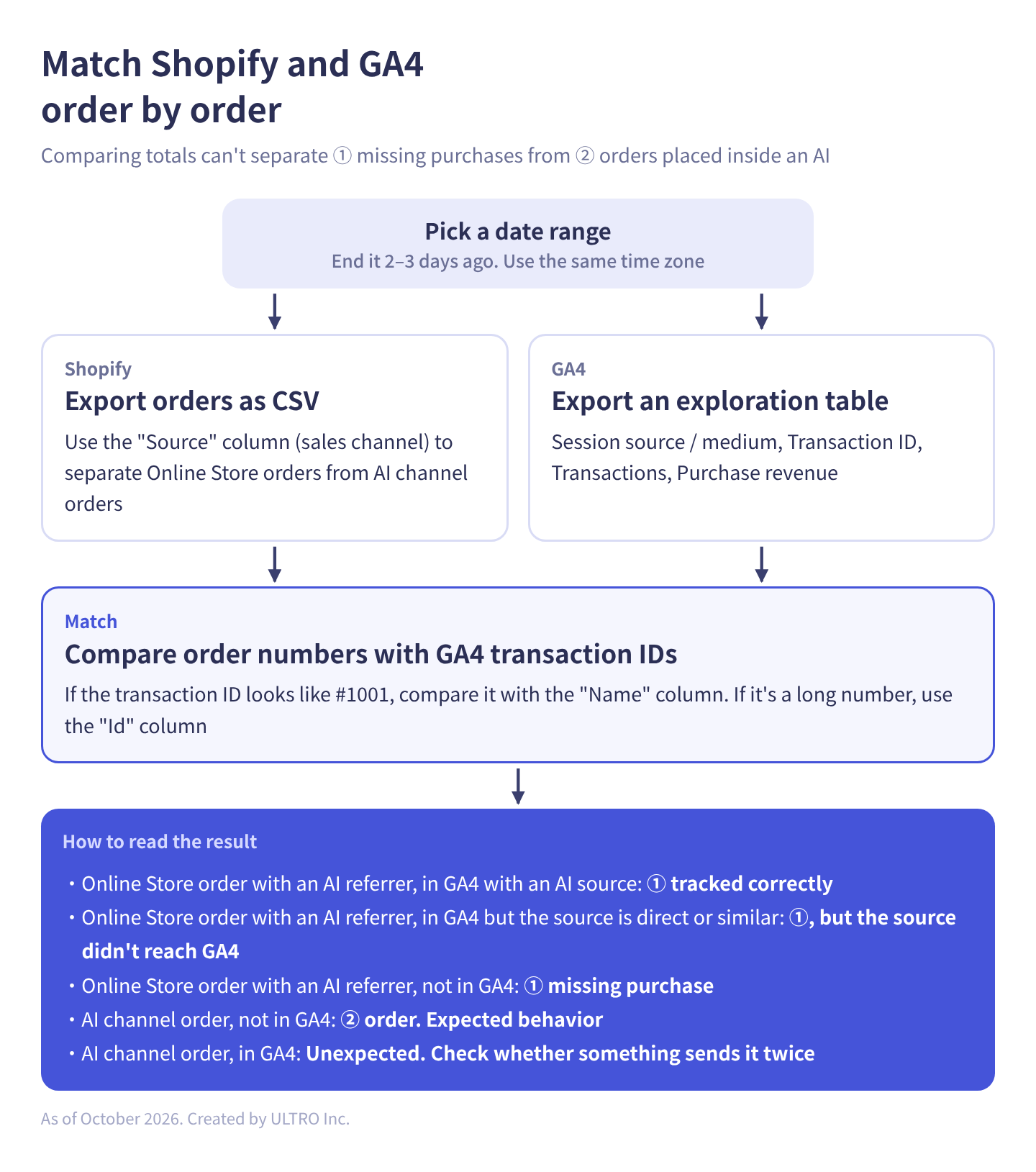
- Pick a date range. End it two or three days ago to allow for GA4 processing time and the Shopify Conversion summary delay. Check that Shopify and GA4 use the same time zone.
- In Shopify Orders, export that period’s orders as CSV. Use the “Source” column (sales channel) to separate Online Store orders from AI channel orders. Online Store orders show
web; app and channel orders show values such as a numeric ID. We haven’t confirmed what AI channel orders show, so check the values in your store. - In a GA4 exploration, export the table from the previous section (Session source / medium, Transaction ID, Transactions, Purchase revenue) for the same period.
- Match order numbers to GA4 transaction IDs. What the transaction ID contains depends on how GA4 was set up. If it’s an order number like #1001, compare it with the CSV’s “Name” column, normalizing the ”#.” If it’s a long number, it’s the order ID, so compare it with the “Id” column. For setup options, see Shopify GA4 setup.
- Classify each order with this table:
| Shopify order | GA4 | Reading |
|---|---|---|
| Online Store, AI referrer | Has the transaction ID, AI source | ① tracked correctly |
| Online Store, AI referrer | Has the transaction ID, source is direct or similar | ①, but the source didn’t reach GA4 |
| Online Store, AI referrer | No transaction ID | ① missing purchase (gateway with no return, ad blocker, etc.) |
| AI channel (Google AI Mode and Gemini, Copilot, Meta) | No transaction ID | ② order. Expected behavior |
| AI channel | Has the transaction ID | Unexpected. Check whether something sends it twice |
For the detailed steps (cleaning up the CSV, using XLOOKUP), see “How to check for missing purchases in your store” in GA4 Not Tracking All Shopify Purchases? If you sell to US buyers, the ② rows will grow as direct checkout spreads. Tracking the ① missing rate separately makes it easier to tell where a widening gap comes from.
How to get AI orders into GA4
The main way to get AI orders that GA4 missed into GA4 is to start from Shopify order data and send purchases to GA4 from a server with the Measurement Protocol. Browser tags can’t capture them. GA4’s event data import, which uploads events that weren’t collected in real time from a file, is another option.
Decide a few things before you send anything:
- They’ll be purchases without visits. ② orders have no GA4 client ID or session, so a purchase you send arrives without a visit. You set the source and medium yourself, based on the order’s sales channel. Unlike UTMs on your own links, for server-side purchases it can make sense to set the source to that AI and the medium to ai-assistant so they land in AI Assistant. If you do, add a custom parameter so you can separate them from tag-based purchases.
- Whether they should count in ads. If you import GA4 purchases into Google Ads, purchases you send are exported as conversions too. Decide before sending whether orders placed inside an AI should count as ad results.
- Not sending is also fine. You can decide to track AI revenue in Shopify reports and leave GA4 as it is. If so, make sure everyone who reads the reports knows that part of the GA4–Shopify gap is ② orders.
For payloads, timing limits and how to avoid double counting, see the GA4 Measurement Protocol guide.
We built a Shopify app, GapFill, that recovers missing GA4 purchase events server-side. It’s our own product, so read with that in mind. It works alongside your existing tags, and the missing purchases report is free. Agentic and in-app checkouts (orders placed inside AI assistants or social apps) can be sent with a source and medium based on the sales channel.
Our Shopify appGapFill: Recover missing GA4 purchase events server-sideWorks alongside your existing tags. Free missing purchases report.See GapFill →What may change (as of October 2026)
Google’s and Shopify’s specs for tracking AI traffic and AI orders change month to month. This article reflects October 2026; check the official help pages before relying on it.
| What changes | As of October 2026 | How to check |
|---|---|---|
| GA4’s list of AI assistants | Not published. Release note examples: ChatGPT, Gemini, Claude. Channel help examples: ChatGPT, Gemini, Deepseek, Copilot, Grok. Perplexity is on neither | Check which channel each source lands in for your property |
| How ChatGPT purchases work | Buyers complete purchases in your store’s checkout (changed in March 2026) | Shopify’s Selling on ChatGPT help page |
| Direct checkout channels | Google AI Mode and Gemini, Microsoft Copilot, Meta (Muse, shoppable ads, etc.). On by default for eligible stores; off by default on the Agentic plan | Shopify’s agentic storefronts help pages, Sales channels > Agentic |
| Buyers who see direct checkout | US (Meta: US, Canada, Mexico) | Each channel’s help page |
| Perplexity | Not mentioned in Shopify’s agentic storefronts help | Same as above |
| GA4 in direct checkout | Doesn’t fire. Only server-to-server pixels (started, completed) | The analytics and unsupported features sections of each channel’s help page |
Because AI Assistant classification depends on Google’s list, a sudden jump or drop in the AI Assistant number doesn’t necessarily mean AI traffic itself changed. Compare by source to tell a list change from a traffic change.
For the basics of which events send GA4 purchases, see GA4 events.
Sources
- [GA4] Default channel group (Google Analytics Help)
- [GA4] What’s new in Google Analytics (Google Analytics Help, May 13 and June 11, 2026 entries)
- [GA4] Custom channel groups (Google Analytics Help)
- [GA4] About data import (Google Analytics Help)
- Publishers and Developers FAQ (OpenAI Help Center)
- Shopify agentic storefronts (Shopify Help Center)
- Managing agentic storefronts (Shopify Help Center)
- Selling on ChatGPT (Shopify Help Center)
- Selling on Google AI Mode and Gemini (Shopify Help Center)
- Selling on Microsoft Copilot (Shopify Help Center)
- Selling on Meta (Shopify Help Center)
- Viewing an order’s conversion summary (Shopify Help Center)
- Sales reports (Shopify Help Center)
- Shopify says purchases are coming ‘inside ChatGPT’ through agentic storefronts as OpenAI retreats on Instant Checkout (Modern Retail, March 12, 2026)
- How To Track AI Traffic In GA4 Without Undercounting It (Search Engine Journal)
- Measure Your ChatGPT & Gemini Traffic with Google Analytics (Cardinal Path, June 24, 2026)
- GA4 Finally Added an AI Traffic Channel. Here’s What It Still Can’t See. (Clickport)
FAQ
What is the AI Assistant channel in GA4?
It's a default channel group channel that groups visits from AI assistants such as ChatGPT and Gemini. Google added it on May 13, 2026. When the referrer matches Google's list of AI assistants, GA4 sets the medium to ai-assistant and the campaign to (ai-assistant), and the session lands in this channel.
Do visits from Google AI Overviews and AI Mode count as AI Assistant?
No. Google's help center says AI Overviews and AI Mode are excluded from AI Assistant and included in Organic Search. In GA4 you can't tell them apart from regular search visits.
Why does ChatGPT traffic show up in channels other than AI Assistant?
Analytics practitioners report that chatgpt.com can split across AI Assistant, Referral and Unassigned, depending on whether a referrer or only a UTM parameter arrived. Visits with neither, such as a copied URL or an in-app browser that strips the referrer, land in Direct. On our own site, the only chatgpt row over 90 days was chatgpt.com / ai-assistant, but it varies by site. Switch the Traffic acquisition table to Session source / medium and search for chatgpt to check.
Can GA4 track orders placed inside an AI assistant?
Not with browser tags. Shopify's help center says Google Analytics and custom pixels don't fire in direct checkout on Google AI Mode and Gemini, Microsoft Copilot, or Meta. Only server-to-server pixels (checkout started and completed) fire. The orders do appear in your Shopify admin, so to get them into GA4 you have to send them from a server using order data.
Which stores get direct checkout orders?
As of October 2026, direct checkout is shown to buyers in the United States, and for Meta, buyers in the US, Canada and Mexico. Google AI Mode and Gemini also require the store to be based in the US. Direct checkout is on by default for eligible stores, except stores on the Agentic plan. If you sell to US buyers, check Sales channels > Agentic in your Shopify admin.
Should I add utm_medium=ai-assistant to my own links?
We don't recommend it. ai-assistant is a value GA4 assigns automatically based on the referrer. If you add it to your own links, that traffic mixes with real AI visits and you can no longer tell them apart. Sending server-side purchases for orders placed inside an AI with that medium is a different case; if you do, add a custom parameter so you can separate them from tag-based purchases.
Why don't I see an AI Assistant row in GA4?
The row only appears if the date range has visits from referrers on Google's list. Switch the Traffic acquisition table to Session source / medium and search for chatgpt and similar terms to see whether AI visits were recorded under another medium.
Does AI Assistant apply to data from before May 2026?
Google's help center doesn't say it's applied retroactively, and practitioners report that earlier chatgpt.com visits stay in Referral or Unassigned. When comparing periods across May 2026, compare by source, not by channel.
- AI Assistant is a GA4 default channel added on May 13, 2026. When the referrer matches Google's list, the medium becomes ai-assistant. Google AI Overviews and AI Mode aren't included.
- There are two kinds of AI orders. Orders from shoppers who click through to your store show the AI as their source in GA4. Orders completed inside the AI never load a store page, so they never reach GA4.
- Direct checkout runs in Google AI Mode and Gemini, Microsoft Copilot and Meta, for US buyers (Meta: US, Canada, Mexico). It's on by default for eligible stores.
- chatgpt.com can also land in Referral, Unassigned or Direct. Look at sources, not just the channel.
- In Shopify, check the order's Conversion summary, the sales by channel and by referrer reports, and Sales channels > Agentic. Agentic sales combine referral-based and direct checkout sales.
- Use Shopify orders as the baseline for AI revenue, and match them to GA4 by order number.
Written byRyushi Nagata
CEO, ULTRO Inc. (Tokyo)Shopify Partner. Ryushi handles Shopify store builds, maintenance, advertising and CRM end to end, and has managed more than ¥4 billion in ad spend over his career. He holds Google Ads certifications (Search, Display, Video, Shopping, Apps, Performance Max, Measurement) and the Google Analytics certification.
How many purchases is GA4 missing in your store?
GapFill matches your Shopify orders against GA4 purchases, shows what GA4 missed, and recovers those purchase events server-side. It works alongside your existing tags, and the missing purchases report is free.