GA4 Cross-Domain Tracking vs Referral Exclusion: Payment Gateways

Why payment gateways show up as sources in GA4, when to use cross-domain tracking and when to use the unwanted referrals list, setup and checks for each, which domains to add on Shopify, and the purchases no setting can fix: buyers who never come back.
Your GA4 reports show payment gateways like paypal.com / referral as the source of purchases. Or people who move from your corporate site to your store are counted as different users. Both come down to how GA4 handles a change of domain.
GA4 has two settings for this: cross-domain tracking (Configure your domains in the UI), which connects several domains you own, and the unwanted referrals list (List unwanted referrals), which removes returns from external domains as sources. They have similar names and sit on the same screen, so they’re easy to mix up, but they solve different problems.
This article is for ecommerce teams on Shopify and similar platforms who aren’t sure how to handle GA4 sources and cross-domain settings. It covers when to use each setting, how to set it up and check it, which domains to add on Shopify, and the purchases neither setting fixes. UI labels and specs are as of October 2026.
What is a source in GA4?
A source in GA4 is where a visit came from. It’s paired with a medium and recorded as, for example, google / organic or paypal.com / referral. If the URL carries UTM parameters or an ad click ID, GA4 uses those. If not, it uses the domain of the previous page the browser reports, the referrer.
| How the visit arrived | Source / medium example | What GA4 based it on |
|---|---|---|
| Clicked a Google ad | google / cpc | The auto-tagging click ID (gclid) |
| An email link with UTMs | klaviyo / email | UTM parameters |
| A link on another site | example.com / referral | The referrer |
| Came back from an off-site payment page | paypal.com / referral | The referrer |
| Bookmark or typed URL | (direct) / (none) | Nothing to go on |
To GA4, a return from a payment gateway looks exactly like a visit from a link on another site. That’s why gateways show up as sources.
GA4 also has two kinds of source: Session source / medium, attached to the session (one visit), and Source / medium, attached to events such as purchases. The same purchase can have different values in each.
Why off-site payment gateways become the source
When a buyer pays on an off-site payment page and comes back to your thank you page, that page’s referrer is the gateway’s domain, and GA4 treats it as a new source. Google’s help center uses exactly this as its main example for the unwanted referrals list: an ecommerce site whose buyers pay on a third-party payment processor and return.
How it’s recorded depends on how long the buyer spent on the gateway. GA4 ends a session after 30 minutes (by default) of inactivity. And unlike Universal Analytics, GA4’s help center says a new campaign doesn’t end the session. Put those two together and you get this (our reading):
| Time before returning | Session source / medium | Source of the purchase (key event) |
|---|---|---|
| Within 30 minutes | Stays as the original visit (e.g., google / cpc) | All or part goes to the gateway as a referral |
| Over 30 minutes | A new session, credited to the gateway as a referral | All or part goes to the gateway as a referral |
How much purchase credit goes to which source depends on your GA4 attribution model. Under last click, all of it goes to the gateway; under the default data-driven model, it may be split between the original source and the gateway.
Either way, purchases that came from ads or search look like they came from the payment gateway. If you import GA4 purchases into Google Ads, your ads look like they’re producing less, and Smart Bidding learns from those numbers. How Google Ads counts conversions is covered in Google Ads conversion tracking.
Buyers typically pass the 30-minute mark when logging in or verifying their identity with the gateway takes a while, or when they pay and come back later.
Payment methods on Shopify that leave your store
Sources shift most with payment methods that send buyers to the provider’s page mid-payment. On Shopify, candidates include PayPal and payment methods added through third-party payment provider apps, such as some buy now, pay later options. But which method goes through which domain, and whether it leaves your store at all, depends on the provider and your setup. Check which domains actually show up in your own GA4 before you change anything (how to check is below).
Cross-domain tracking vs the unwanted referrals list
Use cross-domain tracking when the destination domain also has your Google tag, and the unwanted referrals list when you can’t put your tag on the destination. You can’t tag a payment gateway’s pages, so gateways go in the unwanted referrals list.
For each domain visitors move to, work through it in this order:
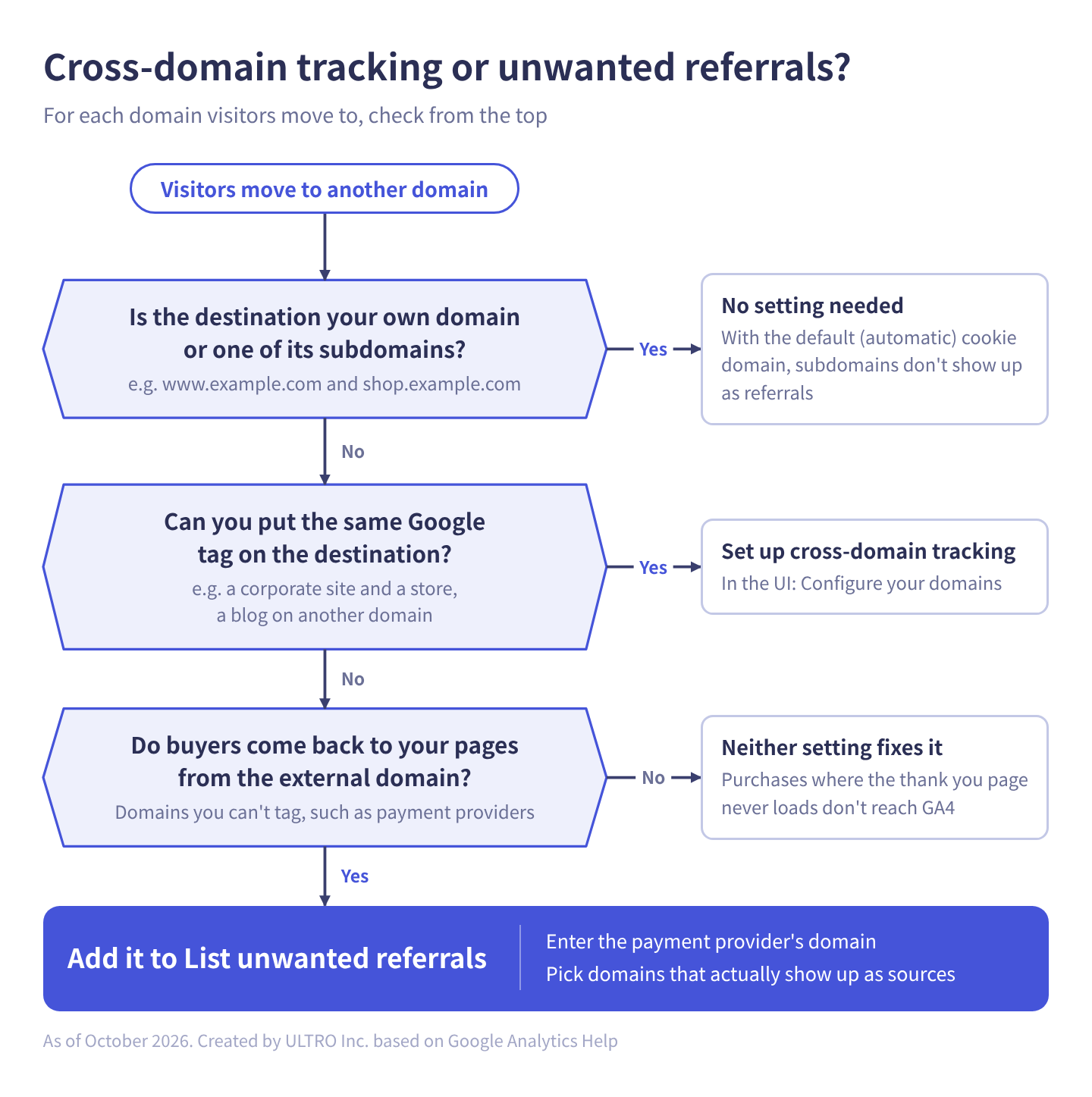
- Is the destination your own domain or one of its subdomains? If so, no setting is needed.
- Can you put the same Google tag on the destination? If so, set up cross-domain tracking.
- If buyers come back from an external domain you can’t tag (a payment gateway, for example), add it to the unwanted referrals list.
- If they don’t come back (the thank you page never loads after payment), neither setting fixes it. See “Purchases that never come back from the gateway” below.
The two settings side by side:
| Cross-domain tracking (Configure your domains) | Unwanted referrals list | |
|---|---|---|
| What it does | Keeps tracking the same user and session across domains | Stops returns from listed domains counting as sources |
| What the destination needs | The same Google tag (same web stream) | No tag needed |
| How it works | Adds _gl to link URLs to carry over cookies (such as the GA4 client ID) | Adds ignore_referrer to matching events |
| Typical use | A corporate site and a store, a blog or landing pages on another domain, a booking site | PayPal and other payment gateways, password reset emails |
| Condition limit | 100 | 50 per data stream |
Subdomains of your own domain (www.example.com and shop.example.com, for example) need neither setting if you leave the cookie domain at its default automatic setting. By default, the Google tag writes cookies to the highest-level domain (example.com), so visitors count as the same person across subdomains. If you’ve set the cookie domain explicitly, in Tag Manager for example, each subdomain can count visitors as different people and your own site can show up as a referral. Google’s help center recommends cross-domain setup in that case. GA4 doesn’t count referrals from the same domain and its subdomains as sources in the first place.
How to set up referral exclusions in GA4 (List unwanted referrals)
You set up the unwanted referrals list from GA4 Admin, under Configure tag settings for your web stream. You just add the gateway’s domain and save; there’s no need to change the tags on your site. You need the Editor role or above in GA4. Before you start, figure out which domains to add (see the next subsection).
- In GA4, open Admin at the bottom left, and under Data collection and modification, click Data streams.
- Select your web stream, and in the Google tag section of Web stream details, click Configure tag settings. The Google tag screen opens.
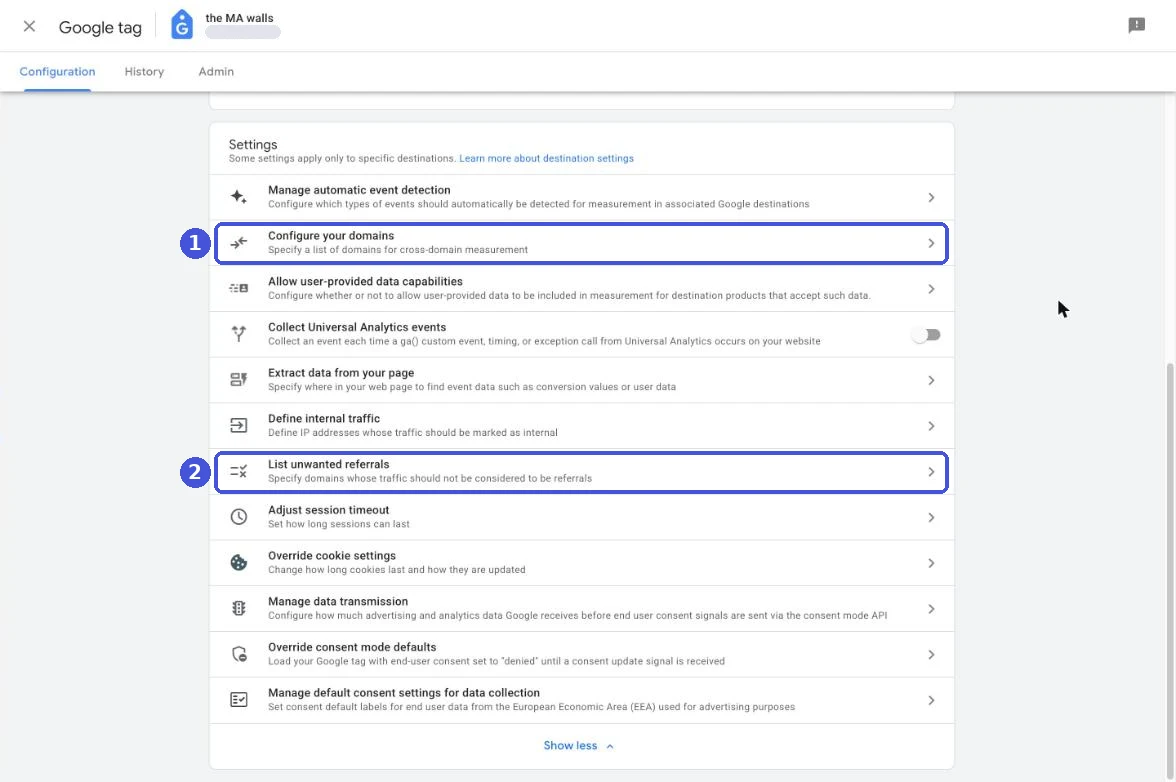
- The Settings list starts out partly collapsed. Click Show more at the bottom to show every item (once expanded, it reads Show less).
- Click List unwanted referrals.
- Under “Ignore referrals that match ANY of the following conditions as traffic sources,” leave the match type as Referral domain contains and enter the gateway’s domain (
paypal.com, for example) in Domain. To add more, click Add condition. Conditions use OR logic: matching any one excludes the referral. - Click Save at the top right.
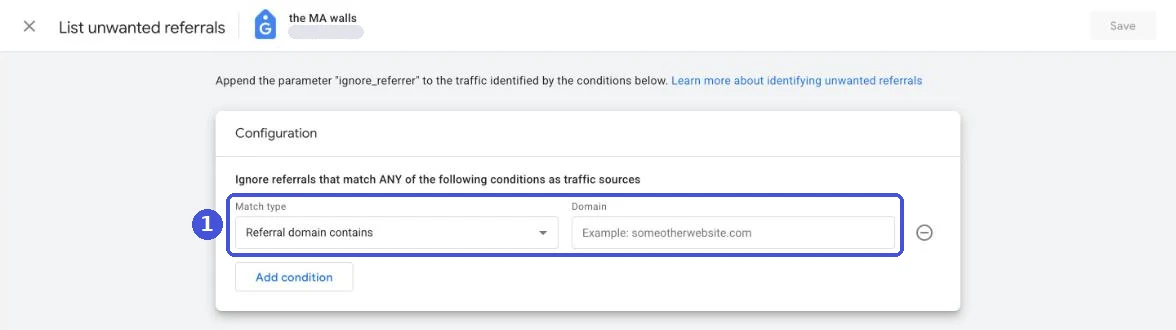
Once set, GA4 adds ignore_referrer=true to events that come from a matching domain. For events with that parameter, the referrer isn’t used as a source. Conditions are evaluated on every page that has the Google tag.
You can also set ignore_referrer per page in code. But Google’s help center says most site owners don’t need to, and warns against setting it on every page of your site: you’d lose real sources such as search and social too. And setting it to false still excludes the referrer.
Choosing which domains to add
Pick domains from what actually shows up as a source in your GA4, not from guesses.
- Open the Traffic acquisition report (under Reports > Business objectives > Generate leads, or under Life cycle > Acquisition, depending on your property’s setup).
- Switch the dimension at the top left of the table to Session source / medium.
- Type
referralin the search box and look for payment gateway domains. Use roughly the last three months. - To check purchase credit too, build an exploration with Source / medium and Event name and see whether purchase is credited to any gateway.
The same gateway can appear under different subdomains, such as www.paypal.com and paypal.com. With Referral domain contains, entering paypal.com matches both. On the other hand, a string that’s too short, such as pay, excludes unrelated domains too, so avoid it.
What not to add
Only add domains visitors pass through as part of your own business process. Google’s help center gives payment processors and password reset emails as examples of domains used as part of running your site.
If you add search engines, social networks, ad platforms or publications that featured you, domains that actually brought you customers, that traffic disappears as a source. Those visits get attributed to the previous source or to (direct), and comparing channels stops making sense.
How to set up GA4 cross-domain tracking and check it
Cross-domain tracking lives in Configure your domains, in the same Configure tag settings screen as the unwanted referrals list. Every domain you want to connect must have the same Google tag (the ID starting with “G-”) from the same web stream. You need the Editor role or above in GA4.
- Go to Admin > Data collection and modification > Data streams, select your web stream, and click Configure tag settings.
- In the Settings list, click Configure your domains.
- Domains where GA4 detected the same tag appear under Suggested domains. Click Accept suggestion for the ones you want to connect.
- For domains not suggested, click Add condition under “Include domains that match the following conditions,” choose a match type, and enter the domain (
example.com, for example). Add every domain you want to connect. - Click Save at the top right.
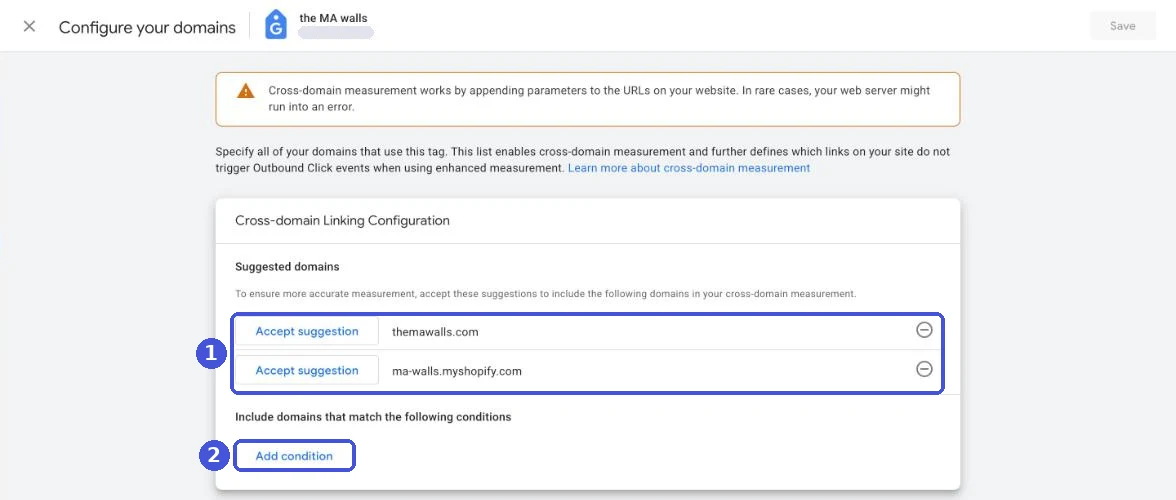
The top of the screen warns that cross-domain measurement works by adding a parameter to URLs, which in rare cases can cause web server errors. That’s why step 4 of the check below is to make sure the destination page loads correctly.
Once set, when someone clicks a link or submits a form pointing to a listed domain, the Google tag adds a _gl parameter to the URL, and the tag on the destination reads it to carry over the cookies. The destination keeps tracking with the same client ID and session.
How to check it
- Open a page with a link to the connected domain.
- Click the link to go to the destination page.
- Check that the destination URL contains
_gl=. - Check that the destination page loads correctly.
If _gl doesn’t appear, check these:
| What’s happening | Cause | Fix |
|---|---|---|
_gl isn’t added | The domain in Configure your domains doesn’t match the actual link destination | Re-enter it using the actual destination domain |
_gl disappears on the destination | A redirect on the destination drops the parameter | Fix the server so redirects keep the parameter |
| Missing only on buttons or forms | Navigation by JavaScript, or a script that stops click handling | For forms, use decorate_forms from Google’s developer guide. Review the scripts |
| Copying the link and opening it doesn’t connect | _gl expires after 2 minutes and is only added on click | By design. Only visits that arrive by clicking connect |
How to check on screen that your tags fire is covered in the Google Tag Assistant guide.
When you need cross-domain tracking and when you don’t
| Setup | Needed? | Why |
|---|---|---|
| www.example.com and shop.example.com | No | Subdomains count as the same person without any setup |
| example.com (corporate) and example-shop.com (store) with the same Google tag | Yes | They’re different domains, so without it each counts separate users |
| Store and an off-site payment gateway | Not possible | You can’t put your tag on the gateway’s pages. Use the unwanted referrals list |
| Store and Shopify checkout | No | Checkout runs on the store’s domain (next section) |
| A booking or membership site on another domain that you can’t tag | Not possible | If the source shift matters, use the unwanted referrals list |
Referral exclusions and cross-domain tracking on Shopify
On Shopify, you don’t need cross-domain tracking between your store and checkout. The basics are to add off-site payment gateways and Shop’s domain to the unwanted referrals list.
According to Shopify’s developer changelog, since July 2017 checkout has taken place on the store domain the customer is viewing, not on checkout.shopify.com. If redirection to your primary domain is enabled, checkout happens entirely on the primary domain. With the store and checkout on the same domain, GA4 sees no change of source.
Shopify’s help article “Excluding referrer domains from Google Analytics tracking” lists these domains to exclude (as of October 2026):
| Shopify’s suggestion | How it works in GA4 (our view) |
|---|---|
| Your store’s primary domain | GA4 doesn’t count the same domain and its subdomains as sources, so you normally don’t need it |
| checkout.shopify.com | Not used since 2017. Adding it does no harm |
| The Shop Pay domain, shop.com | Add it. The Japanese version of the same help article says shop.app, and as of October 2026 shop.app redirects to shop.com, so add both |
| External payment providers (e.g., paypal.com) | Add them. Use the domains that actually appear in your reports |
The article tells you to follow Google’s instructions for adding domains to a referral exclusion list and links out to Google, without giving GA4 steps of its own. The GA4 steps are in the previous section.
When we opened Configure your domains for a Shopify store we run, the suggestions showed two domains: the store’s custom domain and the xxx.myshopify.com domain Shopify assigns at signup. Per Shopify’s changelog, with redirection to the primary domain enabled, every page the customer sees, checkout included, runs on the primary domain. In that case, we don’t think accepting myshopify.com changes your data. If any pages can still be viewed on myshopify.com, accept it.
If you run a corporate site or blog on another domain with the same Google tag as your store, add both that domain and your store’s domain to Configure your domains. The full list of settings to check when you set up GA4 on Shopify is in the Shopify Google Analytics setup guide.
Purchases that never come back from the gateway
Cross-domain tracking and the unwanted referrals list both fix the source of purchases that reach GA4. If a buyer finishes paying on an off-site payment page and closes the tab without returning to your thank you page, the purchase never reaches GA4, so neither setting fixes it.
Per Shopify’s docs, the checkout completion event (checkout_completed) usually fires on the thank you page (or on the first upsell page if there is one) and doesn’t fire if that page never loads. The GA4 purchase event is sent when the browser tag runs on that page too.
When we matched orders against GA4 purchases one by one for one of our clients’ Shopify stores, covering August through mid-September 2026, 21% of orders were missing from GA4. The gap varied widely by payment method: about 10% of credit card orders were missing, PayPal orders had none missing, and some off-site payment methods specific to the Japanese market lost roughly 40% to 80% (measured at that client store). We think this is because each provider handles the return to the store differently after payment. Getting your referral exclusions right doesn’t close this gap.
To find out whether you have purchases that never came back, match Shopify order numbers against GA4 transaction IDs one by one. The steps are in GA4 Not Tracking All Shopify Purchases?
To fill the gap, you can send the missing orders to GA4 from your server, starting from the order data. We built a Shopify app for that, GapFill. It’s our own product, so read with that in mind. It recovers missing GA4 purchase events server-side and works alongside your existing tags. Its free missing purchases report shows how many orders, and how much revenue, are missing from GA4 by payment method and source / medium, so you can also see which payment methods lose the most buyers on the way back. How the sending works is explained in the GA4 Measurement Protocol guide.
Our Shopify appGapFill: Recover missing GA4 purchase events server-sideWorks alongside your existing tags. Free missing purchases report.See GapFill →Payment gateway still showing as a source after setup
When a gateway still appears as a source after you’ve set up the unwanted referrals list, it’s usually data from before the change, or visits from users who were referred before the change.
| What’s happening | Likely cause | What to check |
|---|---|---|
| It appears in periods before the change | Exclusions apply to data collected after you set them | Look at a period starting after the change |
| The same gateway keeps trickling in after the change | Users referred by the gateway before the change who later return directly stay attributed to it under the last non-direct click model | Documented in Google’s help center. It can persist for up to the key event lookback window (how far back credit is assigned) |
| It appears under a different domain | www. or a country-specific domain that differs from what you entered | Compare the string in your reports with your match type |
| Not fixed on some pages only | Those pages don’t have the Google tag | Use Tag Assistant to check the tag fires on the page buyers return to |
If (not set) or Direct goes up in place of the gateway, see (not set) in Google Analytics 4 for causes.
Write down the date you change the setting. From that day, referrals drop and purchases in other channels appear to rise. Don’t compare before and after directly and conclude that a channel’s campaigns started working.
Sources
- [GA4] Identify unwanted referrals (Google Analytics Help)
- [GA4] Set up cross-domain measurement (Google Analytics Help)
- [GA4] About Analytics sessions (Google Analytics Help)
- [UA→GA4] Universal Analytics versus Google Analytics 4 data (Google Analytics Help)
- Set up cross-domain measurement (Google Tag Platform, Google for Developers)
- Customize cookies (Google Tag Platform, Google for Developers)
- Excluding referrer domains from Google Analytics tracking (Shopify Help Center)
- Checkouts will occur at the shop domain instead of checkout.shopify.com (Shopify.dev changelog, July 2017)
- checkout_completed (Shopify.dev)
FAQ
What's the difference between GA4 cross-domain tracking and the unwanted referrals list?
Cross-domain tracking keeps tracking the same user and session across domains you own; the destination needs the same Google tag. The unwanted referrals list stops returns from external domains you can't tag from counting as referral sources. Payment gateways go in the unwanted referrals list.
Why do PayPal or other payment gateways show up as a referral source in GA4?
When a buyer pays on an off-site payment page and comes back to your thank you page, the browser reports the gateway's domain as the previous page. GA4 treats that as a new referral, and all or part of the purchase credit goes to the gateway (all of it under last click; data-driven attribution may split it). Adding the domain to the unwanted referrals list stops it counting as a source.
I added the gateway to unwanted referrals, but it still shows up as a source. Why?
Data from before the change doesn't change. Also, users who were referred by the gateway before you made the change can keep being attributed to it when they later return directly. Google's help center says this happens because of the last non-direct click model. Check after a few days whether it still appears on new visits.
Do I need cross-domain tracking on Shopify?
Usually not between your store and checkout, because Shopify checkout has run on the store's domain since 2017. You need it if you run a corporate site or blog on a different domain, put the same Google tag there, and want to connect visits.
My own domain shows up as a referral source. Should I exclude it?
GA4 doesn't count referrals from the same domain and its subdomains as sources in the first place. If yours still appears, first check for pages without the Google tag or a hop through another domain. Add it to the unwanted referrals list only once you know the cause.
- Cross-domain tracking connects several domains you own that run the same Google tag. The unwanted referrals list stops returns from external domains you can't tag from counting as sources.
- Purchases returning from an off-site payment page give all or part of their credit to the gateway as a referral. Add the gateway's domain to the unwanted referrals list.
- Subdomains of your own domain need neither setting if you leave the cookie domain at its default. Shopify checkout runs on the store's domain, so it doesn't need cross-domain tracking either.
- Exclusions apply to new visits from the day you set them. Users referred by the gateway before that can keep showing it for a while.
- Purchases where the buyer never returned to the thank you page don't reach GA4, so neither setting fixes them. Match orders to GA4 one by one to check.
Written byRyushi Nagata
CEO, ULTRO Inc. (Tokyo)Shopify Partner. Ryushi handles Shopify store builds, maintenance, advertising and CRM end to end, and has managed more than ¥4 billion in ad spend over his career. He holds Google Ads certifications (Search, Display, Video, Shopping, Apps, Performance Max, Measurement) and the Google Analytics certification.
How many purchases is GA4 missing in your store?
GapFill matches your Shopify orders against GA4 purchases, shows what GA4 missed, and recovers those purchase events server-side. It works alongside your existing tags, and the missing purchases report is free.