Shopify CAPI: 3 Ways to Set Up Meta's Conversions API

The three ways to use Meta's Conversions API on Shopify (the Facebook & Instagram app, the Conversions API Gateway, and sending from server-side GTM or your own server) compared on cost, effort, which purchases they catch and which stores they suit, plus how to check deduplication and Event Match Quality.
When an agency or a blog post tells you to “set up CAPI,” the more you read, the harder it gets to choose between Shopify’s official app, the Conversions API Gateway, server-side GTM and the many tracking apps.
Below, we sort the Shopify options into three and compare them on cost, effort, which purchases they catch and which stores they suit. Then we cover what to check in Events Manager afterwards: deduplication, Event Match Quality, the gap with your order count, and how all this relates to GA4. We focus on which method to choose on Shopify rather than how the Conversions API itself works. Everything here is based on official help and documentation from Shopify, Meta and Google as of October 2026.
Three ways to use Meta’s Conversions API on Shopify
The three ways are: ① the official Facebook & Instagram app, ② the Conversions API Gateway, and ③ your own setup (server-side GTM or your own server). If in doubt, use ①. It only takes a settings change; consider ② or ③ once you have a clear reason ① isn’t enough.
| ① Facebook & Instagram app | ② Conversions API Gateway | ③ Your own setup | |
|---|---|---|---|
| Cost | The app is free | Cloud costs (your own AWS or Google Cloud), or a hosting provider’s fee | Server or server-side GTM hosting, plus development |
| Effort | Change a setting | Deploy it in the cloud and set up a domain. Almost no development | Development and ongoing maintenance |
| What triggers the send | Shopify’s help says the purchase event is sent between Shopify and Meta servers | The Meta pixel running in the browser | Up to you (browser events or order webhooks) |
| Purchases where the pixel never ran | Not stated in the help. Check against your order count | Can’t send | Can send if triggered by order webhooks |
| Event IDs for deduplication | Matched by the app | Added automatically by the Gateway | You match them |
| Control over what’s sent | Low (what the app decides) | Low (what the pixel sends) | High (you choose events, value definitions and customer data) |
| Best for | Most stores | Companies already running a Gateway for other sites that want one way of operating | Stores that want to decide what’s sent, or manage tracking for several platforms in one place |
There are also third-party tracking apps. Under the hood they’re ③, run by the app vendor, and how they send varies by app.
The real difference: triggered by the pixel’s request, or by the order
What separates the three methods is what triggers the server-side send: the pixel running in the browser, or an order coming in.
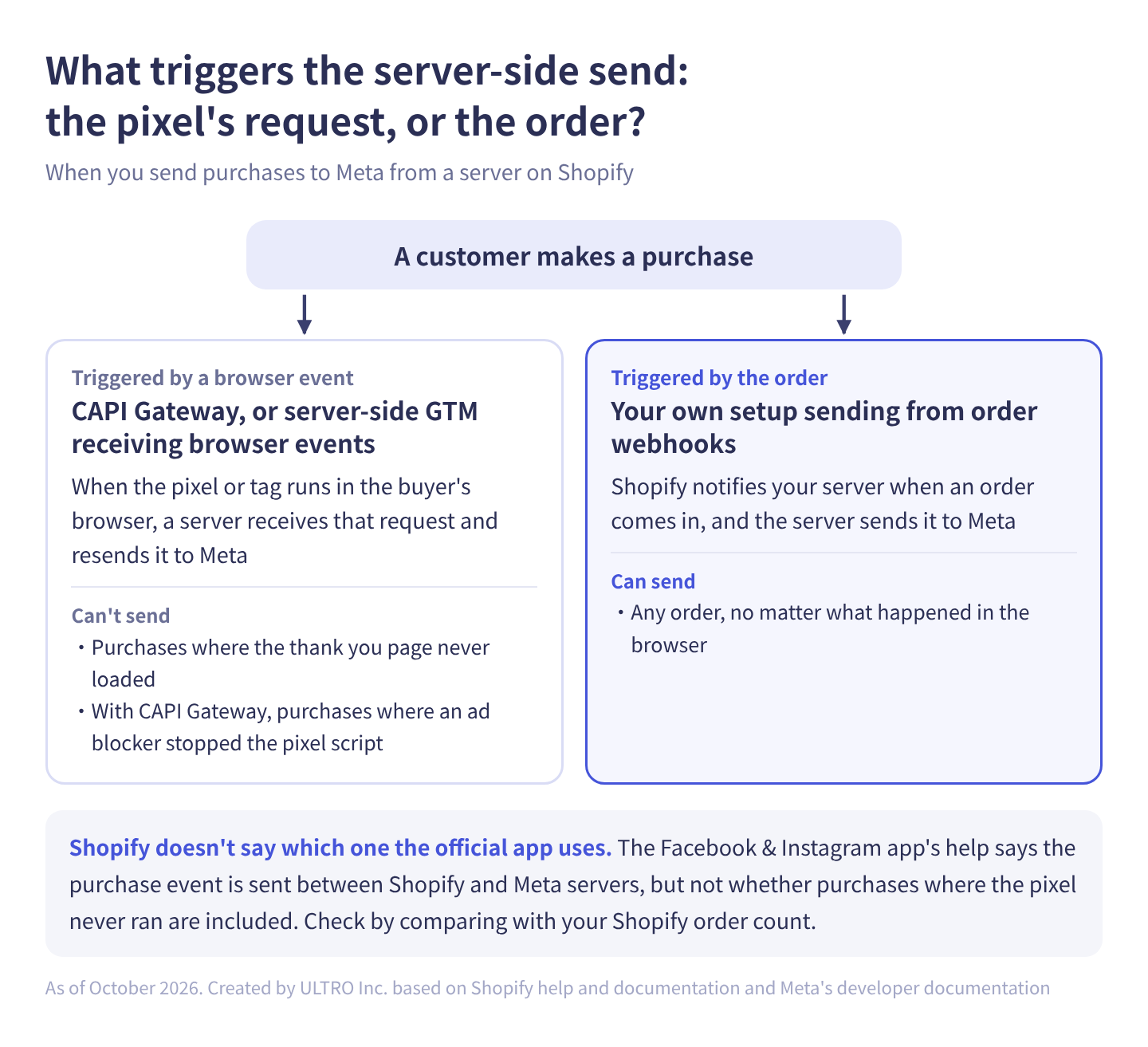
- Triggered by a browser event: the CAPI Gateway, and server-side GTM that receives browser events. When the pixel or tag runs in the buyer’s browser, a server receives that request and resends it to Meta. If the thank you page never loads, no event happens, so there’s nothing to send. The CAPI Gateway relays requests made after the pixel script runs, so if an ad blocker stops the script itself, nothing arrives either. Server-side GTM loaded from your own domain is the one that can be more resilient to ad blockers.
- Triggered by the order: your own setup that receives Shopify order webhooks (Shopify automatically notifies a server you specify when an order comes in) and sends from there. It can send any order, no matter what happened in the browser.
Shopify’s documentation says the checkout_completed event fires on the thank you page (or the first upsell page, if there is one) and doesn’t fire if that page never loads. The more buyers who pay through an off-site payment gateway and never come back, the bigger this gap gets. When we checked the same thing in GA4 for one of our client stores, 21% of orders were missing from GA4. The Meta pixel also runs on the thank you page, so we expect browser-triggered methods to miss purchases in the same way.
① Facebook & Instagram app: check your data sharing level
On Shopify, start with the official Facebook & Instagram app. It’s free, and changing the data sharing level is all it takes to start using the Conversions API.
Shopify’s help describes three levels:
| Level | What it uses | What the help says |
|---|---|---|
| Standard | Meta pixel only | Collects browsing data in the browser. Browser-based ad blockers can stop it from sharing data |
| Enhanced | Meta pixel + Conversions API | The Conversions API sends the purchase event between Shopify and Facebook servers, which browser-based ad blockers can’t block. Also shares customer information such as name, location, email and phone number |
| Maximum | Meta pixel + Conversions API | Enhanced, updated with Facebook’s latest advertising technology. Shares the same personal information as Enhanced |
Here’s where the setting is. The same screen shows your current level.
- In Shopify admin, go to Sales channels > Facebook & Instagram.
- Click Settings, then Data sharing settings.
- In the Customer data sharing section, turn on customer data sharing, and under Choose level, select Enhanced or Maximum.
- If no pixel is connected yet, click Connect on the pixel you want to use.
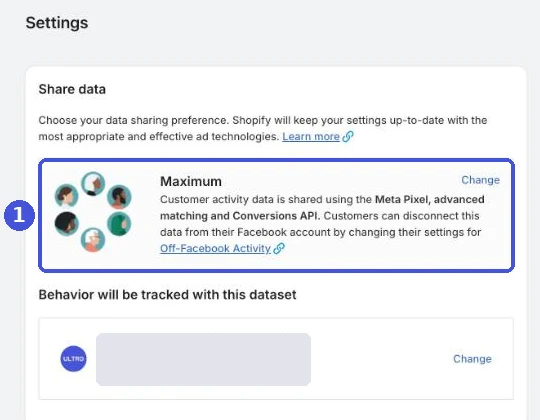
If you’re on Standard, the Conversions API isn’t being used. If you run Meta ads and find Standard here, fixing this one setting gets ① working. The day after you switch, open your dataset (what used to be called a pixel) in Meta Events Manager and check that Purchase arrives from both the browser and the server. That tells you quickly whether it took effect.
If you can’t decide between Enhanced and Maximum, choose Maximum. The help says both share the same information and the difference is whether Facebook’s latest advertising technology is applied. What that technology is isn’t published, so compare event counts and Event Match Quality before and after switching.
Purchase value is the checkout total, including duties, taxes and discounts. Compared with net sales in Shopify’s reports (which exclude taxes and shipping), Meta’s values can come out higher.
What the official app doesn’t tell you
That said, starting with ① is fine. You’ll know whether it’s enough by comparing with your orders, as described in “When Meta doesn’t match your order count” below.
The app is easy, but you can’t choose what it sends. The help only mentions sending the purchase event server-side. It doesn’t say whether other events such as add to cart are sent server-side, or whether purchases where the thank you page never loaded are included. Some tracking app vendors say the app’s server-side sends are also triggered by the browser pixel. We don’t settle this by guessing; we check the numbers store by store.
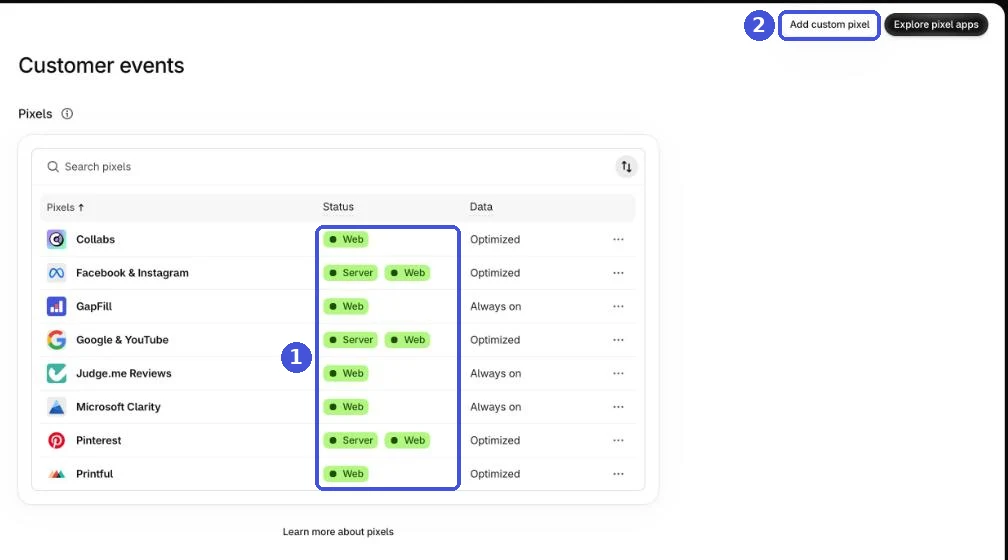
There’s also each pixel’s data access setting and how it interacts with your cookie banner. Open a pixel in Settings > Customer events to choose its data access: Optimized or Always on.
② Conversions API Gateway: rarely the right choice on Shopify
The Conversions API Gateway (CAPIG) receives the Meta pixel’s browser requests in your own cloud and resends them to the Conversions API. On Shopify it has few advantages over the official app, so there are few reasons to choose it.
Meta’s developer documentation describes it like this:
- It’s self-service, set up from Events Manager, and doesn’t require a dedicated developer
- Every time the Meta pixel runs in the browser, the event is also sent to the Gateway, which sends it to the Conversions API
- It runs in a cloud account the business contracts itself (AWS or Google Cloud), outside Meta
- The only cost is the cloud usage (or a partner’s fee)
- Event IDs for deduplication are added automatically
- One Gateway can handle multiple domains and multiple pixels in the same business account
You can also have a hosting provider run it instead of contracting a cloud yourself. Stape, for example, offers CAPI Gateway hosting at $8 per pixel per month, billed annually (from its pricing page as of October 2026).
We think of the Gateway as an in-between step before full server-side tracking: easy to deploy, but less flexible than a direct Conversions API implementation for things like CRM integration or long attribution windows. If you deploy one, check that events arrive, that browser and server duplicates are removed, and that the gap actually shrank.
We think it’s rarely the right choice on Shopify for three reasons:
- It can’t send purchases where the pixel never ran: the Gateway works from the pixel’s requests, so purchases where the thank you page never loaded are out of scope.
- There’s no official guidance for Shopify: neither Meta’s documentation nor Shopify’s help explains how to use the Gateway with a Shopify store (the official app’s pixel or a custom pixel).
- It overlaps easily with the official app: if you send server-side through another system while the app is on Enhanced or above, you have two senders, which causes double counting.
It’s an option when you already run a Gateway for your other sites and want your Shopify store managed the same way.
③ Your own setup: server-side GTM or order webhooks
Your own setup is for when you want to decide which events, value definitions and customer data are sent. There are two main ways to build it, and what triggers the send determines which purchases you catch.
| Server-side GTM (receives browser events) | Send from order webhooks | |
|---|---|---|
| Trigger | Browser events sent from a custom pixel or similar | Shopify order creation or payment |
| Purchases where the thank you page never loaded | Can’t send | Can send |
| Page views, add to cart | Can send | Can’t send (needs browser events separately) |
| Sending to other platforms | The same server can send to GA4 and Google Ads too | Built per platform |
| Main costs | Server hosting (Google Cloud or a hosting provider) | Server hosting plus app development and maintenance |
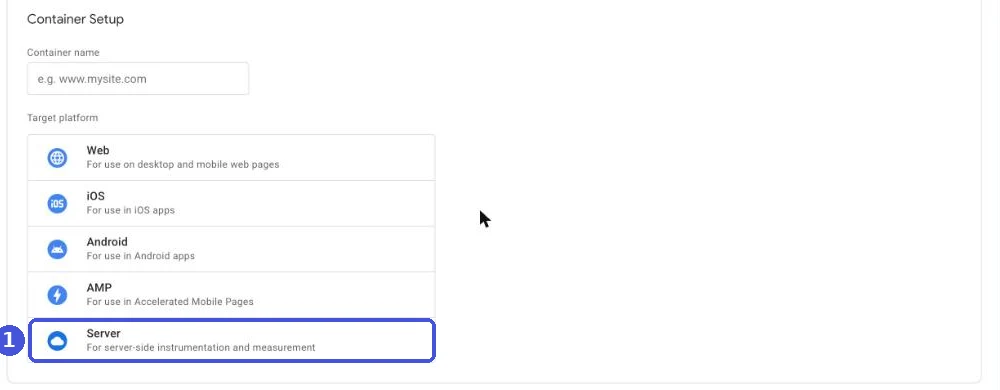
You can’t add GTM directly to Shopify’s checkout, so either way, checkout behavior is captured with a custom pixel added in Customer events in the admin. For how to write custom pixels, see Shopify custom pixels. For how server-side GTM works, see Server-side GTM. You create a server-side GTM container in Tag Manager by choosing Server as the target platform.
The rest of this section is for whoever builds ③ (or hires a developer to). If ① is enough, skip to the next section.
Checklist to hand to your developer
- Match event IDs with the pixel: for purchases, use a value that’s identical on both the pixel and server side, such as the Shopify order ID. Duplicates are only removed when the pixel’s
eventIDmatches the Conversions API’sevent_idand the event names match too. - Include the required fields for web events:
action_sourceis required; set it to website for web purchases. Web events also requireevent_source_urlandclient_user_agent. If you send from webhooks alone, take the buyer’s IP address and user agent from the order’s client details (the browser IP and user agent Shopify records with the order), or from values saved by your custom pixel. - Capture customer information parameters for matching: save the browser ID (
fbp) and click ID (fbc) at checkout with your custom pixel and tie them to the order. Hash emails and phone numbers before sending (don’t hashfbp,fbc,client_user_agentor the IP address). - Get protected customer data approval: an app that reads email addresses or phone numbers from orders needs approval for Shopify’s protected customer data.
- Respect the 7-day limit:
event_timecan be at most 7 days before you send. If even one event in a request is older, the whole request fails. - Respect consent: sending from a server doesn’t make it OK to send purchases from people who declined in your cookie banner. Store the consent state with the order and don’t send orders from people who declined.
- Split duties with the official app: turn off the app’s data sharing, or decide which one sends purchases.
The reason to adopt server-side GTM isn’t to add more tags. It’s to govern your tracking: CRM integration, consistent event definitions across platforms, strict consent management, operating in multiple countries. The time to consider it is when browser tracking and in-between options no longer meet your requirements, and it’s an investment in design and operations rather than a tag install. For most Shopify stores, we don’t think standing up server-side GTM just to send Meta purchases pays for itself.
Which method to choose on Shopify
On Shopify, first set the official app’s data sharing to Enhanced or above, and only move to your own setup if comparing with your orders shows it falls short. The CAPI Gateway is the exception.
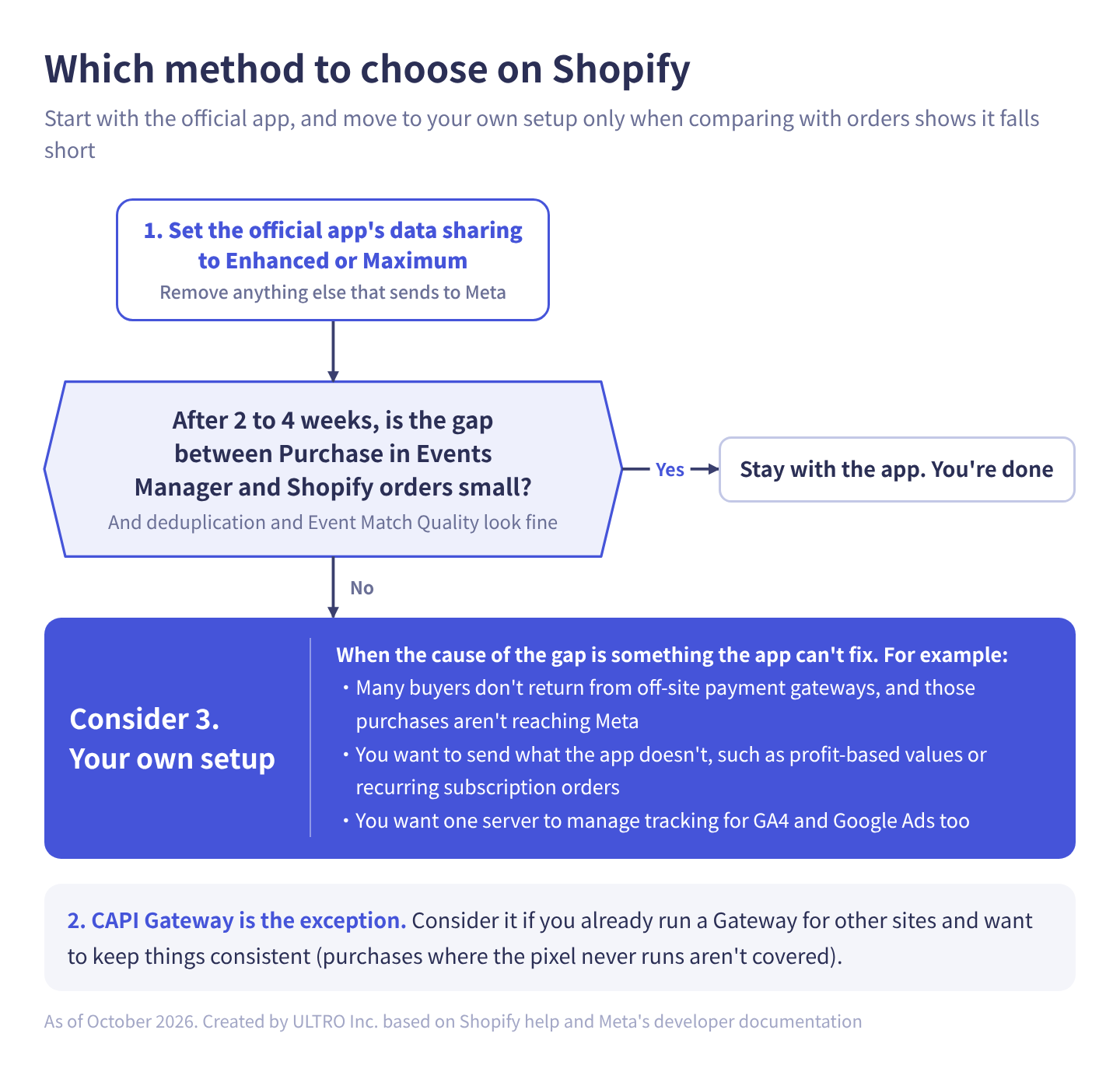
- Set the official app’s data sharing to Enhanced or Maximum. Remove anything else that sends to Meta (a pixel pasted into your theme, a Meta pixel in a custom pixel, a tracking app).
- After two to four weeks, compare Purchase in Events Manager with your Shopify orders. If the gap is small and deduplication and Event Match Quality look fine, you’re done.
- If the gap is large and the cause is something the app can’t fix, consider ③. For example: many buyers don’t return from off-site payment gateways and those purchases aren’t reaching Meta; you want to send what the app doesn’t, such as profit-based values or recurring subscription orders (as an event separate from web purchases); or you want one server to manage tracking for GA4 and Google Ads too.
| Your store’s situation | Method |
|---|---|
| You just need Meta ad purchases to arrive correctly | ① Official app |
| The gap with orders is small on the official app | Stay on ① |
| Many buyers don’t return from off-site gateways, and you’ve confirmed ① doesn’t deliver them | ③ Send from order webhooks |
| You want to set values and events by your own rules | ③ (either build) |
| You want to govern GA4, Google Ads and Meta tracking together | ③ Server-side GTM (combined with order webhooks for purchases) |
| You run the CAPI Gateway on other sites and want consistency | ② (knowing purchases where the pixel never runs aren’t covered) |
How to check deduplication with the pixel (event_id)
Pixel and Conversions API duplicates are removed when the event ID and event name match and both arrive at the same dataset within 48 hours. Every method sends the same purchase from both sides and relies on Meta to merge them, so if this breaks, purchases nearly double and your CPA looks half of what it is.
Meta’s developer documentation lists these conditions:
- The pixel’s
eventIDmatches the Conversions API’sevent_id, and the event names match - Both go to the same pixel (dataset), within 48 hours of the first event
- If the two don’t differ meaningfully, the one received first is generally kept
Who matches the event IDs depends on the method:
| Method | Who matches event IDs | Combinations that tend to double count |
|---|---|---|
| ① Official app | The app | A Meta pixel left in your theme or a custom pixel; running a tracking app alongside |
| ② CAPI Gateway | The Gateway | Running alongside the official app on Enhanced or above |
| ③ Your own setup | You | Running alongside the official app; the pixel and server generating IDs differently |
The same goes for tracking apps: if you move to one, turn off the official app’s data sharing or make only one of them the purchase sender.
Meta can also deduplicate by browser ID (fbp) or external ID (external_id), but that generally only works when the browser event arrives first and the server event second. With an order webhook build, the server event can arrive first, so matching event IDs is the reliable way.
In Events Manager, open your dataset and check the details of events received from the server to see which keys (such as event ID) are used for deduplication. Meta’s help treats a “redundant setup,” sending the same events from both the pixel and the Conversions API, as the standard, and suggests aiming for at least 75% event coverage (the share of pixel events also received through the Conversions API). While testing, use Test events to check that server events arrive in the right format. For duplicate purchases on the GA4 side, see GA4 duplicate purchases.
How to check Event Match Quality (EMQ)
Event Match Quality is a score from 0 to 10 showing how well events sent from your server are matched to Meta accounts. You’ll find it in Events Manager, in the event matching section of a server event’s details.
Meta’s help describes it like this:
- It applies to web events sent through the Conversions API with action_source set to website
- It’s calculated from the quality of the customer information you send and the share of events matched to Meta accounts
- It’s calculated from the last 48 hours of data, so you need to keep sending events regularly
- Recommendations for improving it are shown in Events Manager
To raise the score, send as many customer information parameters as you can. The help ranks them by priority:
| Priority | Customer information parameters |
|---|---|
| High | Email, click ID |
| Medium | Facebook Login ID, date of birth, country, phone, external ID (such as your store’s customer ID), browser ID |
| Low | Lead ID, first name, last name, city, zip code |
With the official app on Enhanced or above, the name, address, email and phone from the order are sent, so Purchase usually scores fairly high. If your own setup scores low, check how emails are normalized before hashing (lowercase, trimmed) and whether you’re capturing fbc. Meta’s help doesn’t give a target score. Tracking app vendors quote targets such as “6 or higher” or “8 or higher,” but those aren’t official.
Event Match Quality tells you how well events match, not whether you’re receiving enough of them. Check counts with the method in the next section.
When Meta doesn’t match your order count
The most reliable check is comparing the Purchase count in Events Manager with your Shopify order count for the same period. In Shopify, use Analytics > Reports and exclude test orders. If you compare by day, make sure Meta and your store use the same time zone. They won’t match exactly, but a count well above your orders points to double counting, and well below points to missing purchases.
- Meta shows too many: is more than one system sending to Meta (theme code, a custom pixel, a tracking app, server-side GTM)? Are event IDs among the deduplication keys?
- Meta shows too few: has data sharing slipped back to Standard? Check the pixel’s data access setting. Do you sell heavily to regions that require consent, such as the EU?
- The gap skews by payment method: split Shopify orders by payment method and check whether orders paid through off-site gateways reach Meta. If you can’t look up events by order number, compare order counts by payment method with Meta’s count for the period. If the gap widens on days with more off-site payments, the official app isn’t filling in purchases where the pixel never ran.
- Values don’t match: the official app sends the total including duties, taxes and discounts, which can be defined differently from sales in Shopify’s reports.
- Reading the numbers: Ads Manager, ads reporting and Events Manager count differently, so their numbers may not match.
If CPA in Ads Manager drops after you add the Conversions API, that doesn’t mean sales went up. Part of it is simply that more purchases are now being tracked, so compare before and after with your store’s own orders and revenue.
The Conversions API won’t fix missing GA4 purchases
The Conversions API sends data to Meta and sends nothing to GA4. Getting Meta purchases right leaves missing GA4 purchases as a separate problem.
On the Google side, Google Ads Help describes a connection for stores using the Google & YouTube app that sends purchase conversions from Shopify’s servers to Google Ads through Data Manager and deduplicates them against the Google tag. That’s about Google Ads conversions; it isn’t described as filling gaps in GA4 purchase tracking. For the Google Ads side, see Google Ads conversion tracking.
Even with the app connected, purchases a tag can’t capture remain missing. In one client store (connected through the Google & YouTube app), reconciling orders from August to mid-September 2026 showed that 21% of orders were missing from GA4. The reliable way to know is to reconcile Shopify orders against GA4 purchases in your own store, using the transaction ID (transaction_id), which appears as the Transaction ID dimension in GA4 explorations.
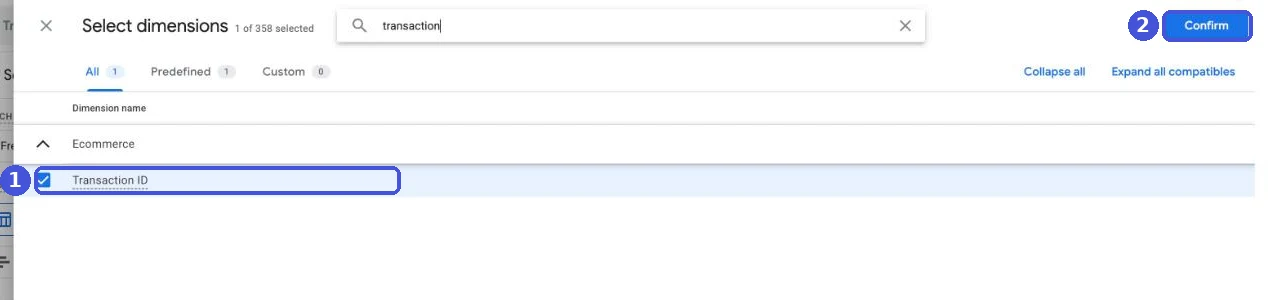
For the steps and how to fill the gap, see GA4 Not Tracking All Shopify Purchases? For sending to GA4 from a server, see the GA4 Measurement Protocol guide. We turned this part into a Shopify app, GapFill. It’s our own product, so keep that in mind. It matches Shopify orders against GA4 purchases by transaction ID and recovers missing GA4 purchase events server-side. It works alongside your existing tags, and the missing purchases report is free.
Our Shopify appGapFill: Recover missing GA4 purchase events server-sideWorks alongside your existing tags. Free missing purchases report.See GapFill →For connecting GA4 itself, see Shopify GA4 setup.
Sources
- Facebook data sharing (Shopify Help Center)
- Custom pixels (Shopify Help Center)
- checkout_completed (Shopify.dev)
- Order (Shopify.dev)
- Protected customer data (Shopify.dev)
- Conversions API Gateway (Meta for Developers)
- Conversions API Gateway: Setup (Meta for Developers)
- Handling Duplicate Pixel and Conversions API Events (Meta for Developers)
- Server Event Parameters (Meta for Developers)
- Customer Information Parameters (Meta for Developers)
- About event match quality (Meta Business Help Center)
- Monitor and improve your Conversions API setup in Meta Events Manager (Meta Business Help Center)
- Best practices for Conversions API (Meta Business Help Center)
- Shopify (Google Ads Data Manager Help)
- Meta CAPI Gateway pricing (Stape)
FAQ
Is the Conversions API free on Shopify? Do I need a developer?
With the official Facebook & Instagram app, the app is free and no development is needed. In the sales channel's Data sharing settings, set the data sharing level to Enhanced or Maximum and the Conversions API is used. You only pay and need development if you run a CAPI Gateway or send from server-side GTM or your own server.
Should I choose Enhanced or Maximum in the Facebook & Instagram app?
If you're not sure, choose Maximum. Shopify's help says both use the Conversions API and share the same personal information, and that Maximum is updated with Facebook's latest advertising technology. The specific difference isn't published, so compare event counts and Event Match Quality in Events Manager before and after switching.
Which is better, the Conversions API Gateway or the official app?
On Shopify, start with the official app. The CAPI Gateway receives the Meta pixel's requests in your own cloud when the pixel runs in the browser and resends them to the Conversions API. It can't send purchases where the pixel never ran, and you pay for the cloud. Neither Meta's documentation nor Shopify's help explains how to use it with Shopify.
If I add a tracking app or my own setup, should I turn off data sharing in the official app?
Keep exactly one system sending purchases to Meta. Separate systems don't share event IDs (event_id), so the same purchase gets counted twice. If you move to a tracking app or your own setup, turn off the official app's data sharing, or at least make sure only one of them sends purchases.
How do I check that the Conversions API is working on Shopify?
Open your dataset in Meta Events Manager and check that Purchase arrives from both the browser and the server. In the server event details, you can also check which keys are used for deduplication and the Event Match Quality score (0 to 10, calculated from the last 48 hours of data). After two to four weeks, compare the Purchase count with your Shopify orders.
Will the Conversions API fix missing purchases in GA4?
No. The Conversions API sends data to Meta and sends nothing to GA4. Even with GA4 connected through the Google & YouTube app, purchases a tag can't capture remain missing. Reconcile Shopify orders against GA4 purchases, and if some are missing, fill them separately, for example with the Measurement Protocol.
- There are three ways to use Meta's Conversions API on Shopify: the official app, the CAPI Gateway, and your own setup (server-side GTM or your own server).
- The official app is free and only needs data sharing set to Enhanced or Maximum. That's enough for most stores.
- The CAPI Gateway and browser-triggered server-side GTM can only send purchases where the pixel ran. Only a setup that sends from order webhooks is triggered by the order itself.
- Keep exactly one system sending to Meta. Check deduplication, Event Match Quality and the gap with Shopify orders in Events Manager.
- The Conversions API doesn't fix missing GA4 purchases. Reconcile orders against GA4 purchases and fill the gap separately.
Written byRyushi Nagata
CEO, ULTRO Inc. (Tokyo)Shopify Partner. Ryushi handles Shopify store builds, maintenance, advertising and CRM end to end, and has managed more than ¥4 billion in ad spend over his career. He holds Google Ads certifications (Search, Display, Video, Shopping, Apps, Performance Max, Measurement) and the Google Analytics certification.
How many purchases is GA4 missing in your store?
GapFill matches your Shopify orders against GA4 purchases, shows what GA4 missed, and recovers those purchase events server-side. It works alongside your existing tags, and the missing purchases report is free.