GA4 BigQuery Export: Setup, Pricing, Limits and SQL for Ecommerce

What exporting GA4 to BigQuery gets you, how to link them, daily vs streaming export, pricing and limits, the sandbox, how to read events_YYYYMMDD and event_params, and SQL to check for missing and duplicate purchases.
When GA4’s reports can’t give you the breakdown you need, or explorations won’t reach back past 14 months, exporting to BigQuery solves it. This article covers how to link GA4 and BigQuery, what it costs and how the tables are structured, plus the SQL we run on client Shopify stores to check for missing and duplicate purchases. Specs, pricing and screens are as of October 2026.
What you can do with the GA4 BigQuery export
Exporting GA4 to BigQuery gives you the events GA4 collects as raw data, one row per event, that you can count however you like with SQL. BigQuery is Google Cloud’s data warehouse for large datasets. Here’s how it differs from GA4’s reports, per Google’s help center:
| GA4 reports and explorations | BigQuery | |
|---|---|---|
| What you get | Aggregated numbers | Raw event- and user-level data only |
| Sampling | Explorations may estimate from a sample when they process a lot of data | None |
| “(other)” row for high-cardinality values | May appear when a table has too many rows | None |
| Modeling and data-driven attribution | Included | Not included (traffic source comes in three sets of columns: the user’s first source, the values collected with each event, and the session’s last click; see below) |
| Date range | Explorations are limited to your data retention period (2 or 14 months on standard properties) | Kept until you delete it |
Data retention only limits explorations and funnels; standard reports aren’t affected. For ecommerce, the export is useful for matching GA4 transaction IDs against Shopify orders, finding purchases recorded twice, and counting the days between first and second purchase. If you only need the numbers GA4 already shows, you don’t need BigQuery.
How to link GA4 to BigQuery
To link GA4 to BigQuery, set up a Google Cloud project first, then create the link from BigQuery links in GA4. Some settings are hard to change later, so decide them up front.
What to decide before you start
| Decision | Details | Can you change it later? |
|---|---|---|
| Google Cloud project | Where the data goes. Create it under your company’s Google account | Yes, by recreating the link |
| Permissions | Editor or above on the GA4 property, and Owner on the project | — |
| Data location | Where the data is stored (US, EU, etc.) | Not once the project has a dataset for the property. Changing it means deleting and recreating the link, and you lose data for the gap |
| Data streams and events to exclude | Used to stay under the 1 million events per day cap | Yes |
Put the data in the same location as other data you plan to join it with (ad spend, for example), because a single query can’t easily combine datasets in different locations.
1. Create a Google Cloud project and enable the BigQuery API
In the Google Cloud console, create or select a project. Open the navigation menu, go to APIs & Services > Library, click BigQuery API and click Enable. Without a billing account, the project runs in the free BigQuery sandbox (limits below).
2. Create the link in GA4
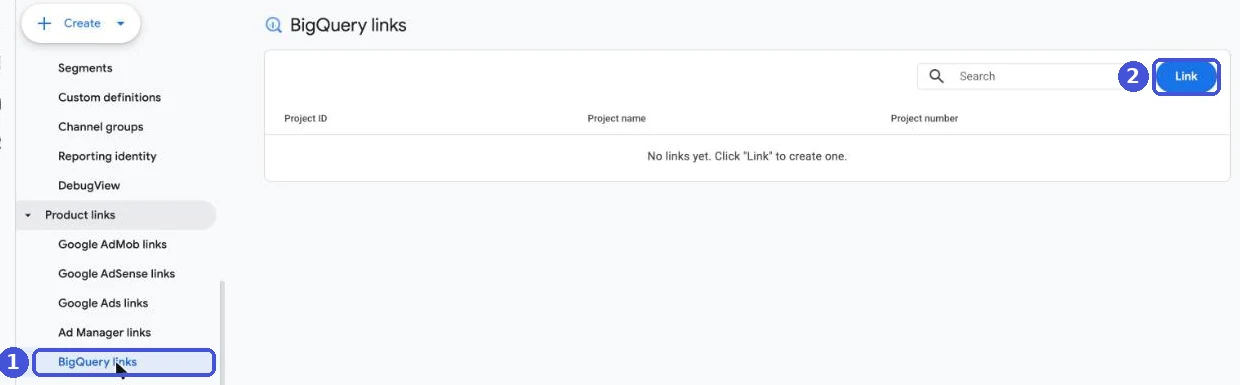
- In GA4, click Admin at the bottom left. Under Product links, click BigQuery links. A list with Project ID, Project name and Project number appears; click the blue Link button at the top right.
- The Create a link with BigQuery screen opens. Link setup has three steps: Choose a BigQuery project, Configure settings, and Review and submit.
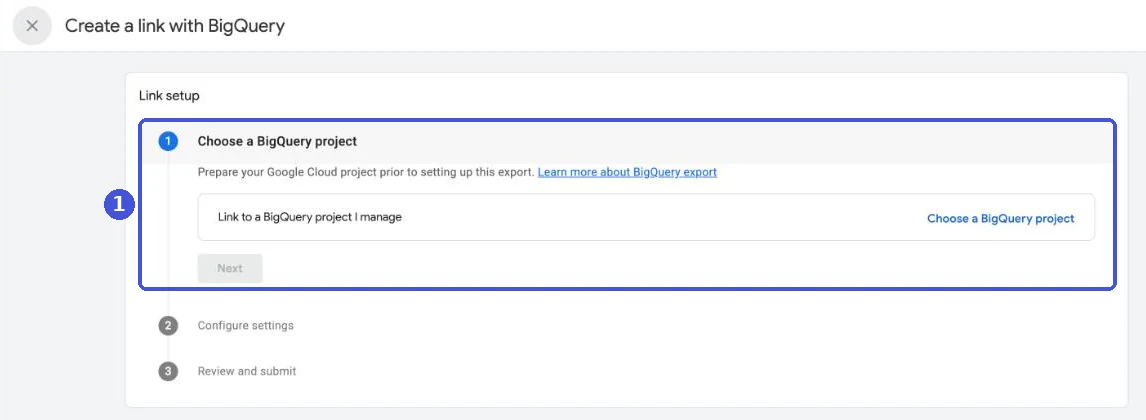
- Click Choose a BigQuery project, select the project from step 1, and click Confirm. Select a data location and click Next.
- In Configure settings, use Configure data streams and events to choose which streams to export and which events to exclude, then click Done. Under Frequency, choose Daily, Streaming or both, and click Next. Analytics 360 properties can also choose Fresh Daily.
- In Review and submit, check your settings and click Submit.
Once linked, GA4 creates a dataset named analytics_<property ID> with one table per day. Google’s help doesn’t describe a way to export data from before the link was created, so linking early is what gives you history later.
Daily vs streaming export
The daily export sends the previous day’s data once a day; streaming sends the current day’s data within minutes. Ecommerce analysis usually works fine with data through yesterday, so start with the daily export alone.
| Daily | Streaming | |
|---|---|---|
| When data arrives | Previous day’s data once a day, generally in the early afternoon in your property’s time zone; sometimes later or the next day | Current day’s data within a few minutes |
| Tables | events_YYYYMMDD | events_intraday_YYYYMMDD (deleted once that day’s daily table is complete) |
| Cap on standard properties | 1 million events per day | None |
| Extra cost | None | $0.05 per GB of data |
| Caveats | — | Best effort, with no completeness guarantee. Traffic source for new users and new sessions isn’t included. Not available in the sandbox |
Daily tables keep being updated with late-arriving events for up to two calendar days after the table’s date, plus the current day (the 20261001 table can be updated through October 4). Google’s help names events sent with the Measurement Protocol as one source of late events.
GA4 BigQuery pricing and limits (free tier, sandbox, 1 million events per day)
GA4 doesn’t charge for the BigQuery export. What you pay for is BigQuery storage and queries (running SQL that reads the data). For a small or mid-sized store, we’d expect that to stay within a few dollars a month.
| Cost | Free tier (monthly) | Beyond the free tier |
|---|---|---|
| Storage | 10 GiB | About $0.02 per GiB per month in the US (less for data unchanged for 90 days; varies by region) |
| Queries (on-demand) | 1 TiB | $6.25 per TiB (US; varies by region) |
| Streaming export | — | $0.05 per GB |
GiB and TiB are close to GB and TB. Google’s help estimates 1 GB at roughly 600,000 events, so a store with 30,000 events a day adds about 1.5 GB a month, or about 18 GB a year. Storage beyond the free tier comes to well under $1 a month, and adding streaming brings it to roughly $0.08 a month more.
Query cost depends on how much data the selected columns hold; LIMIT doesn’t reduce it. BigQuery bills a minimum of 10 MB per table referenced, so reading a full year with events_* counts as at least about 3.6 GB (still inside the free tier). Avoid SELECT * and narrow the date range with _TABLE_SUFFIX.
The 1 million events per day cap on standard properties
The daily export on standard properties is capped at 1 million events per day. If you exceed it, the daily export may pause, and days it skipped aren’t reprocessed. You can see your daily event count under Reports > Engagement > Events. If you’re getting close, exclude events or data streams you don’t use.
Limits of the BigQuery sandbox
The sandbox is the free tier you can use without a billing account. Storage is capped at 10 GiB for the lifetime of the project (deleting data doesn’t give it back), queries at 1 TiB a month, tables expire automatically after 60 days, and streaming and DML statements (UPDATE, DELETE and so on) aren’t supported. Your GA4 tables expire after 60 days too, so if you want to keep the data, enable billing and update the default table expiration.
The export schema: events_YYYYMMDD and event_params
GA4’s BigQuery export writes one table per day, events_YYYYMMDD, with one row per event. Parameters sit in an array column called event_params, which you open with UNNEST.
| Column | What it holds |
|---|---|
| event_date | Event date (YYYYMMDD, property time zone) |
| event_timestamp | Event time (microseconds, UTC) |
| event_name | Event name (page_view, purchase, etc.) |
| event_params | Parameters, as an array of key-value pairs |
| user_pseudo_id | The ID GA4 assigns per browser (equivalent to the client ID) |
| ecommerce | Purchase details: transaction_id, purchase_revenue, etc. |
| items | Array of items: item_id, item_name, price, quantity, item_revenue, etc. |
Extracting values from event_params
event_params is a single column holding many key-value pairs (see GA4 events for how parameters work). Here’s the approach from Google’s sample queries, written without a helper function. It runs as is against Google’s public ecommerce sample dataset.
SELECT
  event_timestamp,
  (SELECT value.int_value FROM UNNEST(event_params) WHERE key = 'ga_session_id') AS ga_session_id,
  (SELECT value.string_value FROM UNNEST(event_params) WHERE key = 'page_location') AS page_location
FROM `bigquery-public-data.ga4_obfuscated_sample_ecommerce.events_*`
WHERE event_name = 'page_view'
  AND _TABLE_SUFFIX BETWEEN '20201201' AND '20201207';
Paste the SQL into the BigQuery editor and run it. Before you run it, the editor shows an estimate of how much data the query will process. Values are split by type into string_value, int_value and double_value. If you’re not sure which one a parameter lands in, for example because your tag and your server send the same parameter as a string and a number, pull it with COALESCE(value.string_value, CAST(value.int_value AS STRING), CAST(value.double_value AS STRING)).
_TABLE_SUFFIX holds the part of the table name matched by * in events_* (the date), so use BETWEEN to set the date range (events_intraday_ tables aren’t included). For your own data, replace the table name with my-project.analytics_123456789.events_*. Parameters you’d have to register as custom dimensions to see in GA4’s interface are all in BigQuery already.
To count by product, UNNEST items:
SELECT
  item.item_name,
  SUM(item.quantity) AS quantity,
  SUM(item.item_revenue) AS item_revenue
FROM `bigquery-public-data.ga4_obfuscated_sample_ecommerce.events_*`,
  UNNEST(items) AS item
WHERE event_name = 'purchase'
  AND _TABLE_SUFFIX BETWEEN '20201201' AND '20201231'
GROUP BY item.item_name
ORDER BY item_revenue DESC;
Once items is unnested, summing purchase_revenue multiplies it by the number of items in each order, so use item_revenue for product-level numbers.
There are three traffic source columns
The export has three sets of traffic source columns. Mix them up and you’ll count the source that first brought in each user while thinking it’s the session source.
| Column | What it means |
|---|---|
| traffic_source | The source that first acquired the user. It doesn’t change afterwards. Not populated in intraday tables |
| collected_traffic_source | The UTM and gclid values collected with that event |
| session_traffic_source_last_click | The session’s last-click source. Its cross_channel_campaign record covers every channel (Google Ads, manual UTMs, organic search and so on) and is the closest to the session source in GA4 reports |
session_traffic_source_last_click and cross_channel_campaign were added to the schema later, so tables from earlier dates don’t have them. For what gclid is and how it’s used, see our gclid guide.
Use case 1: Find purchases missing from GA4 by matching Shopify orders
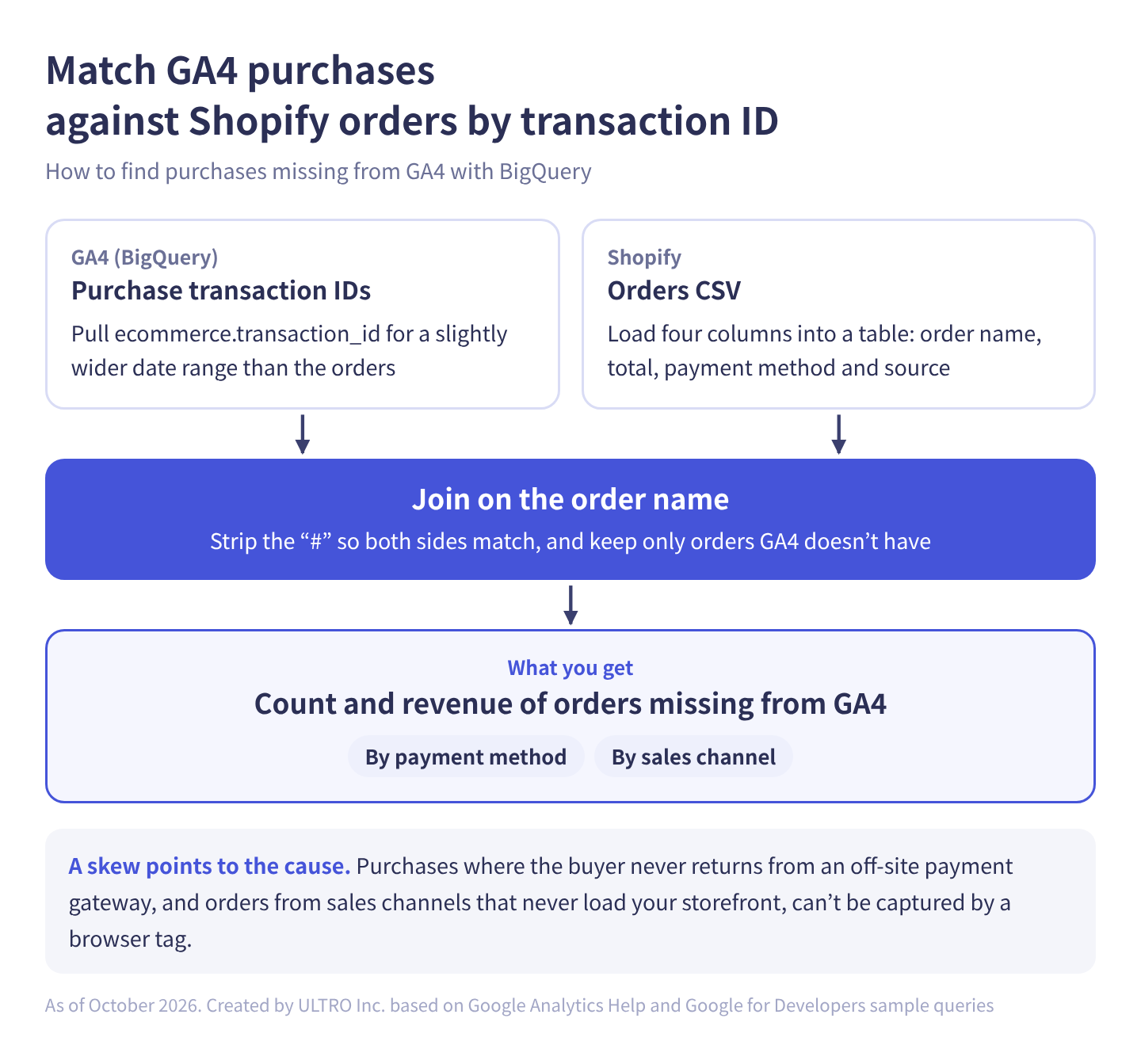
Pull GA4 transaction IDs from BigQuery and match them against Shopify orders, and you can see which orders never reached GA4, one by one, broken down by payment method and sales channel. For why this happens and how to do the same check in an exploration, see GA4 Not Tracking All Shopify Purchases?. Here’s the flow at a glance.
- In the Shopify admin, go to Orders and export the orders as a CSV for a date range that ends at least three days ago.
- Open the CSV in Google Sheets and keep only four columns: Name (the order name), Total, Payment Method and Source. Rename the headers to order_name, total, payment_method and source. Delete rows for cancelled orders, then download it as a CSV again.
- In the BigQuery Explorer, open your project’s menu, click Create dataset and enter a dataset ID (for example, shopify). Set the location to match
analytics_<property ID>; if it differs, the query fails with an error. - In that dataset, click Create table, choose Upload as the source and load the CSV. Auto-detecting the schema is fine.
- Replace the project, dataset and dates in the SQL below with your own and run it.
WITH ga4 AS (
  SELECT DISTINCT
    REPLACE(ecommerce.transaction_id, '#', '') AS transaction_id
  FROM `my-project.analytics_123456789.events_*`
  WHERE event_name = 'purchase'
    AND _TABLE_SUFFIX BETWEEN '20260930' AND '20261017'
),
shopify AS (
  SELECT
    REPLACE(TRIM(CAST(order_name AS STRING)), '#', '') AS transaction_id,
    MAX(SAFE_CAST(total AS NUMERIC)) AS total,
    MAX(payment_method) AS payment_method,
    MAX(source) AS source
  FROM `my-project.shopify.orders_202610`
  GROUP BY transaction_id
)
SELECT
  s.payment_method,
  s.source,
  COUNT(*) AS missing_orders,
  SUM(s.total) AS missing_total
FROM shopify AS s
LEFT JOIN ga4 AS g
  ON s.transaction_id = g.transaction_id
WHERE g.transaction_id IS NULL
GROUP BY s.payment_method, s.source
ORDER BY missing_orders DESC;- Date range and order names: if your Shopify orders cover October 1-14, widen the GA4 range a little on both sides. The CSV has one row per line item, so
GROUP BYcollapses them, andREPLACEstrips the ”#”. - Tags that send the order ID: if GA4’s transaction IDs are long numeric order IDs, use the CSV’s “Id” column instead of order_name. If they look like
gid://shopify/…, take just the trailing digits withREGEXP_EXTRACT(ecommerce.transaction_id, r'(\d+)$')before matching them against “Id”. Why the format differs by route is covered in Shopify Google Analytics Setup. - To see individual orders: replace everything from the final
SELECTto the closing;withSELECT s.* FROM shopify AS s LEFT JOIN ga4 AS g ON s.transaction_id = g.transaction_id WHERE g.transaction_id IS NULL ORDER BY s.transaction_id;
If the missing orders cluster somewhere, that points to the cause. Purchases where the buyer pays through an off-site gateway (PayPal, Klarna and the like) and never returns to the thank you page, and orders from channels that never load your storefront, such as POS or draft orders created in the admin, can’t be captured by a browser tag. When the payment gateway shows up as the source instead, see GA4 referral exclusion.
Running this match by hand every month gets tedious. Our Shopify app GapFill has a free missing purchases report that shows the same thing on screen. It’s our own product, so read with that in mind. It matches Shopify orders with GA4 purchases by transaction ID and shows how many orders, and how much revenue, are missing from GA4, broken down by channel, source / medium and payment method. On the paid plan, it recovers missing GA4 purchase events server-side and works alongside your existing tags.
Our Shopify appGapFill: Recover missing GA4 purchase events server-sideWorks alongside your existing tags. Free missing purchases report.See GapFill →Use case 2: Separate purchases sent from your server
If your server-side sender adds an identifying parameter to the purchases it sends, you can count them separately from tag-sent purchases in BigQuery. This example assumes a custom event parameter gapfill=1; replace it with whatever parameter your sender uses.
WITH purchases AS (
  SELECT
    event_date,
    ecommerce.purchase_revenue AS revenue,
    (SELECT COALESCE(value.string_value, CAST(value.int_value AS STRING), CAST(value.double_value AS STRING))
     FROM UNNEST(event_params) WHERE key = 'gapfill') AS gapfill
  FROM `my-project.analytics_123456789.events_*`
  WHERE event_name = 'purchase'
    AND _TABLE_SUFFIX BETWEEN '20261001' AND '20261014'
)
SELECT
  event_date,
  IF(SAFE_CAST(gapfill AS FLOAT64) = 1, 'server', 'tag') AS sent_by,
  COUNT(*) AS purchases,
  SUM(revenue) AS revenue
FROM purchases
GROUP BY event_date, sent_by
ORDER BY event_date, sent_by;
The value is cast to a number before comparing with 1, so ‘1’ and ‘1.0’ both match whatever type it arrived as, and purchases without the parameter fall under “tag”. Split them out because your purchase tracking changes on the day you start sending from the server. Don’t compare the periods before and after that date as if nothing changed.
Use case 3: Find duplicate purchases
If the same transaction ID has two or more purchase rows, it may have been sent twice.
SELECT
  ecommerce.transaction_id AS transaction_id,
  COUNT(*) AS purchase_events,
  COUNT(DISTINCT user_pseudo_id) AS users,
  MIN(TIMESTAMP_MICROS(event_timestamp)) AS first_at,
  MAX(TIMESTAMP_MICROS(event_timestamp)) AS last_at
FROM `my-project.analytics_123456789.events_*`
WHERE event_name = 'purchase'
  AND _TABLE_SUFFIX BETWEEN '20261001' AND '20261014'
  AND ecommerce.transaction_id IS NOT NULL
  AND ecommerce.transaction_id NOT IN ('', '(not set)')
GROUP BY transaction_id
HAVING COUNT(*) > 1
ORDER BY purchase_events DESC;
If first_at and last_at (UTC) are only seconds apart, suspect a tag installed twice. If users is 2 or more, the same order was sent as a different user (for example, a server sending with a client ID it made up).
GA4 reports deduplicate purchases with the same transaction ID from the same user in web streams. BigQuery holds the raw data, so two rows don’t necessarily mean two purchases in reports, but when users is 2 or more, we’d expect reports to count it twice as well. For fixes, see GA4 Duplicate Transactions on Shopify.
When BigQuery doesn’t match GA4 reports
BigQuery and GA4 reports won’t match exactly. Google’s help says a 2-5% difference in total event count is expected. If the gap is bigger, check these:
| Cause | What to check |
|---|---|
| Reporting identity | BigQuery only uses device ID. Switch GA4’s reporting identity to Device-based while comparing, then switch it back |
| Time zone | BigQuery dates use the property time zone. On a day you changed the time zone, counts look odd |
| Excluded data streams or events | Anything excluded in the link settings isn’t exported. Apply a matching filter in an exploration |
| Modeling and attribution | Behavioral modeling (estimates for users who declined consent) and data-driven attribution aren’t in BigQuery |
| Late-arriving events | Daily tables keep updating for a few days. Recheck the most recent days after they settle |
| The columns in your SQL | Are you counting sources with traffic_source? Are you counting sessions as the combination of user_pseudo_id and ga_session_id? |
When data doesn’t arrive or stops
Right after linking, it can take up to 24 hours for data to start arriving. Beyond that, the main reasons exports stop are payment problems (the missed days can’t be re-exported), a sandbox project hitting its 10 GB storage limit, the 1 million events per day cap, and the service account added by the link being deleted or blocked by an organization policy.
Sources
- [GA4] BigQuery Export (Google Analytics Help)
- [GA4] Set up BigQuery Export (Google Analytics Help)
- [GA4] BigQuery Export schema (Google Analytics Help)
- [GA4] Compare Analytics reports and data exported to BigQuery (Google Analytics Help)
- [GA4] Analytics data export options (Google Analytics Help)
- [GA4] Data retention (Google Analytics Help)
- [GA4] Minimize duplicate key events with transaction IDs (Google Analytics Help)
- Basic queries for Google Analytics event data export (Google for Developers)
- BigQuery pricing (Google Cloud)
- Enable the BigQuery sandbox (Google Cloud)
FAQ
Is the GA4 BigQuery export free?
GA4 doesn't charge for it. You pay for BigQuery storage and queries. BigQuery has a monthly free tier (10 GiB of storage and 1 TiB of queries), which many small stores stay within. Streaming export adds $0.05 per GB of data. You can also export to the BigQuery sandbox with no billing account, but tables expire after 60 days and streaming isn't available.
Is there a limit on the GA4 BigQuery export?
Standard GA4 properties can export up to 1 million events per day with the daily export. If you go over, the daily export may pause, and the days it missed aren't reprocessed. Streaming export has no event limit. To stay under the cap, exclude events and data streams you don't analyze in the link settings.
Can I export GA4 data from before I linked BigQuery?
Google's help doesn't describe any way to export data from before the link was created. Data starts arriving within 24 hours of linking. Even if you don't have a use for it yet, linking early means the history will be there when you need it.
When does GA4 data show up in BigQuery?
Data starts arriving within 24 hours of linking. The daily export delivers the previous day's data once a day, generally in the early afternoon in your property's time zone, sometimes later that day or the next. Streaming export delivers the current day's data within a few minutes.
Why don't my BigQuery numbers match the GA4 reports?
BigQuery doesn't include the modeling and data-driven attribution GA4 applies in reports, and it only uses device ID rather than your reporting identity setting. Time zones, events excluded from the export, and the columns your SQL uses also cause differences. Google's help says a 2-5% difference in total event count is expected.
How do I get event_params values out of GA4 BigQuery data?
event_params is an array of key-value pairs. In your SELECT, pull a value by key with a subquery like (SELECT value.string_value FROM UNNEST(event_params) WHERE key = 'page_location'). Values are stored by type in string_value, int_value or double_value, so pick the column that matches the parameter.
- The GA4 BigQuery export sends raw events, one row per event. There's no sampling or (other) row, and the data isn't limited by GA4's retention setting.
- Link it from GA4 Admin > Product links > BigQuery links. You need Editor on the GA4 property and Owner on the Google Cloud project, and the data location is hard to change later.
- The daily export is capped at 1 million events per day for standard properties. Streaming has no cap and costs $0.05 per GB. BigQuery's free tier covers 10 GiB of storage and 1 TiB of queries a month.
- Parameters live in event_params as key-value pairs; extract them with UNNEST. Query cost depends on the columns and days you read.
- For ecommerce, match GA4 transaction IDs with Shopify orders to find missing purchases, and count rows per transaction ID to find duplicates.
Written byRyushi Nagata
CEO, ULTRO Inc. (Tokyo)Shopify Partner. Ryushi handles Shopify store builds, maintenance, advertising and CRM end to end, and has managed more than ¥4 billion in ad spend over his career. He holds Google Ads certifications (Search, Display, Video, Shopping, Apps, Performance Max, Measurement) and the Google Analytics certification.
How many purchases is GA4 missing in your store?
GapFill matches your Shopify orders against GA4 purchases, shows what GA4 missed, and recovers those purchase events server-side. It works alongside your existing tags, and the missing purchases report is free.