GA4 Custom Dimensions: How to Create Them and Why They Don't Show

How GA4 custom dimensions work, the difference between event, user and item scope, custom dimensions vs custom metrics, setup steps and an example, limits, what to check when they don't show up or show (not set), and useful dimensions to register for a Shopify store.
Parameters you add to GA4 events yourself, such as payment type, membership tier or product color, don’t appear in reports just because you send them. To use them in reports and explorations, you register them as custom dimensions.
This guide is for ecommerce teams who want to add parameters to GA4 events, or who added some and can’t find them in reports. It focuses on the setup steps and how to check why a dimension isn’t showing, and ends with useful dimensions to register for a Shopify store. Specs follow Google’s help center as of October 2026.
What are custom dimensions in GA4?
A GA4 custom dimension registers an event parameter or user property you send so GA4 can use it as a field in reports and explorations. GA4 reports predefined fields such as page URL and event name automatically. Parameters you name and send yourself don’t become report fields until you register them. When you register one, you choose its scope: what the value belongs to (a single event, a user, or a single product).
Getting there takes four steps: send, register, wait, use.
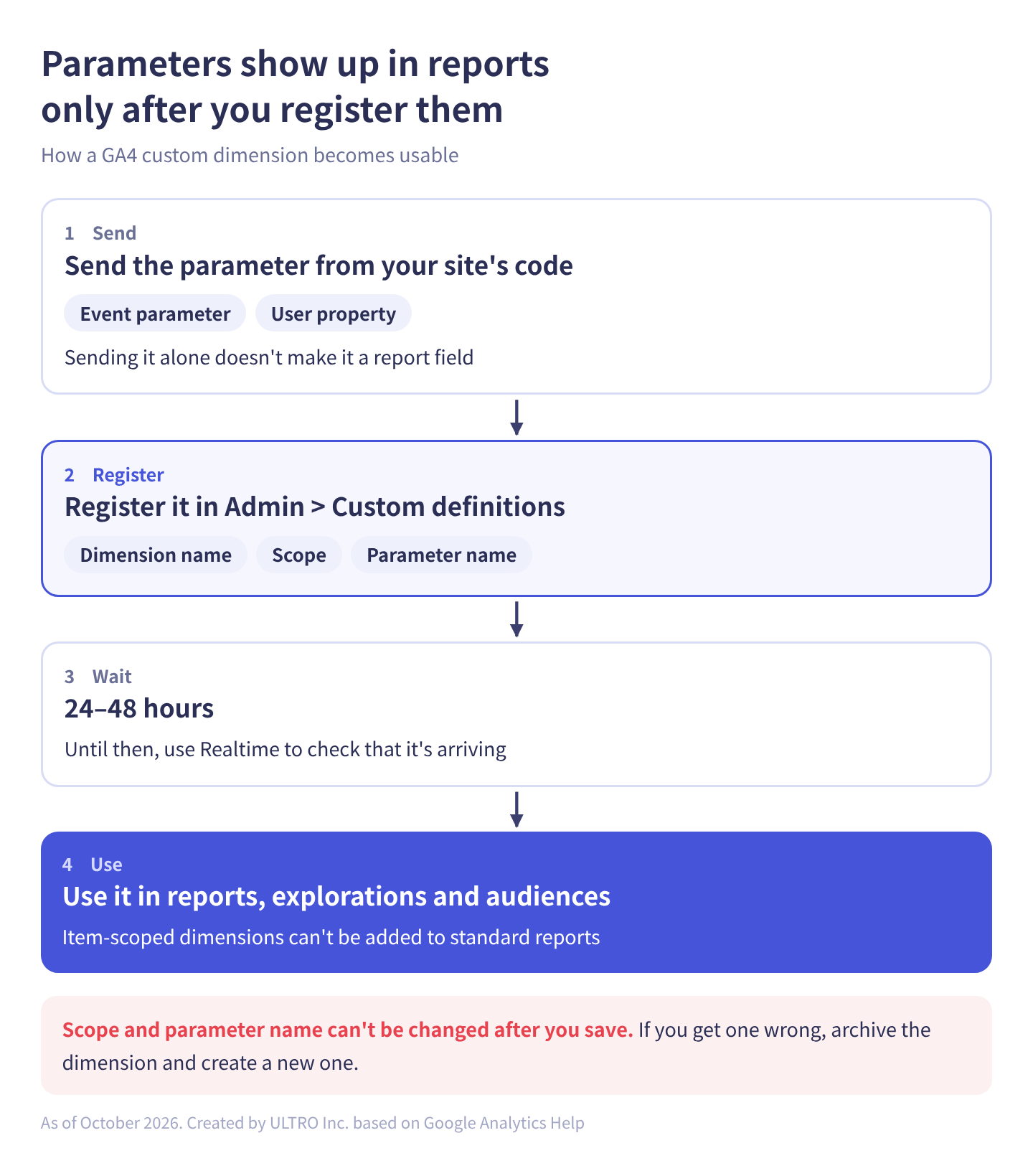
Here’s how the terms fit together:
| Term | What it is | Example |
|---|---|---|
| Event parameter | Extra detail sent with an event | payment_type on purchase |
| User property | Information sent about a person | Membership tier |
| Custom dimension | A parameter you’ve registered as a report field | A “Payment type” dimension |
| Custom definitions | The Admin page where you register custom dimensions and metrics | Admin > Data display > Custom definitions |
Once registered, a custom dimension can be used in standard reports (except item-scoped ones), explorations and audience conditions. It also becomes available in the GA4 Data API (the API for pulling report data); Google’s developer docs say requests for unregistered parameters fail.
Don’t register parameters GA4 already has a predefined dimension for. Google’s help center says you shouldn’t create a custom dimension when a predefined one already exists; doing so just uses up quota. For example, coupon on purchase (Order coupon) and shipping_tier on add_shipping_info (Shipping tier) are already in GA4’s dimension list. How to send events and parameters in the first place is covered in our GA4 events guide.
Custom dimensions vs custom metrics
Custom dimensions put category values into table rows; custom metrics sum numbers into table values. You create both on the same Custom definitions page, on different tabs.
| Custom dimension | Custom metric | Calculated metric | |
|---|---|---|---|
| Used for | Category values (payment type, membership tier, product color) | Sums of numbers (points, distance, time) | A formula combining existing metrics |
| Where it appears in a table | Rows (or column headers) | Values | Values |
| Scope | Event, user, item | Event only | — |
| Limit (standard / 360) | Per scope (table below) | 50 / 125 | 5 / 50 |
| What you choose when creating | Scope, parameter name | Parameter name, unit of measurement | Formula |
A custom metric’s unit of measurement is Standard, Currency, Distance or Time. For money values such as revenue or cost, pick Currency and say whether it’s cost data or revenue data (access to these can be restricted by user role).
A value that looks like a number but doesn’t make sense to add up is a dimension. A size code or a membership tier from 1 to 5 means nothing when summed, so register it as a dimension. Google’s help center likewise recommends event-scoped custom dimensions, not custom metrics, for category data such as which text was clicked or which page was viewed.
Custom dimension scopes: event, user and item
Pick the scope that matches where the parameter is attached. A parameter on an event is event-scoped, a user property is user-scoped, and a parameter inside the items array is item-scoped. In the setup form, the Scope options are Event, User and Item.
| Scope | What the value belongs to | Field name in the form | Limit (standard / 360) | Where you can use it | Ecommerce example |
|---|---|---|---|---|---|
| Event | That single event | Event parameter | 50 / 125 | Reports, explorations, audiences | Payment type or delivery method per purchase |
| User | That person (carried to later events) | User property | 25 / 100 | Reports, explorations, audiences | Membership tier |
| Item | One product in the items array | Event parameter | 10 / 25 | Explorations, audiences (not standard reports) | Product material, whether it’s a subscription product |
As of October 2026, there’s no session scope for custom dimensions. To build your own session-level grouping, use a different feature, such as custom channel groups.
The wrong scope means no values, or values counted at the wrong level. Register color from inside items as event-scoped and you get nothing. Send payment type, which changes per purchase, as a user property and it sticks to the person, so you can’t see it per purchase. Analyze item-scoped dimensions in explorations with item-level metrics such as Item revenue; paired with event-level metrics, they show no values or misleading numbers.
How to create a custom dimension in GA4
You create custom dimensions in Admin, under Data display, in Custom definitions. You need the Editor role or above on the property.
Before you start: send the parameter
You register a parameter that’s already arriving in GA4. If you aren’t sending it yet, send it from your site first. The two common ways:
- Google Tag Manager: in your “Google Analytics: GA4 Event” tag, add a row under Event Parameters with the parameter name (for example payment_type) and its value (a data layer variable, for example). User properties go under User Properties in the same tag.
- gtag.js: add the parameter to the code that sends the event.
gtag('event', 'purchase', {
  transaction_id: '1001',
  value: 89.00,
  currency: 'USD',
  items: [{ item_id: 'SKU-001', item_name: 'Art Print A2', price: 89.00, quantity: 1 }],
  payment_type: 'credit_card'  // a parameter you added
});
Parameter names should start with a letter and use only letters, numbers and underscores. Per Google’s help center, parameter names can’t start with _, firebase_, ga_, google_ or gtag. (user property names can’t start with _, firebase_, ga_ or google_).
You can’t add your own parameters to purchases sent by Shopify’s Google & YouTube app. To add them, send purchases to GA4 with a custom pixel instead. If both the app and the custom pixel send the same purchase, you’ll double count, so keep one route. See our Shopify custom pixels guide for how, and GA4 Duplicate Transactions on Shopify for how to check for double counting.
Once you’re sending, check that it arrives. In the Realtime report, click an event name in the Event count by Event name card to see the names and values of its parameters. For user properties, use the Users by User property card. Checking in DebugView, which shows your own test hits one by one, is covered in our Google Tag Assistant guide.
Setup steps
- In GA4, click Admin at the bottom left, then under Data display, click Custom definitions.
- On the Custom dimensions tab, click the blue Create custom dimension button at the top right.
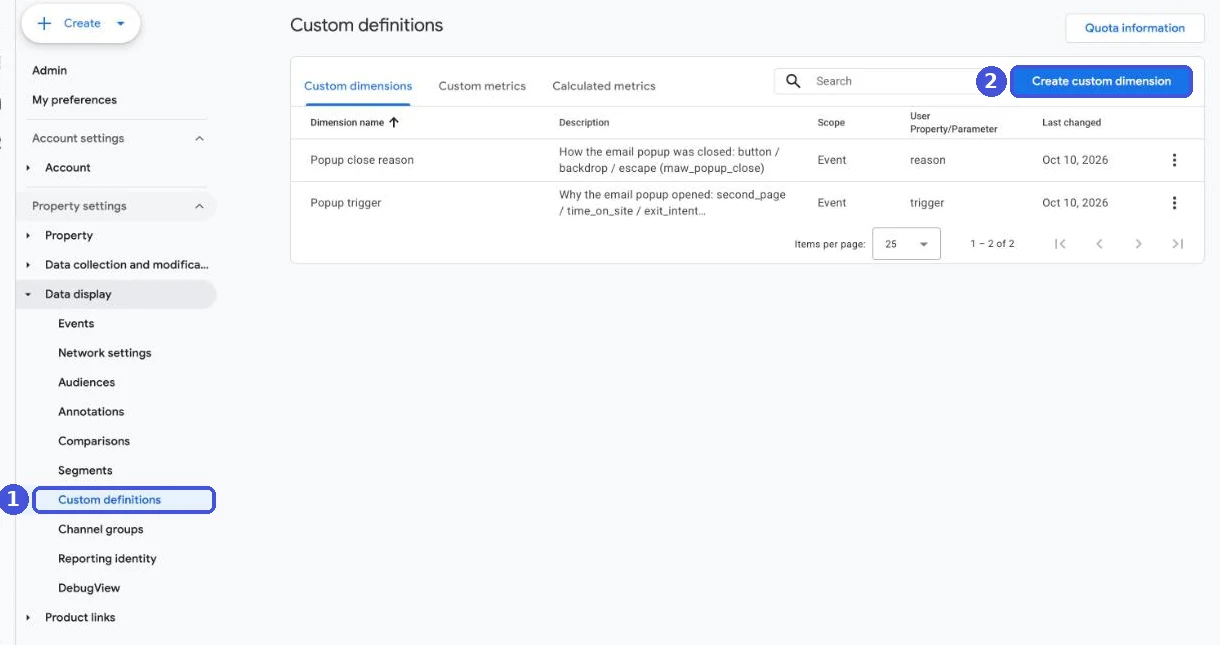
- In the New custom dimension panel, enter a Dimension name: the name shown in reports. It must be unique in the property. Hyphens aren’t allowed; underscores and spaces are.
- Under Scope, choose Event, User or Item. For a parameter inside items, choose Item.
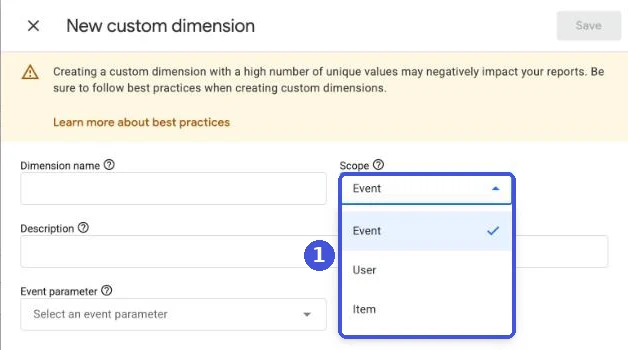
- Description is optional. A note on what the parameter is for helps whoever looks at it later.
- Pick the parameter from the Event parameter dropdown, which lists parameters GA4 has received. If yours isn’t listed, type the exact name your code sends (for user scope, the field is User property; enter the user property name).
- Click Save at the top right.
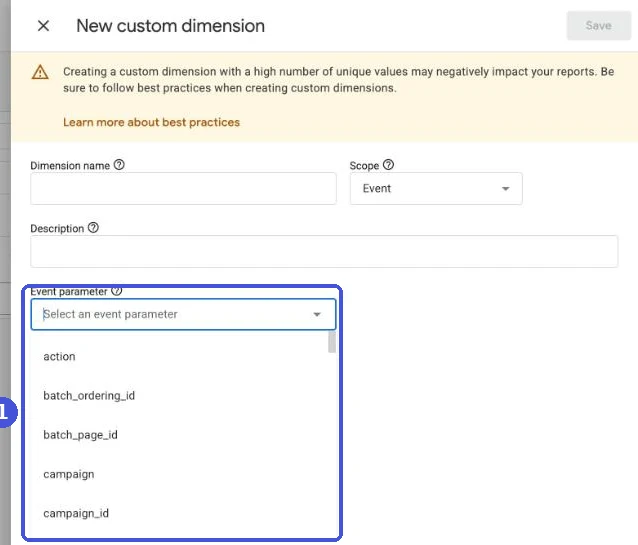
After saving, you can’t change the scope or parameter name. If you get one wrong, archive the dimension and create a new one (see “Limits and things to watch”).
Example: payment type per purchase
Google’s help center example registers payment_type from add_payment_info as a payment type dimension:
| Field | Value |
|---|---|
| Dimension name | Payment type |
| Scope | Event |
| Description | The chosen method of payment |
| Event parameter | payment_type |
This example alone doesn’t let you break purchases or revenue down by payment type. In Google’s recommended events, payment_type is a parameter of add_payment_info, not purchase. To split purchases, send payment_type with purchase too. Because custom dimensions are registered by parameter name, the values on purchase land in the same “Payment type” dimension. Where to get the value on Shopify is covered in “Useful custom dimensions for ecommerce” below.
Using custom dimensions in reports, explorations and audiences
Add a registered custom dimension in explorations from the + next to Dimensions in the Variables column, in standard reports from Customize report, and in audiences from the Custom option when adding a condition. It becomes available 24 to 48 hours after you register it.
In explorations
- Open Explore in the left menu and create or open a free-form exploration.
- In the Variables column, click + next to Dimensions.
- Click the Custom tab, check the dimension you registered, and click Import.
- Drag it from the Variables column to Rows or Columns in the Settings column.
In standard reports: with the Editor role or above, click Customize report at the top right of a detail report, add the dimension, and save. Item-scoped custom dimensions can’t be added to standard reports.
In audiences: in Admin, open Audiences, click New audience > Create a custom audience, then choose Custom under Add new condition to use a registered dimension as a condition.
Custom dimension limits and things to watch
Standard GA4 properties allow 50 event-scoped, 25 user-scoped and 10 item-scoped custom dimensions. Click Quota information at the top right of the Custom definitions page to see how many you’ve used.
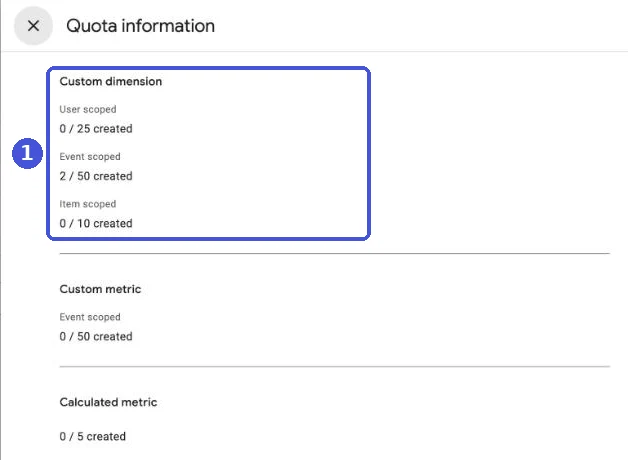
All the limits:
| Type | Standard property | Analytics 360 |
|---|---|---|
| Event-scoped custom dimensions | 50 | 125 |
| User-scoped custom dimensions | 25 | 100 |
| Item-scoped custom dimensions | 10 | 25 |
| Custom metrics | 50 | 125 |
| Calculated metrics | 5 | 50 |
For item scope, you can send up to 27 custom parameters inside items, of which 10 can be registered as dimensions on a standard property. There are also sending limits: event and parameter names up to 40 characters, parameter values up to 100 characters, and 25 parameters per event (all for standard properties). The full list of sending limits is in our GA4 events guide.
What not to register
Google advises against unnecessary high-cardinality custom dimensions on standard properties, and the setup form warns that dimensions with many unique values can hurt reports. The help center’s examples are a unique ID per user (use the User-ID feature instead), session IDs and timestamps. Too many values and rows get grouped into “(other)” in reports and explorations. For a store, you might be tempted to register the order number, but it already exists as Transaction ID.
Numbers
Any value that looks like a number is treated as one, even if you send it as text. In Google’s examples, “9343.324234” becomes 9343.32 and “94E40” becomes 9.4e+41. For values with leading zeros, such as product codes, or anything that could read as scientific notation, include a letter. Also, integer event parameters aren’t parsed for event-scoped custom dimensions in apps, but are for web events.
Archiving can’t be undone
To remove a dimension you no longer use, open the More menu on its row on the Custom definitions page and choose Archive. Archiving is permanent.
- Audiences that use it stop adding new users
- Explorations and segments that use it won’t load (they load again once you remove the dimension)
- Reports you added it to become invalid until you remove it
The archive screen lists the affected audiences and explorations and lets you Export as CSV. If you were at the limit, you have to wait 48 hours after deleting before you can use the freed slot.
GA4 custom dimension not showing or showing (not set)
Most of the time, a missing custom dimension means you haven’t waited long enough, or the name you send doesn’t match the name you registered. By symptom:
| Symptom | Likely cause | How to check and fix |
|---|---|---|
| Registered, but not in the report or exploration lists | Less than 24–48 hours since registering | Wait. Meanwhile, use Realtime to check the parameter arrives |
| Every value is (not set) | Registered name differs from the sent name (case, spelling, underscores) | Check the name in Realtime’s Event count by Event name card. The parameter name can’t be edited after saving, so recreate the dimension |
| Every value is (not set) | The parameter isn’t arriving (tag setup, consent declined, etc.) | Check in DebugView or Realtime that the event carries the parameter |
| (not set) on some rows only | Rows for events that don’t carry the parameter | Normal. Filter by event name first |
| (not set) on the day you registered | Values can show (not set) for the first 24 hours | Look at a period starting more than 24 hours after registering |
| No values before the registration date | Data from before registration | See below |
| Item-scoped values don’t appear | A parameter inside items was registered as event-scoped, or you’re looking at a standard report | Recreate with Item scope and look in an exploration |
| Values grouped into (other) | Too many unique values | Reduce the variety of values, or use BigQuery |
The one you’ll see most is “(not set) on some rows only.” If only purchase carries payment_type, putting Payment type as the dimension and Event count as the metric drops page_view and every other non-purchase event into the (not set) row. Filter Event name to purchase and it goes away. Events GA4 sends automatically, such as session_start and first_visit, also show (not set) when they don’t have the value.
About data from before you registered
Google’s help center doesn’t say that data received before registration gets custom dimension values. In practice, assume values start from when you register. Register parameters the same day you add them to your tags.
If you really need the history and you export to BigQuery (Google’s database you can export GA4 event data to), the parameters you added are in the event data (event_params). Assume there’s nothing from before you set up the export, though. See our GA4 BigQuery export guide for how it works, and (not set) in Google Analytics 4 for what (not set) means and why it appears in other dimensions.
Useful custom dimensions for ecommerce
For ecommerce, register custom dimensions when you want to split purchases or revenue by something GA4 doesn’t have out of the box. On Shopify, the custom pixel checkout completion event (checkout_completed) carries the order details. Take values from it, send them as purchase parameters from a custom pixel, register them, and you can break down revenue like this. The Google & YouTube app’s purchase tracking alone can’t send these values.
| What you want to see | Example parameter name | Value in Shopify’s checkout_completed event | Scope |
|---|---|---|---|
| Purchases and revenue by payment type | payment_type | The transaction’s payment method type (paymentMethod.type) or the payment provider name (gateway) | Event |
| First order vs repeat order | first_order | Whether it’s the customer’s first order (order.customer.isFirstOrder) | Event |
| Shipping vs pickup | delivery_type | The selected delivery option type (type in delivery.selectedDeliveryOptions: shipping, pickup, pickupPoint, local) | Event |
| Whether it’s a subscription product | selling_plan | The product’s selling plan allocation (sellingPlanAllocation in lineItems) | Item |
The parameter names are examples. Use lowercase letters and underscores, and the same name on the sending and registering side. Shopify’s docs say paymentMethod, isFirstOrder, sellingPlanAllocation and delivery are only available on stores that have upgraded to Checkout Extensibility. With the Thank you and Order status page upgrade deadline (August 26, 2026 for non-Plus stores) behind us, we expect most stores to have them as of October 2026, but some orders may have empty values. When a value is empty, either don’t send it or send a fixed value such as unknown. Orders can have several transactions (a gift card plus a card, for example), so decide which transaction’s value you send.
Since you can name parameters freely, keep a shared list of names and meanings. Otherwise the same thing ends up under different names and eats into your quota. How to send to GA4 from a custom pixel and what’s in checkout_completed is covered in our Shopify custom pixels guide. To check how Shopify and GA4 are connected in the first place, see our Shopify Google Analytics setup guide.
One caveat: parameters added by a custom pixel only appear on purchases the browser tag sent. If the Thank you page never loaded and the tag never fired, the purchase doesn’t reach GA4, parameters and all. If purchases paid through off-site providers such as PayPal look low when you break down by payment type, your missing purchases may be concentrated there.
Telling server-sent purchases apart with a custom dimension
If you add a flag parameter to purchases you send from a server, for example with the Measurement Protocol (Google’s way to send events to GA4 from a server), you can register it as an event-scoped custom dimension and separate those purchases from tag purchases. Parameters sent with the Measurement Protocol, like those sent by browser tags, don’t appear in reports until you register them.
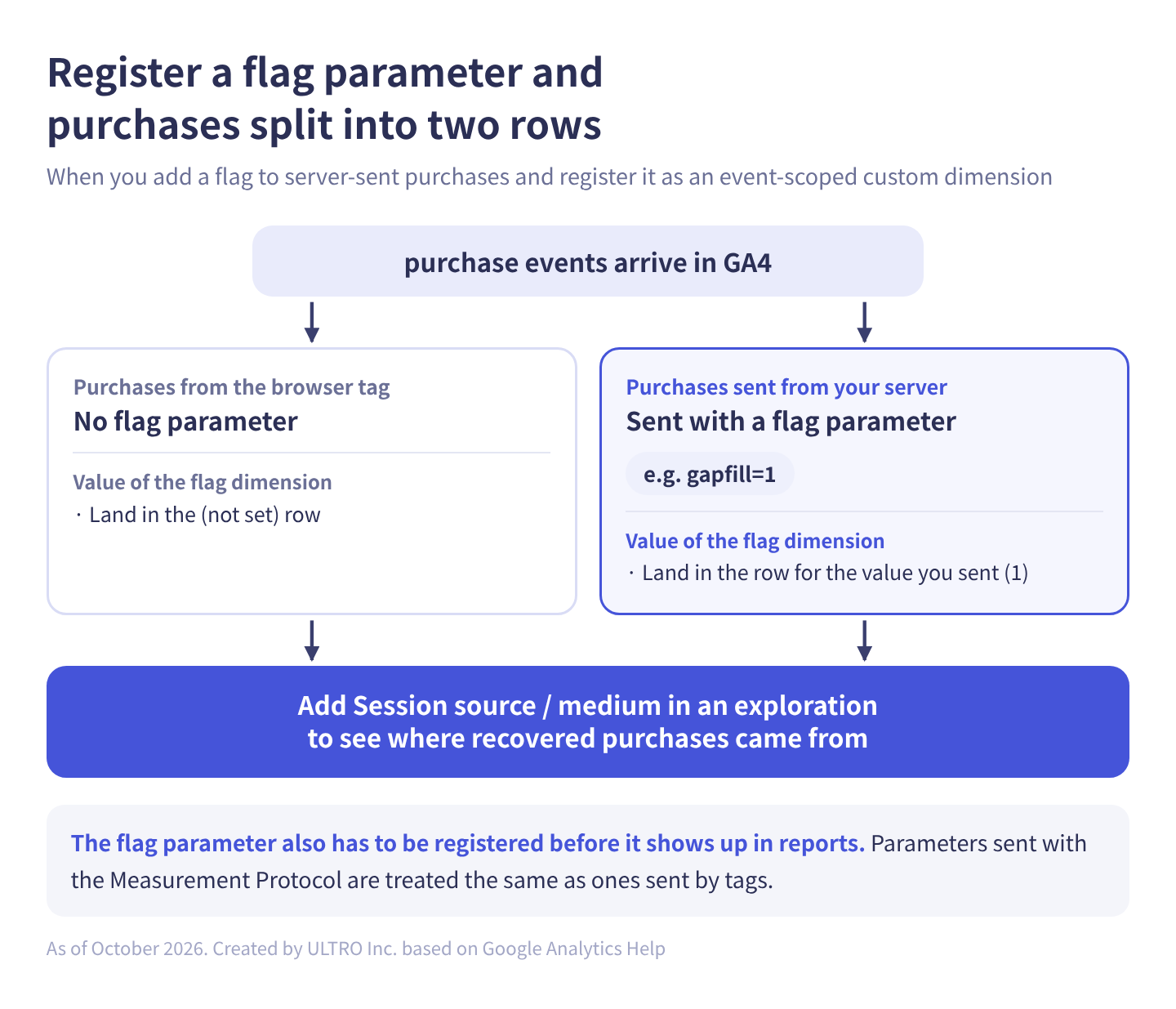
Once registered, flagged purchases land in the row for their value and tag purchases in the (not set) row. In an exploration, put the flag dimension and Session source / medium as dimensions and Purchase revenue and Transactions as metrics, and you can see how many recovered purchases went to which source. How to send and the limits are in the GA4 Measurement Protocol guide.
Our Shopify app GapFill recovers missing GA4 purchase events server-side and works alongside your existing tags. It’s our own product, so read with that in mind. Every purchase it sends carries the event parameter gapfill=1, so registering gapfill as an event-scoped custom dimension lets you filter them in explorations (GapFill’s help has the same steps). Its missing purchases report is free. Why purchases go missing and how to check is in GA4 Not Tracking All Shopify Purchases?
Our Shopify appGapFill: Recover missing GA4 purchase events server-sideWorks alongside your existing tags. Free missing purchases report.See GapFill →Sources
- [GA4] About custom dimensions and metrics (Google Analytics Help)
- [GA4] Create event-scoped custom dimensions (Google Analytics Help)
- [GA4] Create user-scoped custom dimensions (Google Analytics Help)
- Create item-scoped custom dimensions (Google Analytics Help)
- Event naming rules (Google Analytics Help)
- [GA4] Create custom metrics (Google Analytics Help)
- [GA4] Archive custom dimensions and metrics (Google Analytics Help)
- Customize dimensions in detail reports (Google Analytics Help)
- [GA4] The value ‘(not set)’ in reports (Google Analytics Help)
- [GA4] BigQuery Export schema (Google Analytics Help)
- API Dimensions & Metrics (Google for Developers)
- checkout_completed (Shopify.dev)
FAQ
What is a custom dimension in GA4?
It's a setting that registers an event parameter or user property you send so GA4 can use it as a field in reports and explorations. GA4 doesn't turn parameters with names of your own into report fields until you register them. You do that in Admin, under Data display, in Custom definitions.
What's the difference between custom dimensions and custom metrics?
Custom dimensions hold category values, such as payment type or membership tier, that you list as rows in a table. Custom metrics hold numbers, such as loyalty points, that GA4 sums and shows as values. A number that doesn't make sense to add up, such as a size code, should be registered as a dimension.
Why isn't my custom dimension showing in reports?
The usual causes are that 24 to 48 hours haven't passed since you created it, the parameter name doesn't exactly match what you send (spelling or capitalization), or the parameter isn't arriving at all. In the Realtime report, click an event in the Event count by Event name card to see which parameters it carries.
Do custom dimensions apply to historical data?
Google's help center doesn't say that data received before you register a dimension gets populated. We work on the assumption that it doesn't, so register the parameters you want before you need them. If you export to BigQuery, unregistered parameters are still in the event data there.
Why does my custom dimension show (not set)?
It shows (not set) when an event doesn't carry a value for the parameter: during roughly the first 24 hours after you register it, in rows for events you never added the parameter to, and on session_start or first_visit when the triggering event didn't have the value. Rows for events without the parameter showing (not set) is normal.
How many custom dimensions can you have in GA4?
Standard properties allow 50 event-scoped, 25 user-scoped and 10 item-scoped custom dimensions, plus 50 custom metrics. Analytics 360 allows 125, 100, 25 and 125. Click Quota information at the top right of the Custom definitions page to see how many you've used.
- A custom dimension registers a parameter you send so you can use it in reports and explorations. Sending it alone doesn't make it show up.
- There are three scopes: event, user and item. Pick the one that matches what the value belongs to. It can't be changed after you save.
- Register in Admin > Custom definitions. It takes 24 to 48 hours to become available. Assume earlier data won't get values, and register first.
- Standard properties allow 50 event-scoped, 25 user-scoped and 10 item-scoped dimensions. Don't register high-cardinality values such as order IDs.
- Add a flag parameter to purchases sent from your server and register it as an event-scoped dimension to separate them from tag purchases.
Written byRyushi Nagata
CEO, ULTRO Inc. (Tokyo)Shopify Partner. Ryushi handles Shopify store builds, maintenance, advertising and CRM end to end, and has managed more than ¥4 billion in ad spend over his career. He holds Google Ads certifications (Search, Display, Video, Shopping, Apps, Performance Max, Measurement) and the Google Analytics certification.
How many purchases is GA4 missing in your store?
GapFill matches your Shopify orders against GA4 purchases, shows what GA4 missed, and recovers those purchase events server-side. It works alongside your existing tags, and the missing purchases report is free.