GA4 Key Events vs Conversions: Setup and Counting for Stores

How key events differ from Google Ads conversions, which events to mark for an online store, setup and counting methods, and why GA4 and Google Ads report different numbers.
GA4 reports have a Key events column where Conversions used to be. It looks like a simple rename, but key events and Google Ads conversions now have different jobs, and if you miss that distinction it’s hard to see why GA4 and Google Ads never report the same number.
This article covers what key events are, which events an online store should mark, how to set them up and choose a counting method, and how key events relate to Google Ads conversions, including why the numbers don’t match. Screens are as of October 2026. For the rest of GA4’s metrics, see GA4 Metrics Explained, and for the basics of reading GA4, see How to Use GA4.
What are key events in GA4?
Key events are the events sent to GA4 that you’ve decided to count as results, such as purchases or contact form submissions. Click the star next to an event name and it becomes a key event.
Key events vs conversions
GA4 used to call these conversions. Because Google Ads conversions had the same name but were counted differently, GA4’s side was renamed to key events. In the GA4 Data API, the change landed in May 2024, when the conversions metric was replaced by keyEvents.
Here’s how the names and roles split now.
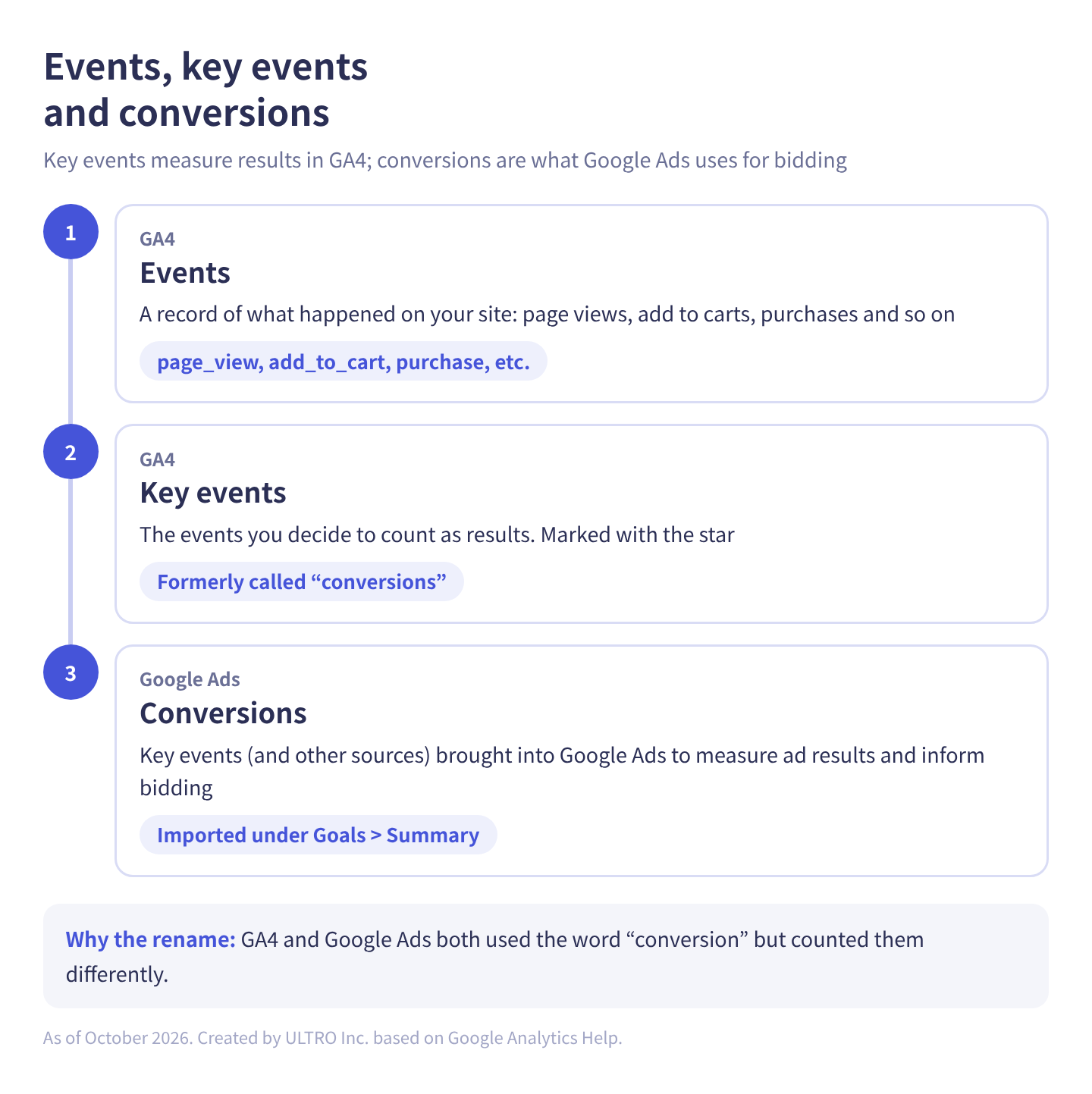
As a table:
| Name | Where it lives | What it does |
|---|---|---|
| Event | GA4 | Records something that happened on your site (a page view, an add to cart, a purchase) |
| Key event | GA4 | An event you’ve decided to count as a result |
| Conversion | Google Ads | A key event (or other action) brought into Google Ads to measure ads and inform bidding |
A GA4 key event only becomes a conversion once it’s imported into Google Ads. Look at key events when you’re measuring results in GA4, and at conversions when you’re in Google Ads. For more on how events themselves work, see GA4 Events Explained.
Which events an online store should mark as key events
| Event | What happened | Mark it? |
|---|---|---|
| purchase | A purchase | Yes. It’s a key event by default |
| begin_checkout | Checkout started | If needed: when purchases are too few for ad bidding to learn from |
| add_to_cart | Added to cart | If needed, but it makes the Key events total harder to read |
| generate_lead | Contact or quote request | Yes, if you take wholesale or B2B inquiries |
| sign_up | Account created | Yes, if growing sign-ups is a goal |
purchase is marked as a key event by default. In the properties we’ve checked, its star is grayed out and it can’t be unmarked from the menu.
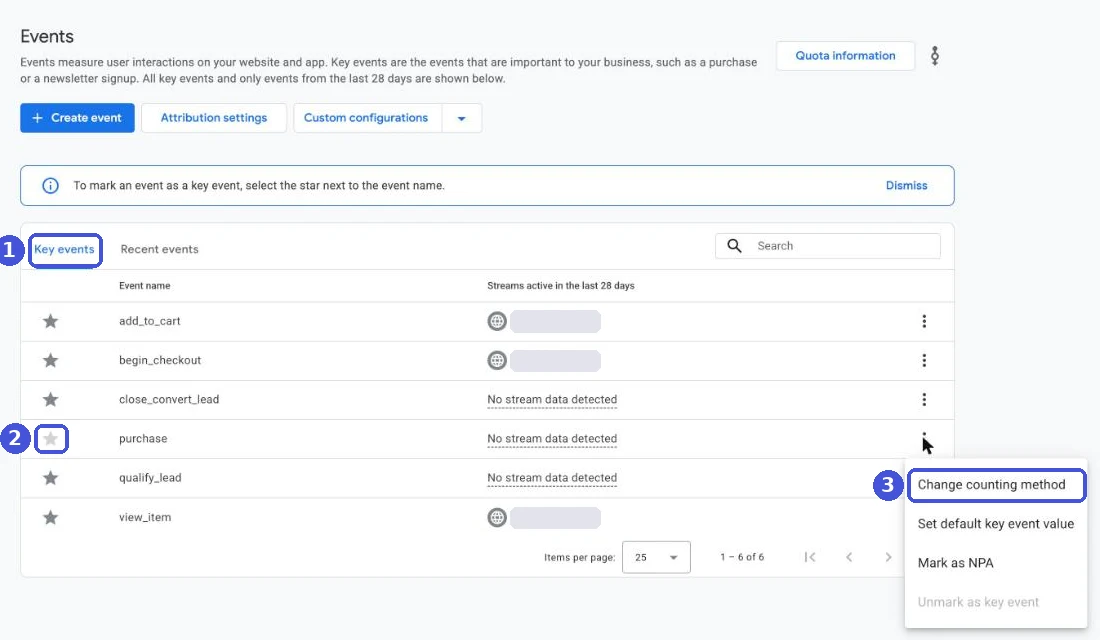
Some events get marked automatically by ads settings
If GA4 is linked to Google Ads with ads personalization turned on, events such as add_to_cart, begin_checkout, view_item and view_item_list can be marked as key events automatically. In a property we checked, add_to_cart, begin_checkout and view_item had all become key events this way.
Our own take: keep key events to a minimum. By default, the Key events column in reports is the total of all key events, so if view_item is a key event too, you can’t tell at a glance how many purchases there were. Open the key events list every so often and check that nothing is marked that you didn’t intend.
How to set up key events
- In Admin, under Data display, click Events.
- On the Recent events tab, click the star next to the event you want to mark.
- Check that the event now appears on the Key events tab.
To mark an event that GA4 hasn’t received yet, click Create event, enter the event name and turn on Mark as key event. GA4 starts treating it as a key event once it’s collected. You can have up to 30 key events per property (50 on Analytics 360).
The two counting methods
You choose how each key event is counted. On the Key events tab, click the menu at the right end of the event’s row and choose Change counting method.
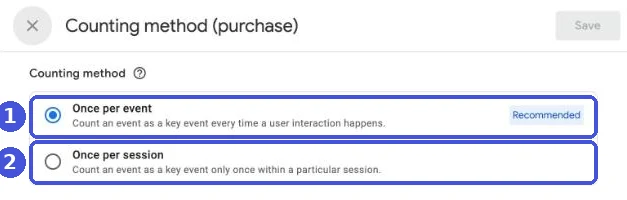
| Counting method | How it counts | Best for |
|---|---|---|
| Once per event (recommended) | Every time it happens; two in one visit count as two | Purchases |
| Once per session | Once per visit, however many times it happens | Contact forms, quote requests, sign-ups |
Once per event is the default for most key events. Key events created from Universal Analytics goals, whether automatically or through the goals migration tool, default to Once per session. If purchase is on Once per session, two purchases in one visit count as one, so check it.
Changing the counting method doesn’t touch past data; it only applies from that point on.
Importing key events into Google Ads
To use a GA4 key event as a Google Ads conversion, link GA4 and Google Ads first. Then in Google Ads, go to Goals > Summary, click Create conversion action, choose your GA4 property and select the events to import. You can also do it from GA4 under Advertising > Tools > Conversion management. For Enhanced Conversions, see Google Ads Enhanced Conversions. For the full Google Ads setup and how to check tracking when conversions aren’t recorded, see Google Ads Conversion Tracking.
Why GA4 and Google Ads numbers don’t match
Even after importing, GA4 key events and Google Ads conversions won’t match. The main reasons:
| Difference | GA4 | Google Ads |
|---|---|---|
| Date it’s reported on | The day the key event happened | The day of the ad interaction |
| Attribution credit | Can go to channels other than Google Ads | Only to Google Ads interactions |
| Attribution model | Set in the property | Set per conversion action |
| Lookback window | Set in the property | Set per conversion action |
| Time zone | Property setting | Ads account setting |
| Counting method | Key event setting | Conversion action setting |
For example, if someone clicks an ad on the last day of the month and buys early the next month, Google Ads reports it in the month of the click and GA4 in the following month. For a fuller picture of why GA4, ad platforms and Shopify disagree, see Ecommerce Attribution.
If GA4 purchases are lower than your Shopify orders, there’s a separate cause besides counting differences: purchases where the tag never ran in the browser never reach GA4. If you import GA4 purchases into Google Ads, those orders are missing from your ad results too. How to check is in GA4 Not Tracking All Shopify Purchases?
We built a Shopify app, GapFill, that recovers missing GA4 purchase events server-side, sending only the orders GA4 never received. It’s our own product, so read with that in mind. It works alongside your existing tags, and the missing purchases report is free.
Our Shopify appGapFill: Recover missing GA4 purchase events server-sideWorks alongside your existing tags. Free missing purchases report.See GapFill →Attribution settings
Change GA4’s attribution settings in Admin under Data display > Attribution settings. By default, the lookback window is 30 days for acquisition key events (first_visit, first_open) and 90 days for all other key events. Rule-based models such as first click and linear were retired in November 2023, so you now choose between data-driven and last-click models.
Reading key events in reports
Reports such as Traffic acquisition have Key events and Session key event rate columns on the right. Click All events under the column name and choose purchase to see the number of purchases and the share of sessions with a purchase.
| Metric | Meaning |
|---|---|
| Key events | How many times key events were recorded |
| Session key event rate | Share of sessions with at least one key event |
| User key event rate | Share of users who triggered at least one key event |
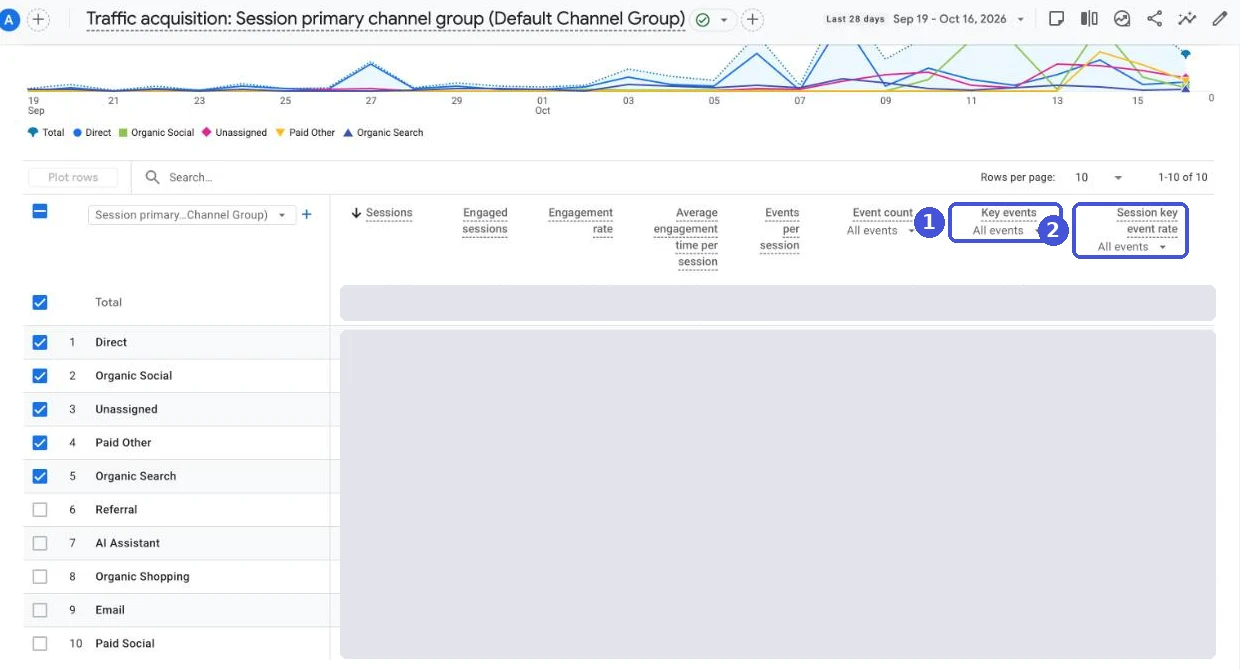
Because the default view totals all key events, filter to purchase before reading the numbers for an online store. How to read purchases by traffic source is covered in How to Use GA4.
Sources
- [GA4] About key events (Google Analytics Help)
- [GA4] Conversions vs. key events in Google Analytics (Google Analytics Help)
- [GA4] Mark events as key events (Google Analytics Help)
- [GA4] Change the counting method of key events (Google Analytics Help)
- [GA4] Create Google Ads conversions based on Google Analytics key events (Google Analytics Help)
- Import Google Analytics key events into Google Ads (Google Ads Help)
- Factors causing conversion data discrepancies (Google Ads Help)
- [GA4] Select attribution settings (Google Analytics Help)
- Data API changelog (Google for Developers)
FAQ
What's the difference between key events and conversions in GA4?
A key event is an event you've marked in GA4 as a result worth counting. A conversion is a key event (or other action) brought into Google Ads to measure ad performance and inform bidding. GA4 used to call key events conversions too; the name changed so the two wouldn't be confused.
Which events should an online store mark as key events?
Start with purchase, which is a key event by default. You can also mark begin_checkout or add_to_cart, but they get added into the Key events total in reports, so the more you mark, the harder the reports are to read.
How many key events can I have?
Up to 30 per standard property, and up to 50 per Analytics 360 property.
Which counting method should I use?
Keep purchase on Once per event so two purchases in one visit count as two. Use Once per session for events like contact form submissions or sign-ups that you want to count only once per visit no matter how many times they fire. Changes only apply going forward.
Why don't my GA4 key events match my Google Ads conversions?
They're counted differently. Google Ads reports a conversion on the date of the ad interaction, while GA4 reports it on the date the key event happened. Differences in which channels can receive credit, attribution models, lookback windows, time zones and counting methods also make the numbers drift.
- Key events are the GA4 events you count as results. They used to be called conversions.
- Conversions are what Google Ads uses to measure ads and bid, usually imported from GA4 key events.
- For an online store, purchase is a key event by default.
- Google recommends Once per event. Keep purchase on it.
- GA4 and Google Ads don't match because of reporting dates, attribution credit, models, lookback windows, time zones and counting methods.
Written byRyushi Nagata
CEO, ULTRO Inc. (Tokyo)Shopify Partner. Ryushi handles Shopify store builds, maintenance, advertising and CRM end to end, and has managed more than ¥4 billion in ad spend over his career. He holds Google Ads certifications (Search, Display, Video, Shopping, Apps, Performance Max, Measurement) and the Google Analytics certification.
How many purchases is GA4 missing in your store?
GapFill matches your Shopify orders against GA4 purchases, shows what GA4 missed, and recovers those purchase events server-side. It works alongside your existing tags, and the missing purchases report is free.